Quick steps: In the Instagram app, tap Profile, then Menu, then Story, live and location > Hide story and live from. Pick the people, then tap Back (Android) or Done (iPhone). They are not told, and they still see your posts.
Hide your story in settings
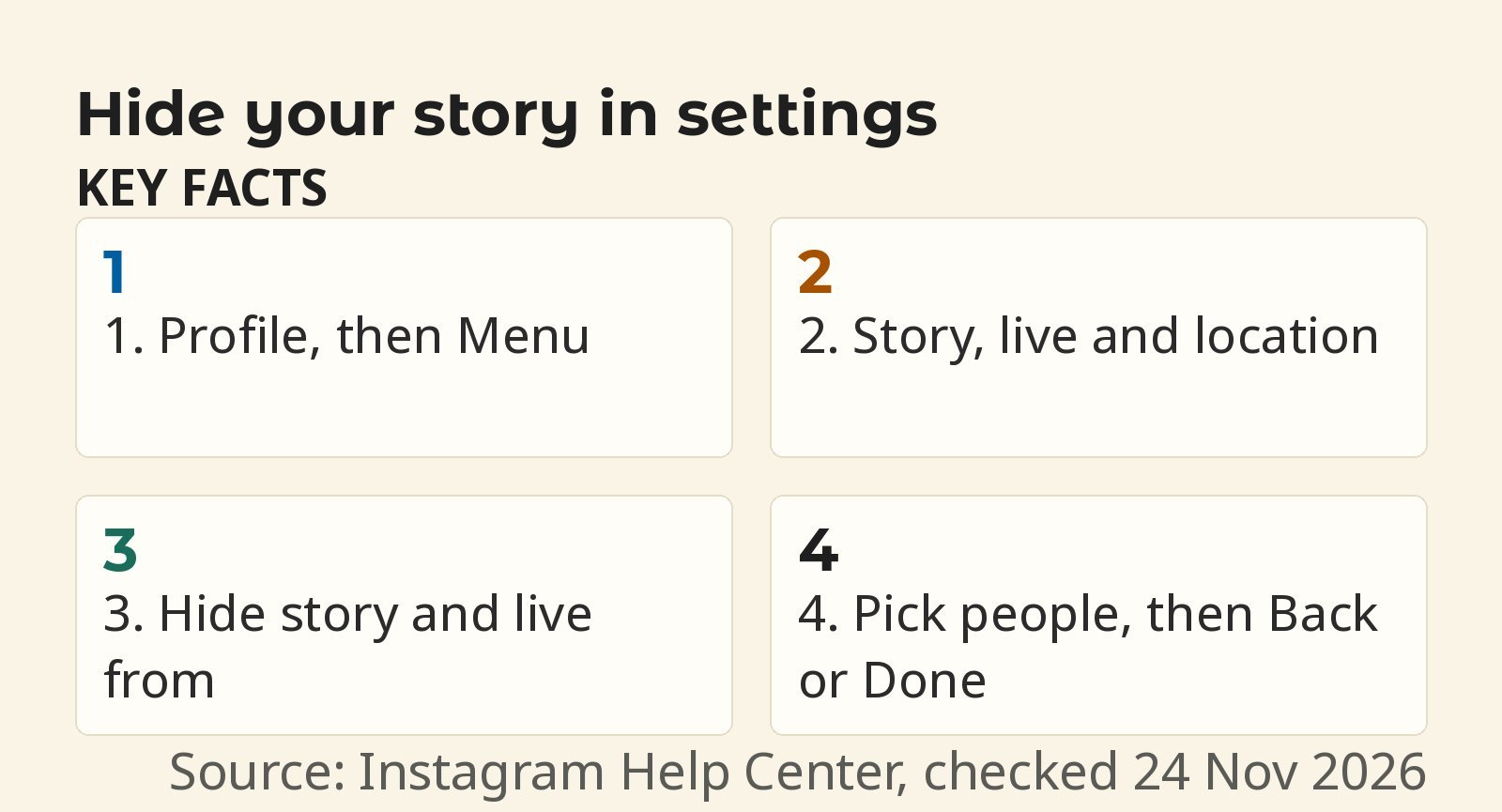
This route works best when you want to hide your story from several people at once. The path below comes from Instagram’s help page on hiding your story.
- Open Instagram and tap Profile at the bottom right.
- Tap Menu, the three lines at the top right.
- Under Who can see your content, tap Story, live and location.
- Tap Hide story and live from. On iPhone, the label may read Hide your story and live videos from specific people.
- Select each person, then tap Back on Android or Done on iPhone.
wikiHow (updated 24 Aug 2026), Social How-To (last verified 6 Oct 2026) and The Filibuster Blog (updated 6 Nov 2026) list the same taps. We did not test this on a phone, so labels on your version may differ a little.
On a computer, The Filibuster Blog gives a similar path. Click More, then Settings > Story, live and location > Hide story and live from.
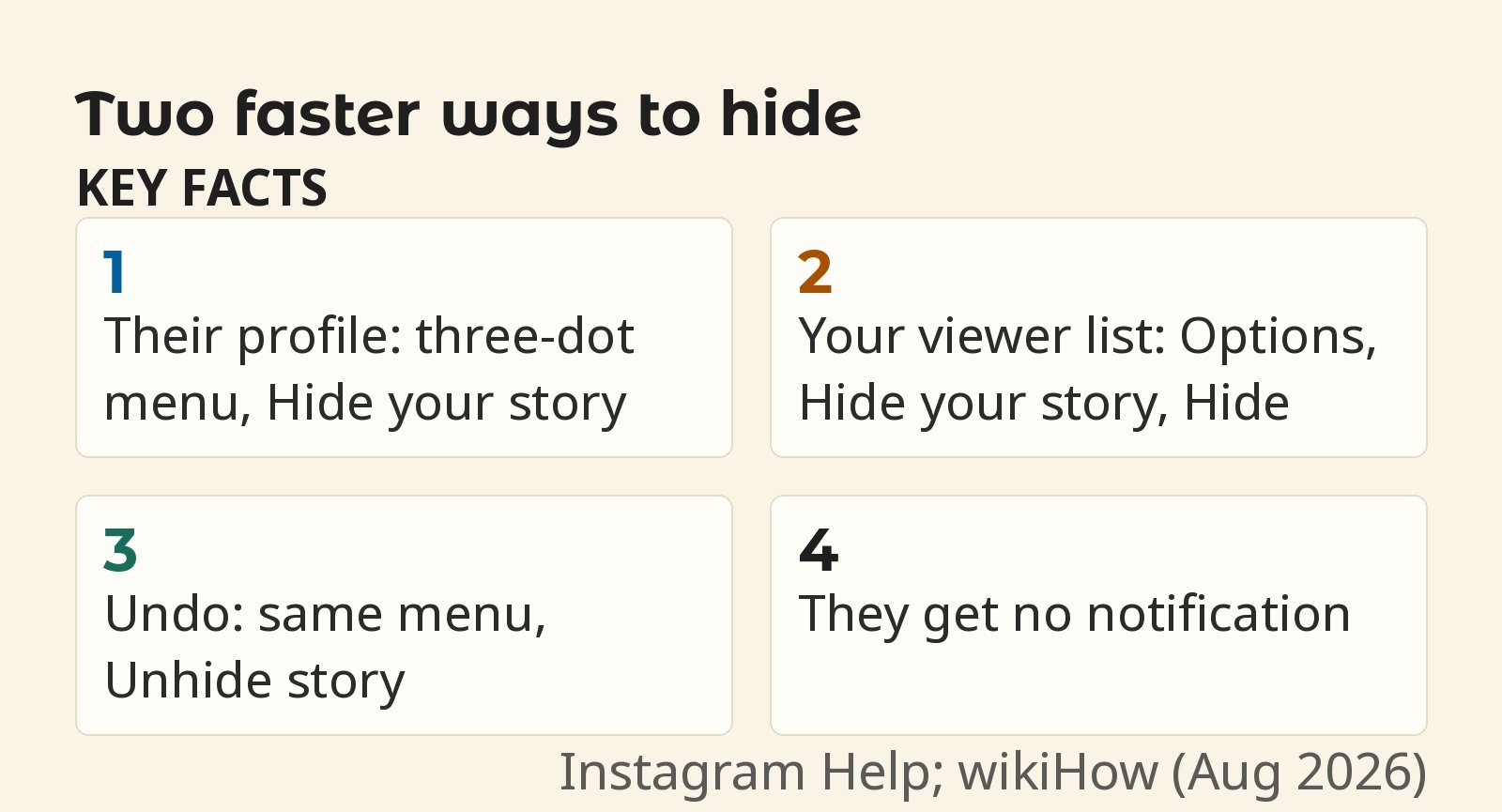
Two faster ways to hide your story
You do not have to open settings to hide your story from one person. Both shortcuts below give the same result.
From their profile
- Open the person’s profile.
- Tap the three-dot menu at the top right.
- Tap Hide your story.
wikiHow lists this method. To undo it, open the same menu and tap Unhide story.
From your story viewer list
- Open your own story and view who has seen it.
- Tap Options next to the person’s name.
- Tap Hide your story, then tap Hide to confirm.
Instagram’s help page describes this viewer-list option. The Filibuster Blog gives the same steps.
What the person can still see
Hiding your story stops someone from seeing what you add to your story from now on. wikiHow notes that it also hides your live videos and your location on the Instagram map. The person gets no alert.
- Posts and reels: they can still view your profile and feed posts, according to Social How-To and The Filibuster Blog.
- Messages: Social How-To notes that the setting does not hide your messages from them.
Instagram’s help page points out that hiding your story is not the same as blocking someone. If you need to cut contact, see our guide to blocking and unblocking someone on Instagram.
Public account? The hide list only covers the accounts you pick. A private account limits stories to followers you approve.
Share a story with Close Friends only
Close Friends is the reverse approach. Instead of picking who to leave out, you pick a short list of people who can see a story.
- Tap Profile, then Menu.
- Under Who can see your content, tap Close Friends.
- Tap Select next to each person you want to add.
- Tap Done to save the list.
When your story is ready, tap Close Friends instead of Your story. These steps follow Instagram’s Close Friends list page and its page on sharing a story with Close Friends.
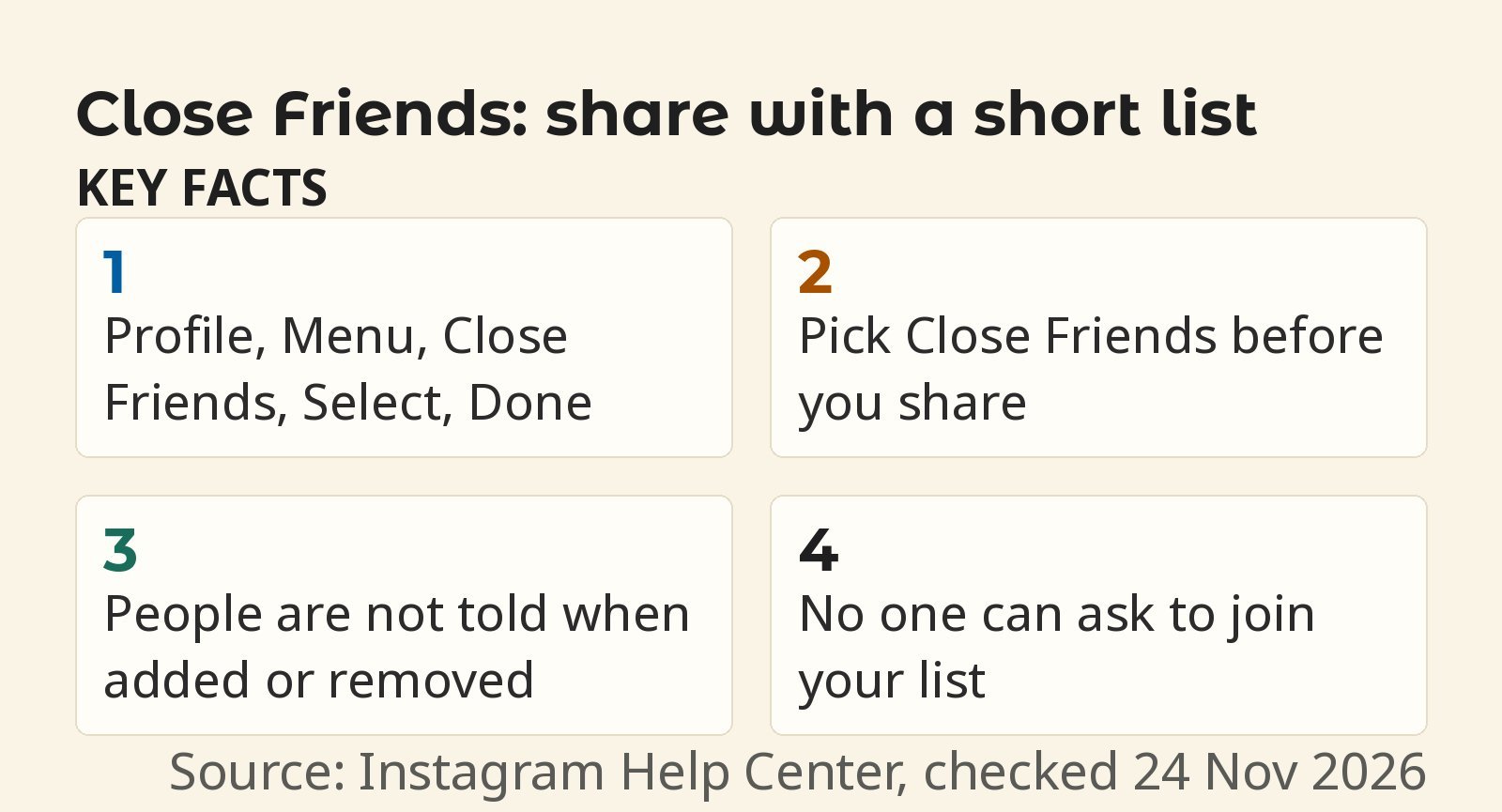
Instagram does not tell people when you add or remove them. But people on the list will know they are on it, because your Close Friends stories carry a green ring.
No one can ask to join your list. Close Friends stories still disappear after 24 hours, and wikiHow notes that a Close Friends story saved as a highlight stays limited to that list.
Hide, Close Friends, mute or block
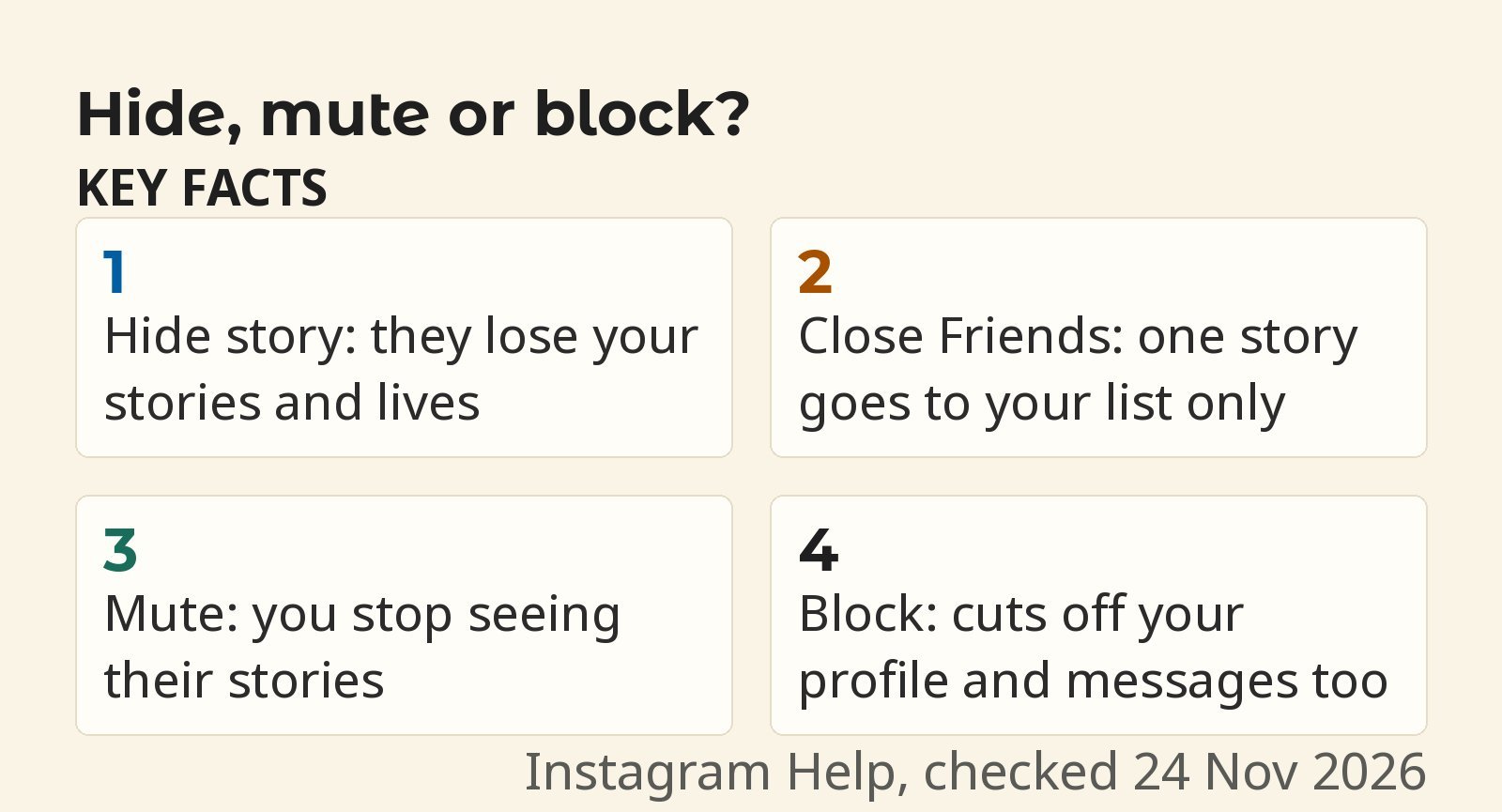
These four tools are easy to mix up. This table shows what each one does. Instagram’s blocking help page confirms that people are not notified when you block them.
| Tool | What it does | Do they know? |
|---|---|---|
| Hide your story | Stops them seeing your future stories and lives | No alert |
| Close Friends | Shares one story with your list only | List members see a green ring |
| Mute stories | Stops you seeing their stories | No alert |
| Block | Cuts off your profile, posts and messages | No alert, but they may notice |
Mute someone else’s stories instead
Sometimes the goal is the other way round. You may want to stop seeing someone’s stories without unfollowing them.
- At the top of your feed, tap and hold their profile picture.
- Tap Mute, then Mute stories.
To undo it, open their profile, tap their profile picture to open their story, then tap Options > Unmute story. These steps come from Instagram’s page on muting stories.
Common questions
Will they know I hid my story?
No. Instagram does not send an alert, as wikiHow and Social How-To both note. They may guess if they stop seeing your stories for a long time.
Can I hide just one story?
Not directly. Share that story with Close Friends, or hide your story from the person and unhide it after the story ends 24 hours later.
Does Instagram tell people when I take a screenshot?
That is a separate question. Our guide on whether Instagram notifies screenshots covers stories, posts and messages.
New to stories? Start with our beginner’s guide to your first Instagram story.
Get new guides first
Browser alerts for new TechKwiz guides.