Quick steps: WhatsApp is replacing the 6-digit two-step verification PIN with a password. On Android, tap Settings > Account > Password > Create password. On iPhone, tap your profile picture > Account > Password > Create password. Use at least 8 characters with a letter and a number, then tap Save.
What changed in WhatsApp two-step verification
Two-step verification adds a second secret on top of the SMS code you get when you register your number. Until 2026 that secret was a 6-digit PIN. In its 25 August 2026 announcement, Meta said it has upgraded this to a full password that can use letters, numbers and special characters.
WABetaInfo reported on 26 August 2026 that the password is rolling out to Android and iPhone users in stages. If you do not see the Password option yet, update WhatsApp and check again later.
The password is not asked for every time you open the app. Infobae (17 Nov 2026), citing Bitdefender, explains that WhatsApp asks for it when your number is registered on a phone. That way, the SMS code alone is not enough to set up your account on a new phone.
Turn on two-step verification
These steps come from WhatsApp’s page on managing two-step verification settings. We did not test them on a phone, and menu names may shift during the rollout.
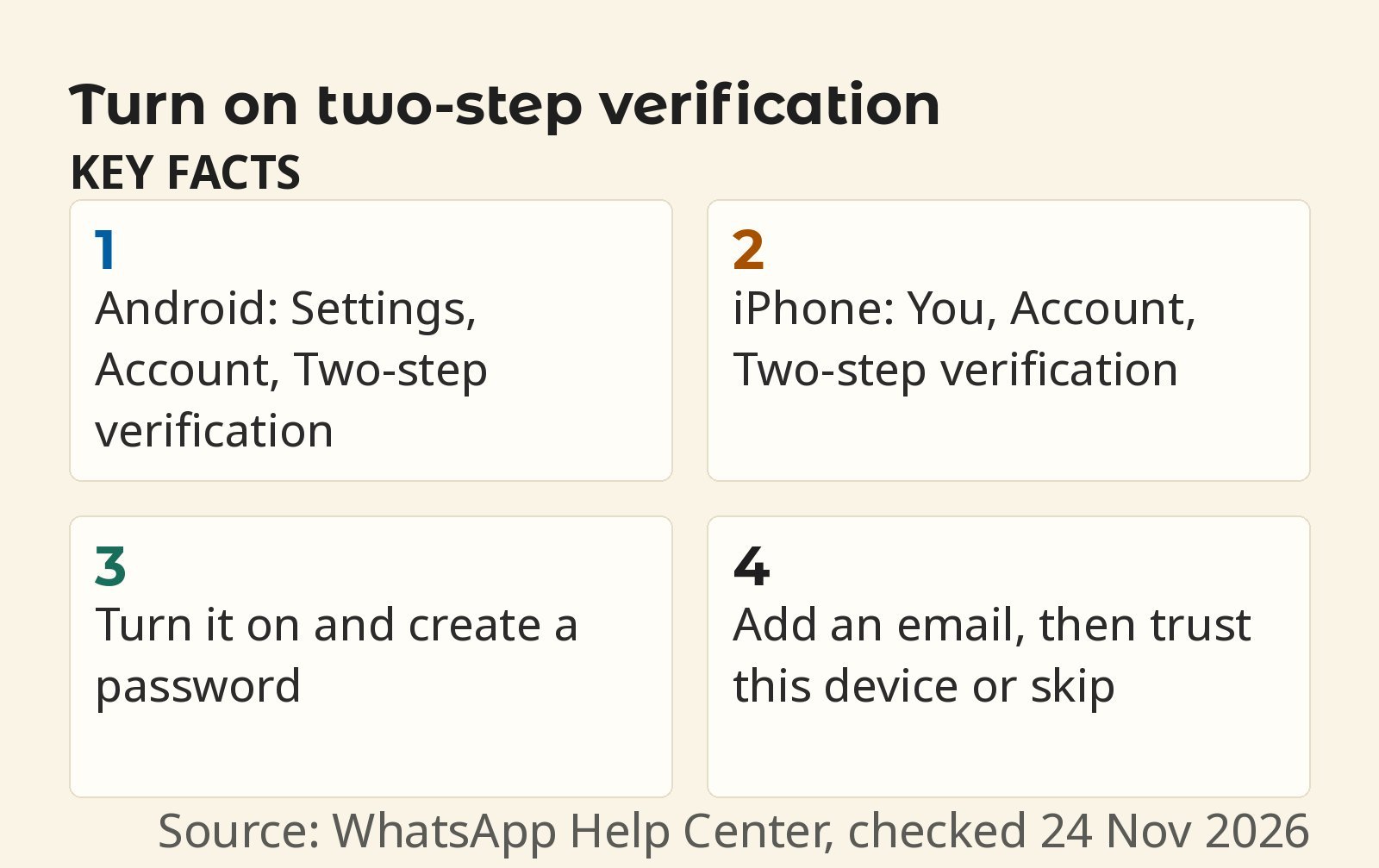
- Open the menu. On Android, tap the three-dot menu, then Settings > Account > Two-step verification. On iPhone, tap You > Account > Two-step verification.
- Turn on the Turn on two-step verification switch.
- Create a strong password and enter it again to confirm.
- Add an email address you can access and tap Next, or tap Skip.
- Tap Trust this device, or tap Skip.
Adding the email is worth the extra minute. WhatsApp’s forgotten password page lists email as one of the ways back into your account.
Replace your old PIN with a password
If you already use a PIN, WhatsApp’s passwords help page shows how to swap it.
- On Android, tap the three-dot menu, then Settings > Account > Password > Create password. On iPhone, tap your profile picture > Account > Password > Create password.
- Enter a password. A checkmark appears next to each rule once you meet it.
- Enter it again in the field below, then tap Save.
WhatsApp says that adding a password turns on two-step verification by itself. So if you never set a PIN, this route also works as a way to switch the feature on.
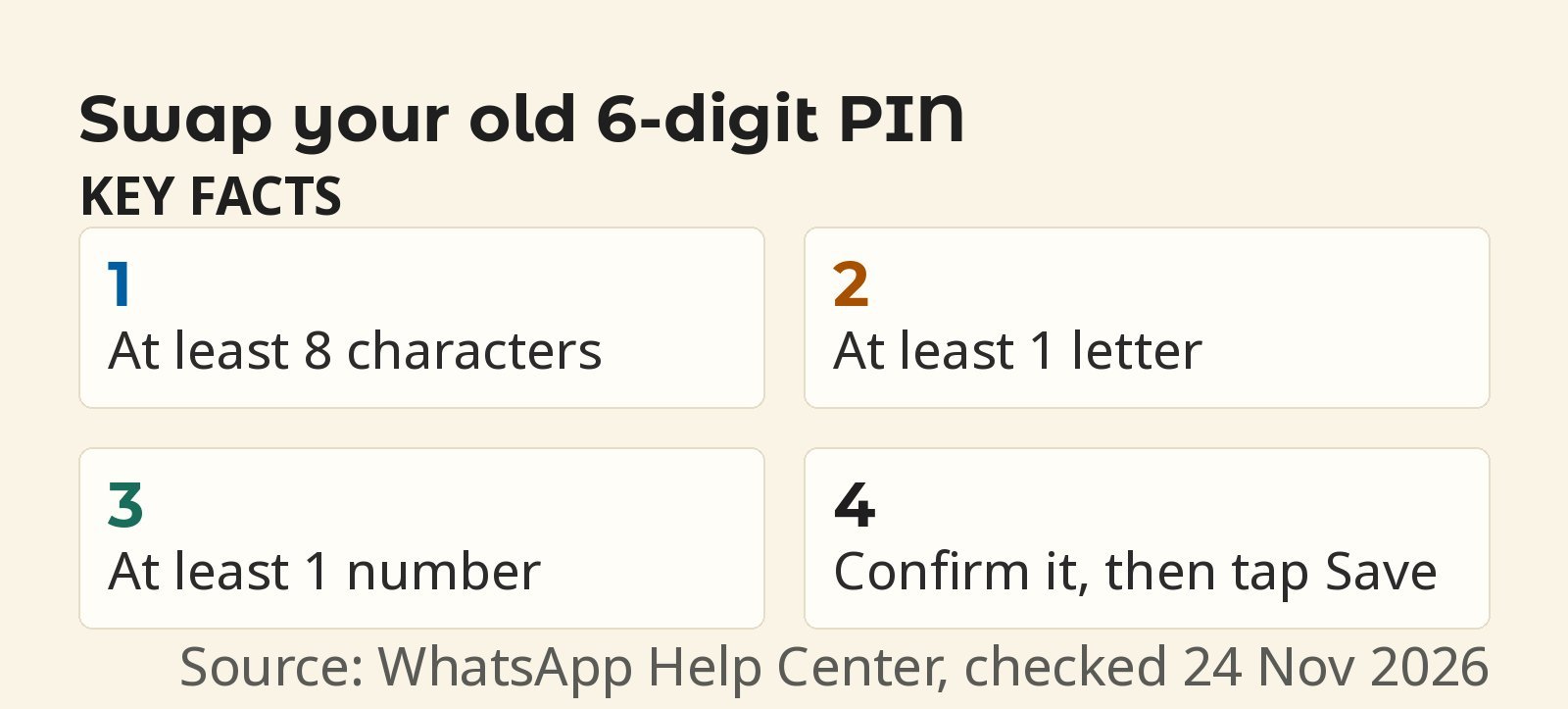
WABetaInfo lists the same rules: at least eight characters, one letter and one number. Infobae adds Bitdefender’s advice to pick a long, unique password and keep it in a password manager.
If you forget your password
If WhatsApp asks for a password you cannot remember, you have other ways in. The official recovery steps are below.
- At the login screen, tap Verify another way.
- Pick email, SMS or Voice call, then tap Continue.
- Enter the code you receive.
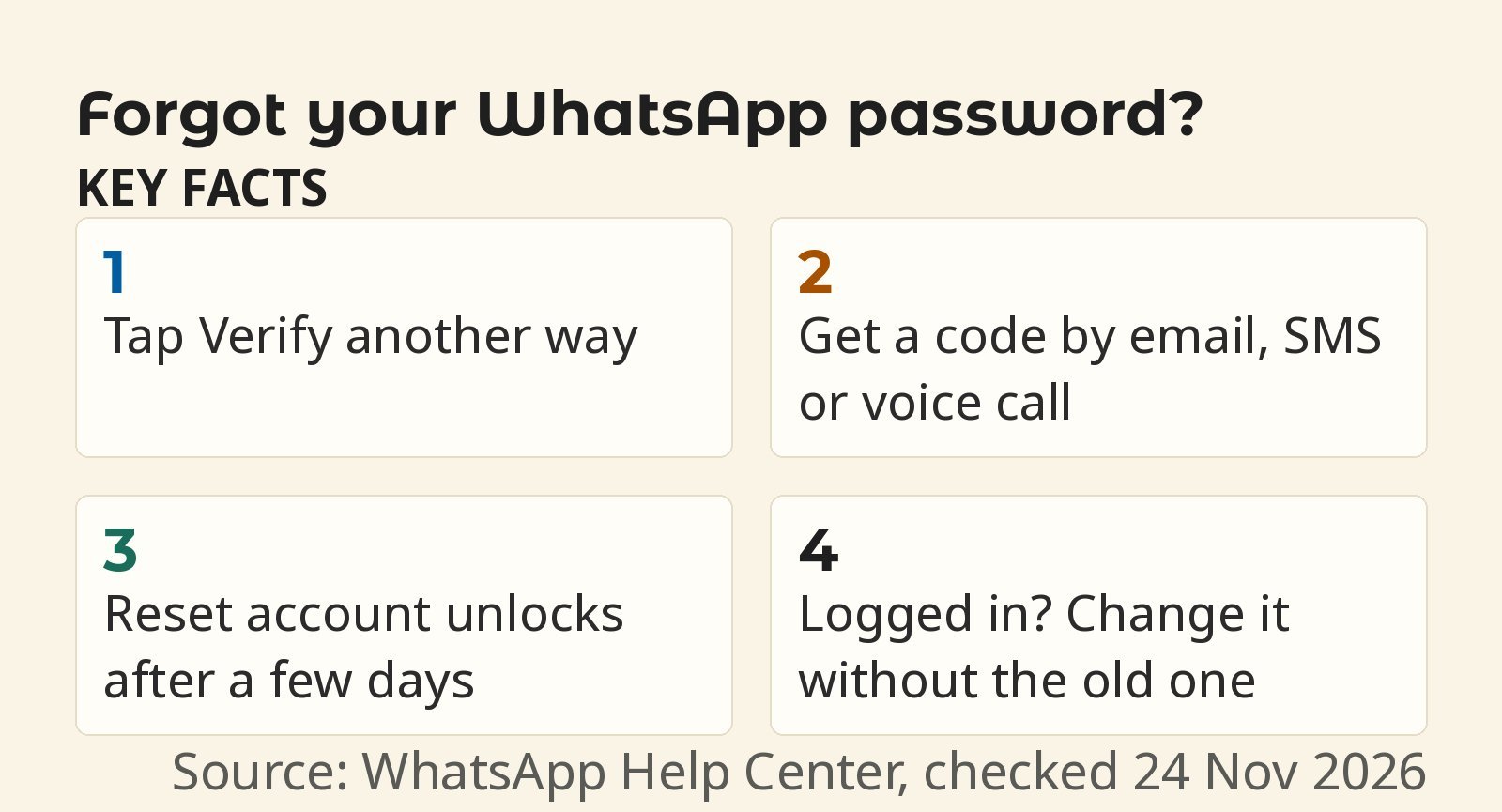
If none of those work, WhatsApp Help says you can reset the password after a few days.
What a reset deletes: If you last logged in less than 30 days ago, you lose messages received since then, but your profile stays. After more than 30 days, WhatsApp deletes your messages and your profile.
While you are still logged in, you can set a new password without the old one. Go to Account > Password > Change password.
PIN, password or passkey
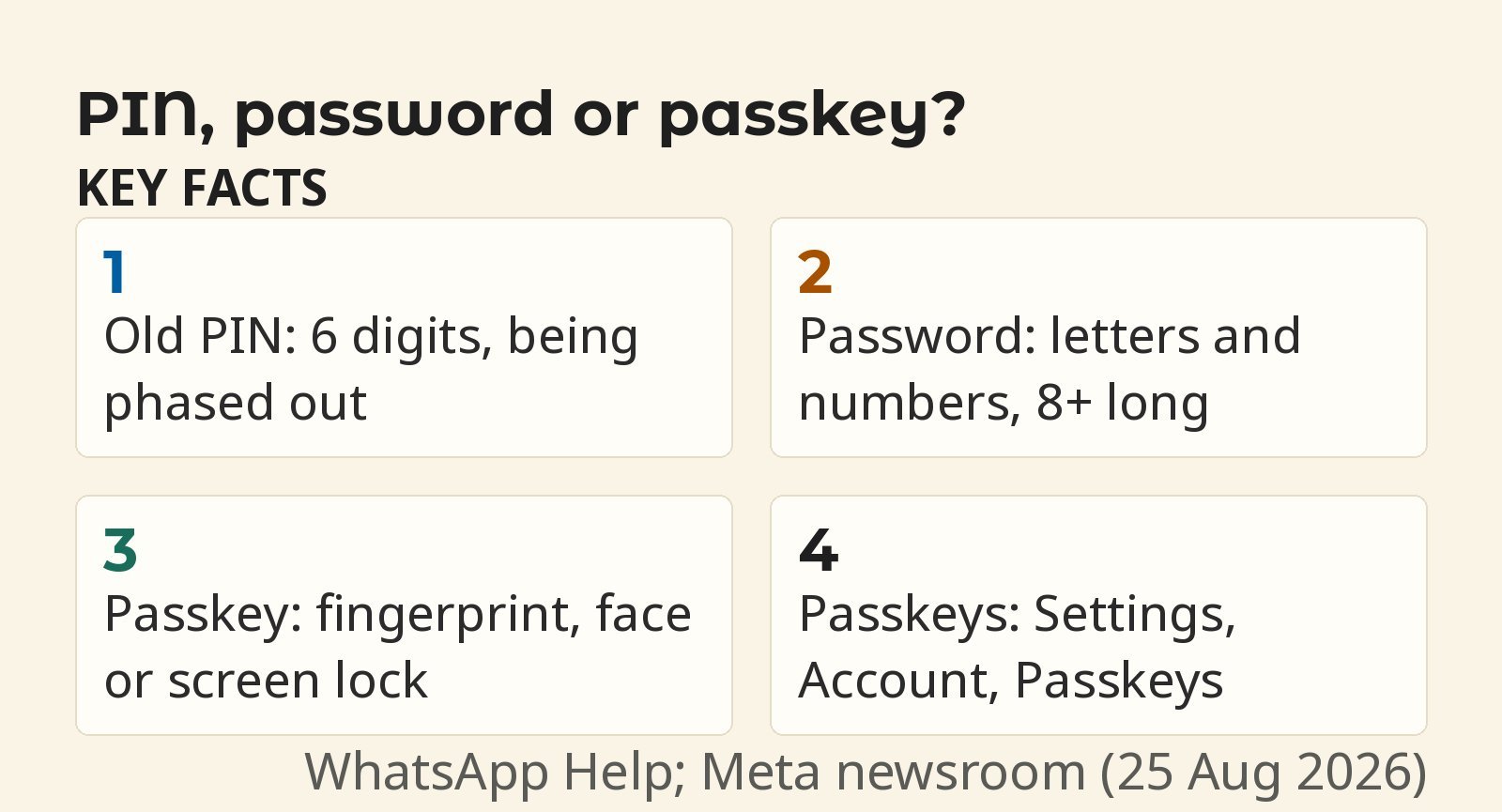
WhatsApp now has three ways to confirm it is you. They are easy to confuse, so here is how they differ.
| Method | What it is | Where to set it |
|---|---|---|
| Old PIN | 6 digits, being replaced | No new setup; swap it for a password |
| Password | 8+ characters with a letter and a number | Account > Password |
| Passkey | Your fingerprint, face or screen lock | Settings > Account > Passkeys |
Meta says more than a billion people use passkeys, and you can now add more than one if you use both Android and iPhone. WhatsApp’s two-step verification overview notes that a passkey lets you log in faster when two-step verification is on.
Turn two-step verification off
Go back to Account > Two-step verification. Turn off the Turn on two-step verification switch, then tap Turn off.
Leaving it on is the safer choice. Infobae, citing Bitdefender, also advises never sharing your registration or device-linking codes with anyone.
More WhatsApp guides
Before you switch phones, read how WhatsApp cloud backup works on Android. Running two numbers? See our guide to switching between WhatsApp accounts.
Get new guides first
Browser alerts for new TechKwiz guides.