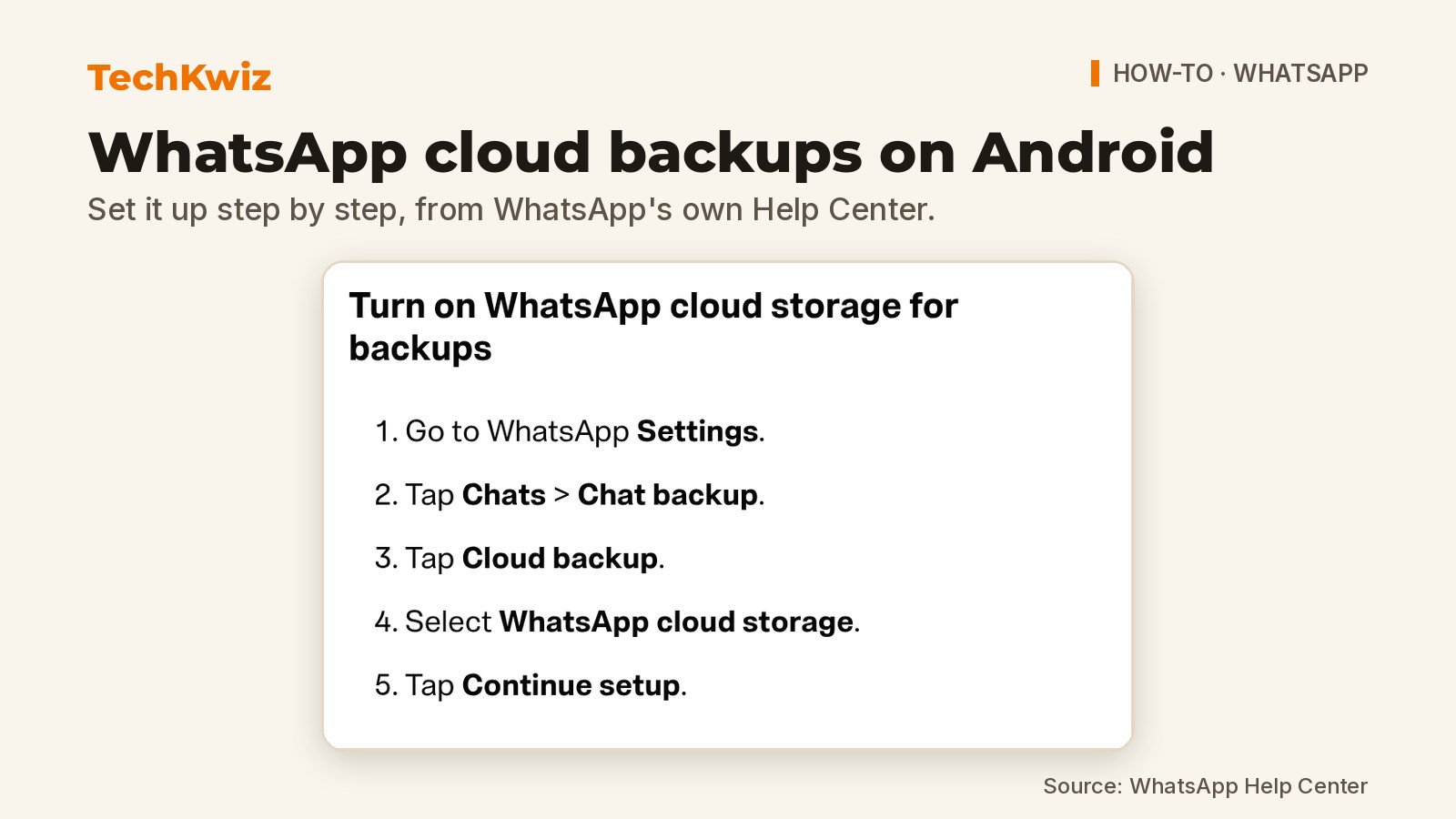
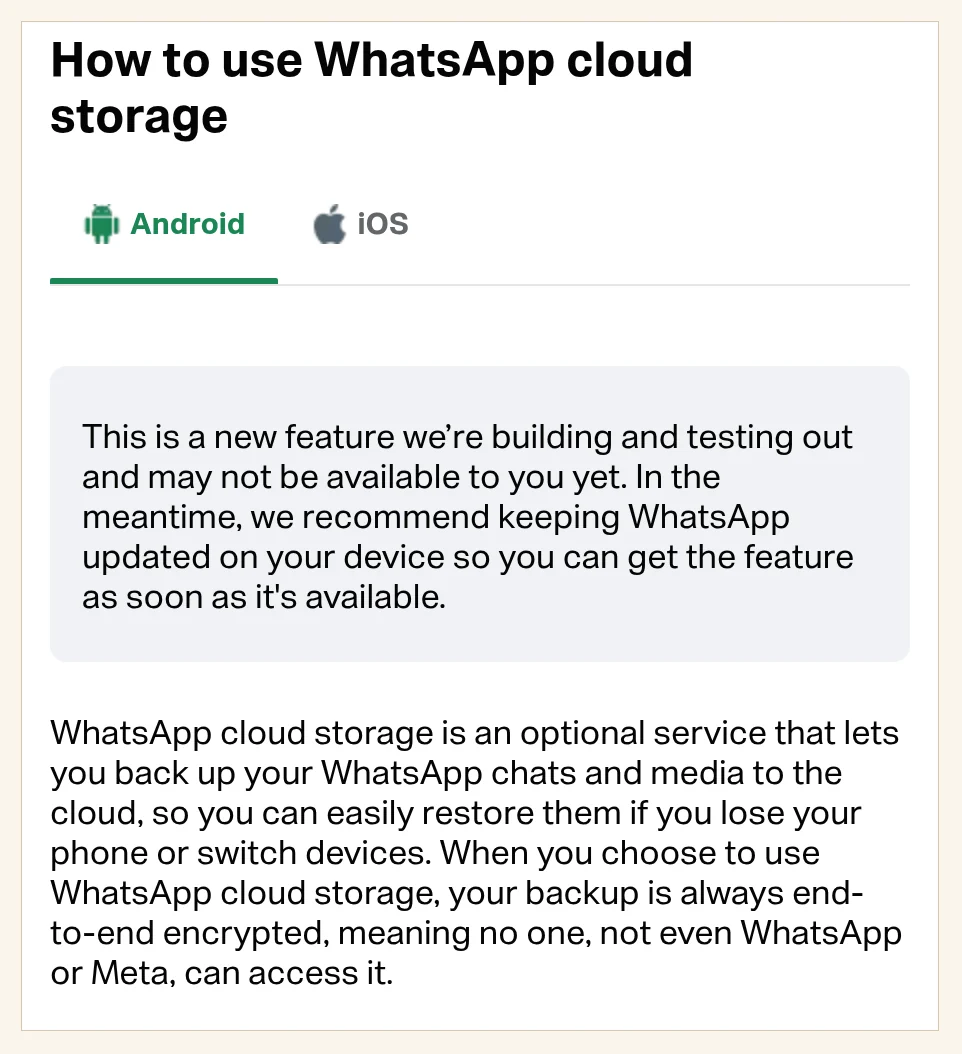
WhatsApp cloud storage is a new optional backup service that saves your chats and media directly with WhatsApp instead of your Google Account. WhatsApp says all encryption and decryption happens on your device. Every WhatsApp account gets 2 GB of free storage, and you switch your WhatsApp backup to it from the Chat backup menu once the option appears on your phone. As of November 19, 2026, WhatsApp’s Help Center calls it “a new feature we’re building and testing out”, so it may not be available to you yet. The setup route WhatsApp documents is Settings > Chats > Chat backup > Cloud backup > WhatsApp cloud storage > Continue setup, followed by a security method.
TechKwiz hasn’t tested this feature. The steps below come from WhatsApp’s official cloud storage and backup documentation, which is the most reliable setup source right now. WhatsApp recommends keeping the app updated so you can get the feature as soon as it is available.
Key points from WhatsApp’s help pages and its storage terms (effective October 8, 2026):
- WhatsApp cloud storage is optional and separate from Google Account backups.
- All users get 2 GB of free storage according to WhatsApp.
- Backups are always end-to-end encrypted, so WhatsApp says even WhatsApp and Meta cannot access them.
- If you don’t update a backup for more than 120 days, WhatsApp warns it may no longer be possible to restore it.
- WhatsApp’s storage terms say it provides the service “unless you live in the European Region.”
Check availability before you start
Before following the setup guide, go to Settings > Chats > Chat backup and tap Cloud backup. If WhatsApp cloud storage isn’t listed, remember that WhatsApp says the feature is still being built and tested and may not be available to you yet. WhatsApp’s cloud storage Help Center article is the page to watch for changes. It doesn’t give a rollout date or a list of countries.
Also make sure you have enough free space on your Android device for the initial backup process, plus a strong and stable internet connection. If you have two WhatsApp accounts connected to your phone number, WhatsApp says you can only create a backup for the active account. You’ll need to switch to your other account to back it up separately.
WhatsApp cloud storage or your Google Account?
You don’t have to pick forever. WhatsApp’s chat backup help page says you can switch your backup provider at any time from Settings > Chats > Chat backup. The two options differ in a few practical ways:
- Who stores it: WhatsApp cloud storage keeps the backup with WhatsApp. A Google Account backup lives in cloud storage that WhatsApp says is “provided and managed by Google.”
- Encryption: WhatsApp cloud storage backups are always end-to-end encrypted. With a Google Account backup, end-to-end encryption is something you turn on.
- What you need: Google backups need a Google Account activated on the phone, Google Play services and enough free space in that account. WhatsApp cloud storage needs free space on your phone and a strong, stable internet connection.
- Space: WhatsApp cloud storage starts at 2 GB free. A Google backup counts against your Google Account storage.
Either way, WhatsApp says these two are the only ways to recover a WhatsApp backup or transfer it to another Android phone. If you don’t want a cloud backup at all, it points to WhatsApp chat transfer for moving between Android devices.
Open Chat backup and choose WhatsApp cloud storage
Once the option is live on your phone, the setup starts in the regular Chat backup area. WhatsApp’s cloud storage guide gives this exact route.
- Open WhatsApp Settings.
- Tap Chats > Chat backup.
- Tap Cloud backup.
- Select WhatsApp cloud storage.
- Tap Continue setup.
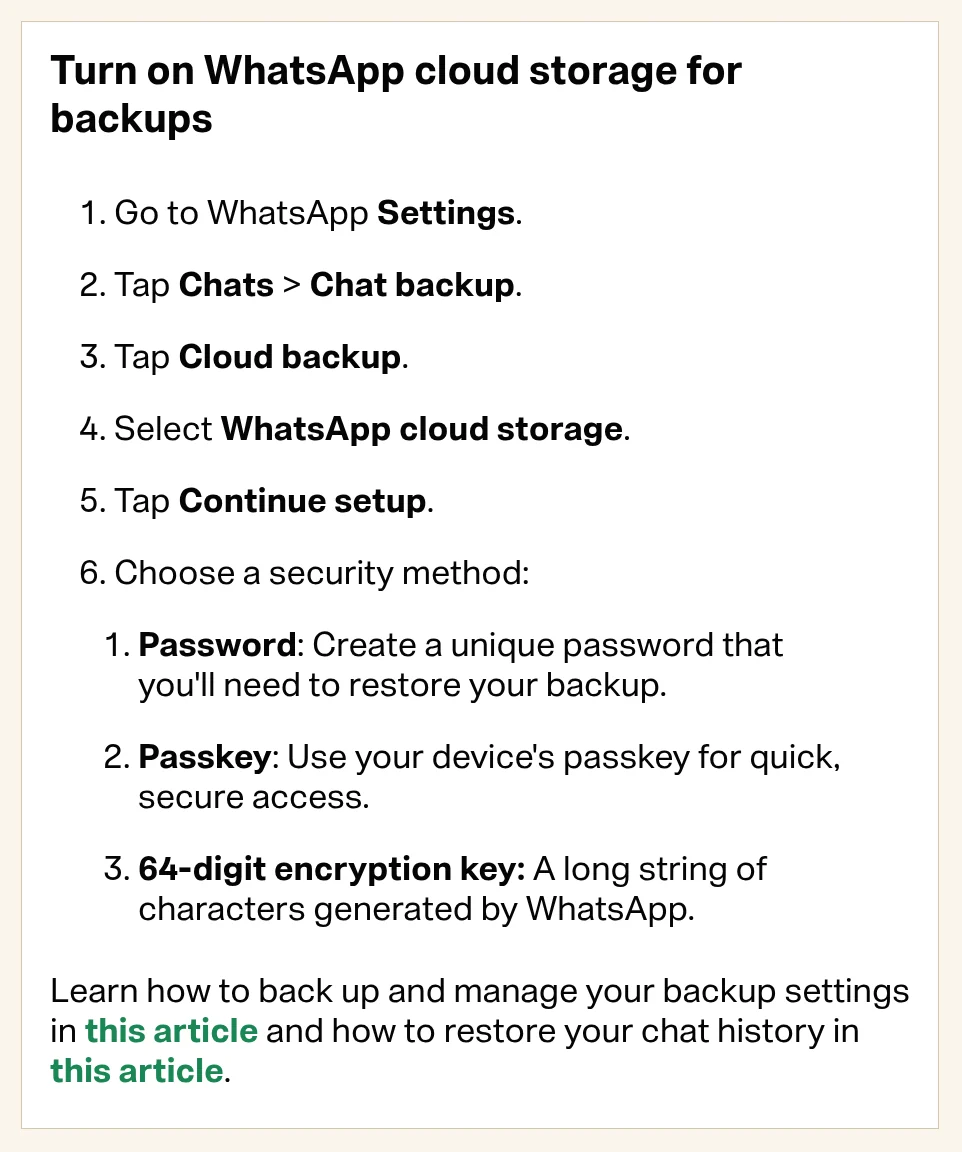
From there, WhatsApp asks you to choose a security method before the backup can start. This choice controls how your encrypted backup gets unlocked later, so it’s worth taking the next step carefully.
Choose your backup security method
WhatsApp encrypts cloud storage backups on your device before they upload. The security method you pick here is what you’ll need to restore that backup later. WhatsApp lists three options:
- Password: Create a unique password you will need to restore your backup.
- Passkey: Use your device’s passkey for quick, secure access.
- 64-digit encryption key: A long string of characters generated by WhatsApp.
If you lose your password or 64-digit encryption key, WhatsApp says your backup may be rendered permanently inaccessible. WhatsApp’s storage terms state that you are “solely responsible for maintaining your encryption key or password.” Store whichever one you pick somewhere safe before your first backup runs.
Set backup frequency and video preferences
After the security setup, you can choose how often the backup runs. WhatsApp’s cloud storage guide lists these controls in the backup settings:
- Auto backup: Choose daily, weekly, or monthly.
- Include videos in chats: Toggle this off if you want a smaller backup, since WhatsApp notes videos use more storage.
- Back up over cellular: Allow backups when you are not connected to Wi-Fi, which may use mobile data.
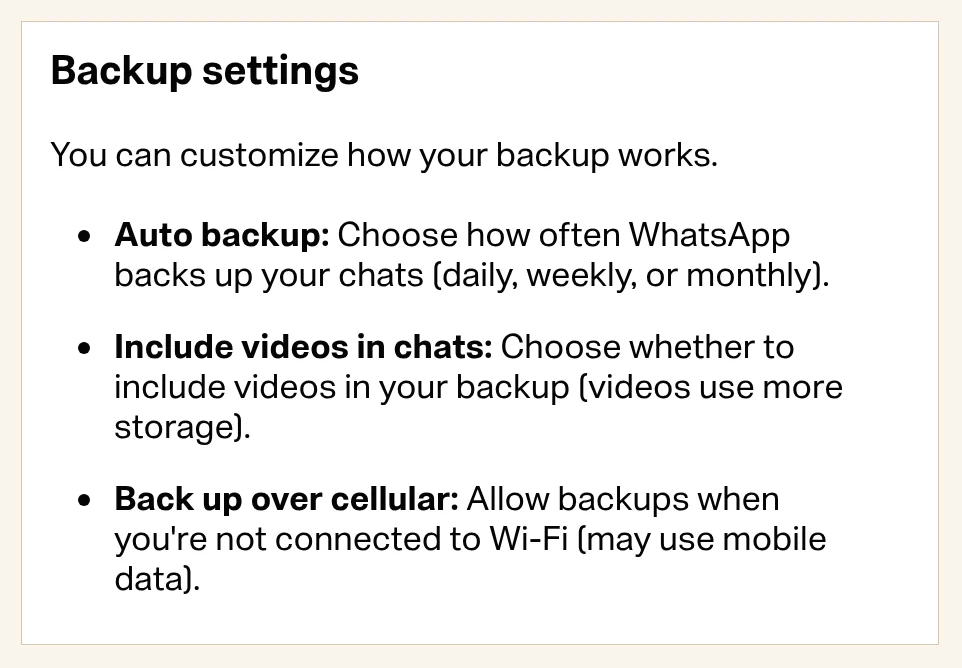
The wording varies slightly between WhatsApp’s own help pages. Its general chat backup article calls the schedule Automatic backups, calls the data option Back up over mobile data, and adds an Include status archive switch. If you’re on a limited data plan, keeping Back up over cellular off is the safer default, especially for large media libraries.
Check storage usage
According to the same Help Center article, WhatsApp shows your cloud storage usage in two places depending on your account. The main route is:
- Open WhatsApp Settings.
- Tap Chats > Chat backup.
- Look under Manage your storage.
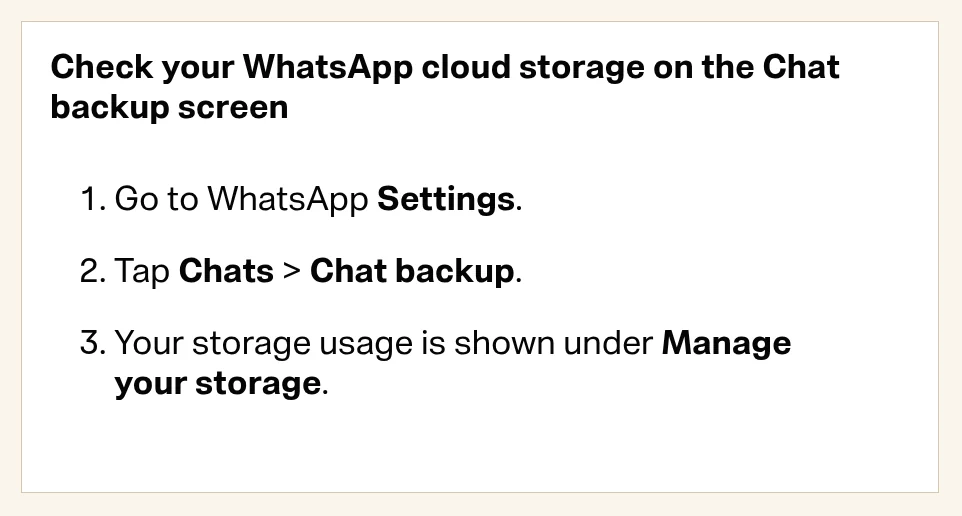
If you subscribe to WhatsApp Plus, you can also check usage via Settings > Subscriptions > WhatsApp Plus, then tap Storage for chat backups under Your benefits. WhatsApp says storage usage information may take up to 48 hours to update.
WhatsApp’s free tier is 2 GB for every account. Paid storage options include WhatsApp Plus with 100 GB, Meta One Core with 2 TB, and Meta One Premium with 4 TB. The Help Center lists storage sizes for these plans, not prices. If your backup exceeds your plan limit, you’ll need to free up space, reduce the backup size, or upgrade to keep new automatic backups running.
Troubleshooting: missing option, full storage and slow backups
WhatsApp’s help pages cover availability, storage limits and connection requirements. Here’s what they say to do:
- WhatsApp cloud storage not listed: WhatsApp says the feature is still being built and tested and recommends keeping the app updated so you get it as soon as it’s available.
- Backup will not start: Check that your phone has enough free space and a strong, stable internet connection, then try again.
- Storage full: Go to Settings > Chats > Chat backup > Manage your storage to review and delete items by chat, or turn off Include videos in chats to shrink the next upload.
- Backup size exceeds free 2 GB: WhatsApp will pause new automatic backups until you free space or subscribe to WhatsApp Plus or Meta One.
- Large backup takes days: WhatsApp says big backups may take several days to complete, so give it time on a good connection.
- Size looks different from Google backup: WhatsApp says this is due to differences in how amounts are calculated and does not affect backup quality.
Encryption and the 120-day rule
WhatsApp says all encryption and decryption happens on your device for cloud storage backups. The service is designed so that no one, including WhatsApp or Meta, can access your backup. That protection depends on you keeping the password, passkey, or 64-digit key safe.
There is also a retention risk to plan around. WhatsApp’s cloud storage help page warns that if you haven’t backed up in more than 120 days, “it may not be possible to restore.” WhatsApp’s storage terms say that if a backup hasn’t been updated for 120 days or longer, it may not be possible to access or restore it, and WhatsApp may limit, modify or delete it. Set the auto backup frequency to daily or weekly if you want a current restore point ready when you switch phones.
If you run two WhatsApp accounts on one phone, note that WhatsApp cloud storage can’t store backups from multiple phone numbers, and you have to switch accounts to back up the other one. Our guide to switching between multiple WhatsApp accounts shows how to move between them. You can also find more WhatsApp guides in the WhatsApp coverage hub.
Get new guides first
Browser alerts for new TechKwiz guides.