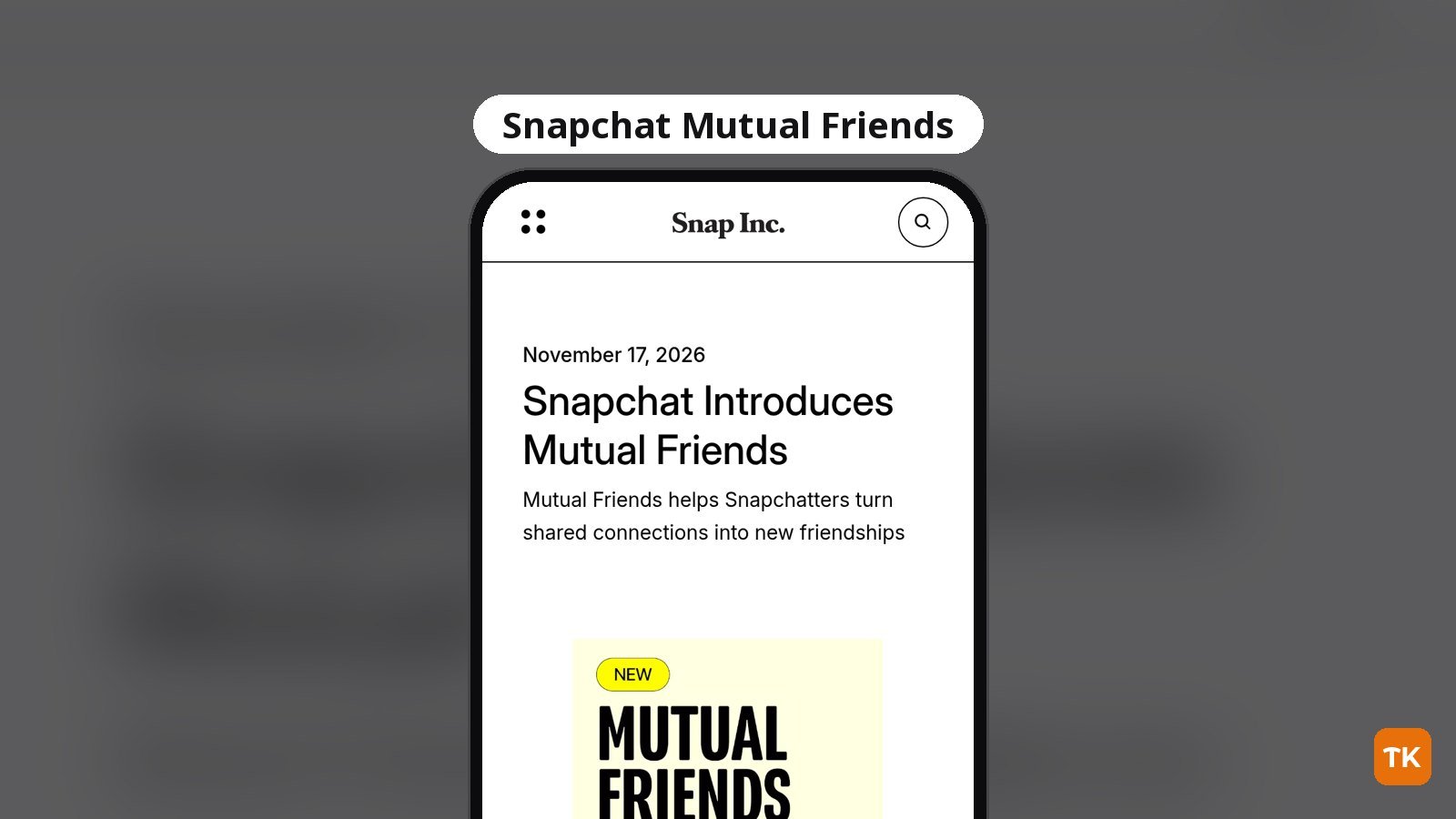
Snapchat’s Mutual Friends feature shows which friends you share with another person, but only if both of you opt in. To see a shared connections list, turn on the “Show Mutual Friends” toggle in Settings, then visit someone’s profile. Snap announced Mutual Friends on November 17, 2026, and Snapchat’s support page explains how to manage it.
What to know first:
- Mutual Friends is off by default.
- Both you and the person whose profile you view must turn it on.
- It’s currently available in the US, Australia, France, and Sweden on iOS and Android.
How to turn on Mutual Friends in Settings
Snapchat Support lists Settings as the main place to switch sharing on. The setting sits under Privacy Controls, and the support article calls the toggle “Show Mutual Friends”. Snap’s announcement calls it Show Mutual Friends List, while the support instructions use “Show Mutual Friends.”
- Open Settings in Snapchat.
- Under Privacy Controls, tap Mutual Friends.
- Enable the “Show Mutual Friends” toggle.
If you have a Public Profile, Snapchat says you can also tap the edit icon on your profile and enable the same “Show Mutual Friends” toggle from there.
How to view mutual friends on someone’s profile
Once your own sharing is on, you still need the other person to opt in before any names appear. Snap’s newsroom announcement describes the profile route for viewing shared connections.
- Open the Snapchat profile of the person you want to check.
- Tap the Mutual Friends section if it appears.
- If prompted, turn on the Show Mutual Friends List setting.
- Once both of you have opted in, tap “View All Mutual Friends” to see the full list.
TechKwiz hasn’t tested this feature. Snap’s support article notes that if the other Snapchatter has not turned on sharing mutual friends, “no mutual friends will be displayed.”
How to turn Mutual Friends off
Snapchat Support says you can turn sharing off at any time. Because both people have to opt in, switching it off means you stop seeing other people’s mutual friends lists, and they stop seeing yours.
- Open Settings in Snapchat.
- Tap Mutual Friends under Privacy Controls.
- Disable the “Show Mutual Friends” toggle.
Public Profile users can also tap the edit icon on their profile and disable the same toggle there.
Why you can’t see a mutual friends list
If a profile shows no mutual friends, it doesn’t necessarily mean the person doesn’t share connections with you. Snapchat’s support page lists these possible reasons:
- You may not have any mutual friends with that user.
- The other person may not be sharing mutual friends yet.
- One or more mutual friends have not turned on the Mutual Friends setting, so those names stay hidden.
- The feature may not be available for that account or region.
On that last point, Snap’s newsroom announcement says Mutual Friends is currently limited to Snapchatters in the US, Australia, France, and Sweden on iOS and Android.
What the other person can and can’t see
Snapchat Support says seeing mutual friends can help you confirm you’re adding the right person. The feature doesn’t expose anyone’s full friend list. Snap says lists only show friends you both share on Snapchat. You won’t see someone’s whole friend list, and they won’t see yours.
Snap also confirms that “no one is notified when you turn on the feature or view someone’s Mutual Friends list.” That means browsing a shared connections list is quiet by design. It works only when both people opt in, so one person switching it on doesn’t reveal anything on its own.
For more on how Snapchat’s features work together, see TechKwiz’s complete Snapchat guide. You can also follow Snapchat coverage for more platform updates.
Get new guides first
Browser alerts for new TechKwiz guides.