There is no single master switch for Gemini. Google splits the controls across Chrome, Gmail, Android and your Gemini history, so turning it off means four separate settings screens. The browser toggles live on Google’s Chrome Help page for Gemini in Chrome, and they do nothing for your inbox or your phone.
TechKwiz hasn’t tested these steps on a device; this guide is based on Google’s official Help pages as of 22 November 2026.
Quick answer
- Chrome: Settings > AI innovations > Gemini in Chrome, then turn off the Preferences and Permissions toggles.
- Gmail: Settings > See all settings > General > Smart features, then uncheck the Gmail, Chat, and Meet box and manage the two Workspace settings.
- Android: Change the power button gesture, turn off “Hey Google,” and set your default digital assistant app to None.
- History and training: Gemini app > Menu > profile picture > Gemini History, then turn History off and uncheck the training boxes.
Turn off Gemini in Chrome
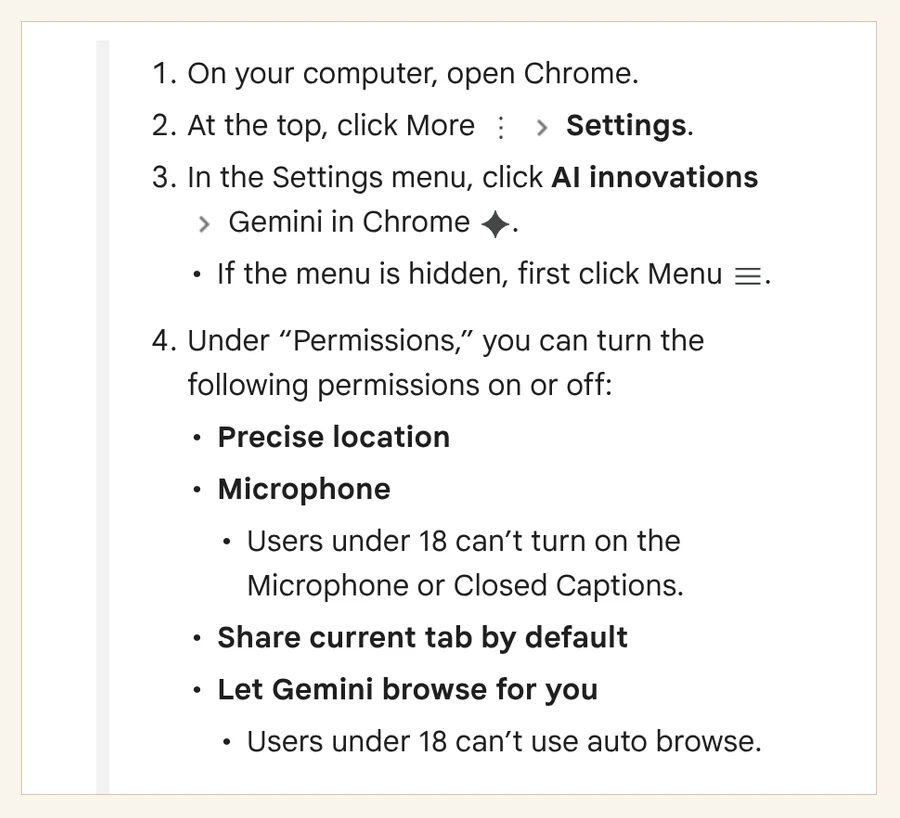
Gemini in Chrome is the side panel assistant that summarizes pages and answers using your current tab. Its controls sit on one screen, split into Preferences, for where the icon and shortcuts appear, and Permissions, for what Gemini can reach.
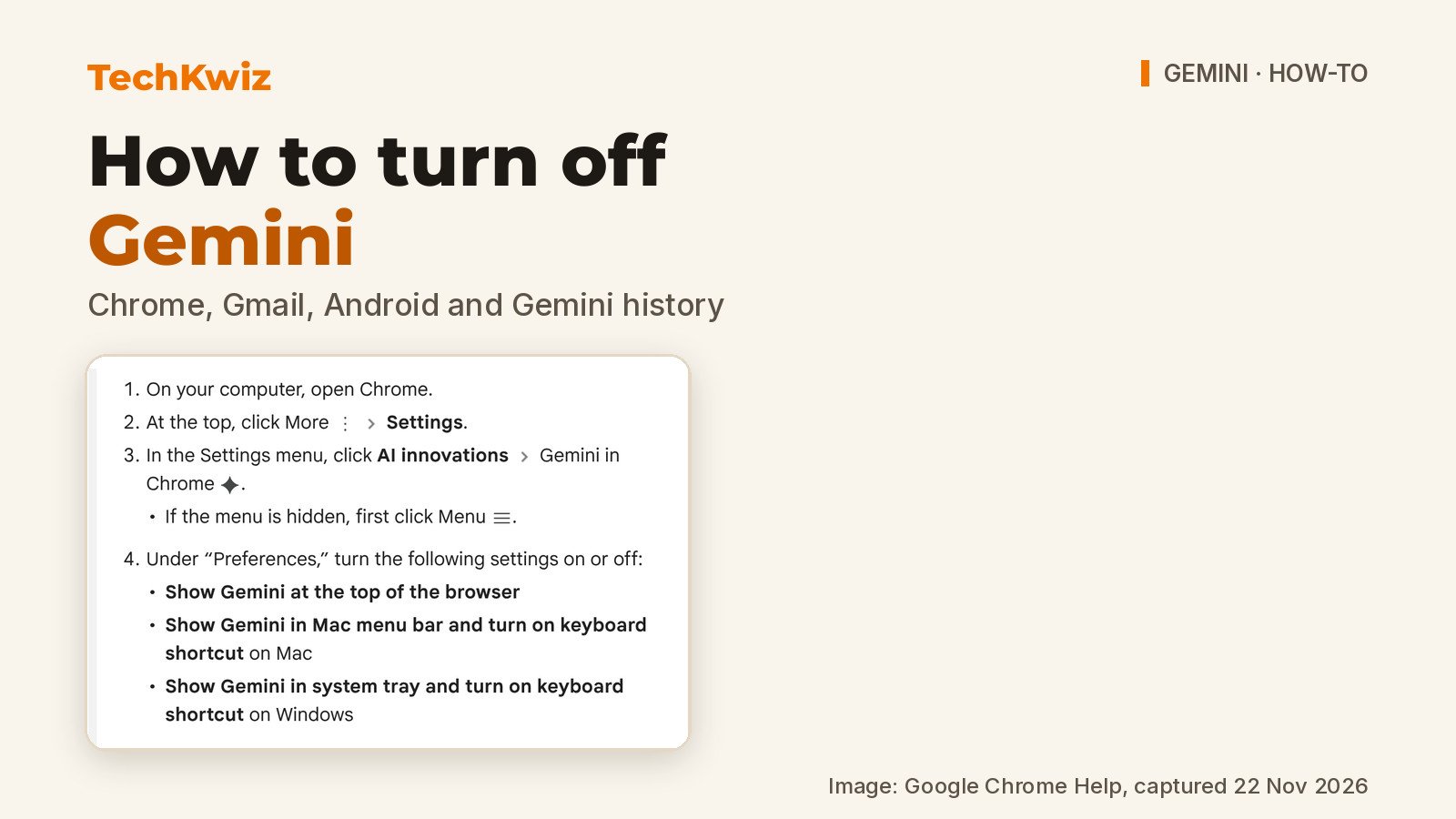
- On your computer, open Chrome.
- At the top, click More > Settings.
- In the Settings menu, click AI innovations > Gemini in Chrome. If the menu is hidden, first click Menu.
- Under “Preferences,” turn off Show Gemini at the top of the browser, Show Gemini in Mac menu bar and turn on keyboard shortcut on Mac, and Show Gemini in system tray and turn on keyboard shortcut on Windows.
- Under “Permissions,” turn off Precise location, Microphone, Share current tab by default, and Let Gemini browse for you.
You can also right-click the top of your browser and click Unpin Gemini. A separate Media understanding toggle at chrome://settings/ai/gemini is on by default.
Google also states that “Gemini in Chrome is not available to all users at this time” and is releasing it gradually, so the menu may not be there yet. On a work or school account, users over 18 need an administrator to enable access, and parents can turn off a supervised child’s access through Family Link.
The Preferences toggles only hide the icon and the shortcut; Permissions are what stop Gemini using your microphone, current tab and auto browse. With Precise location off, Google says Gemini in Chrome “will only be able to derive an estimated location from your IP address.”
Turn off Gemini features in Gmail and Workspace
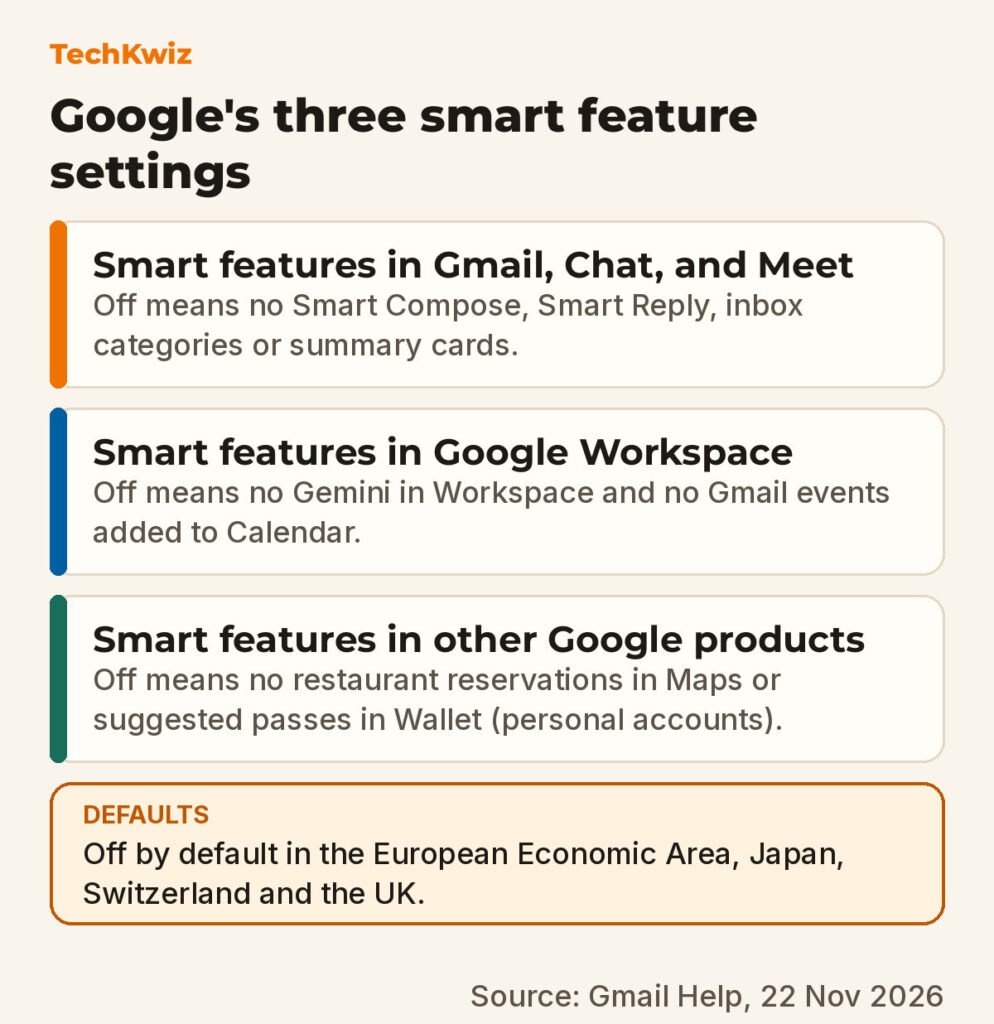
Gmail has no single Gemini toggle. Google documents three independent smart feature settings: Smart features in Gmail, Chat, and Meet; Smart features in Google Workspace; and Smart features in other Google products.
- On your computer, go to Gmail.
- At the top right, click Settings > See all settings.
- In the “General” tab, scroll to “Smart features.”
- Next to “Turn on smart features in Gmail, Chat, and Meet,” uncheck the box.
- Scroll to “Google Workspace smart features” and click Manage Workspace smart feature settings.
- Turn off Smart features in Google Workspace and Smart features in other Google products.
- At the bottom right, click Save.
Changes apply across every device and app where you’re signed in, though Google notes some changes made on a computer don’t reflect in the mobile app. The same two toggles appear in Calendar, Chat, Drive, Meet and Voice settings, which Google marks as browser-only for turning the setting on.
Each box has a cost. Turning off smart features in Gmail, Chat, and Meet ends inbox categorization into Primary, Social and Promotions, plus Smart Compose, Smart Reply and the summary cards above emails. Turning off smart features in Google Workspace stops events from Gmail appearing in Calendar, such as flight itineraries, removes personalized search in products like Drive, and takes away Gemini summarizing and drafting across Workspace, the feature set we covered in our Gemini 3 Pro Workspace review.
If the AI Overview on long threads is the problem, Google’s Gmail Help page says those summaries need both Smart features in Gmail, Chat, and Meet and Smart features in Google Workspace turned on, and that turning smart features off also disables tools like AI-assisted writing and proofreading across Gmail and other Workspace apps. Google says these settings are off by default in the European Economic Area, Japan, Switzerland and the UK.
Stop Gemini from opening on Android
You don’t have to delete the app. Google’s Help page for managing Gemini on Android lists three controls that stop it opening by voice or touch while the app stays installed. Google warns that “the steps below vary by Android device,” so if these paths don’t match your phone, search Settings for “power,” “side button” or “gesture,” or check your manufacturer’s support site.
Change the power button gesture
- On your Android phone or tablet, open Settings.
- Tap System > Gestures > Press & hold power button.
- Select the action you want when you press and hold the power button. Google’s tip: “Digital assistant” opens your default digital assistant app.
Turn off “Hey Google” and lock screen access
- On your phone or tablet, open the Gemini mobile app.
- At the left, tap Menu > your Profile picture or initial > Settings > Talk to Gemini hands-free, then turn off “Hey Google.”
- Go back to Menu > your Profile picture or initial > Settings > Gemini on lock screen, then turn off Use Gemini without unlocking.
Change your default digital assistant app
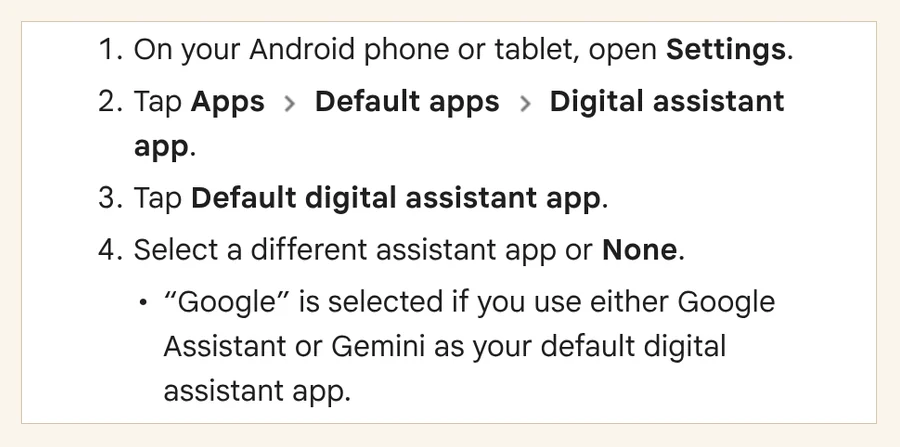
- On your Android phone or tablet, open Settings.
- Tap Apps > Default apps > Digital assistant app.
- Tap Default digital assistant app.
- Select a different assistant app or None. Google notes that “Google” is the entry shown if you use either Google Assistant or Gemini.
Once Gemini no longer activates by voice or touch, you have to unlock your phone and open the app to use it. Deleting the app is not a shortcut: Google says it “doesn’t automatically remove Gemini as your device’s default digital assistant,” so change that setting first. Google also says you can no longer switch to Google Assistant on phones and tablets.
Turn off Gemini history and model training
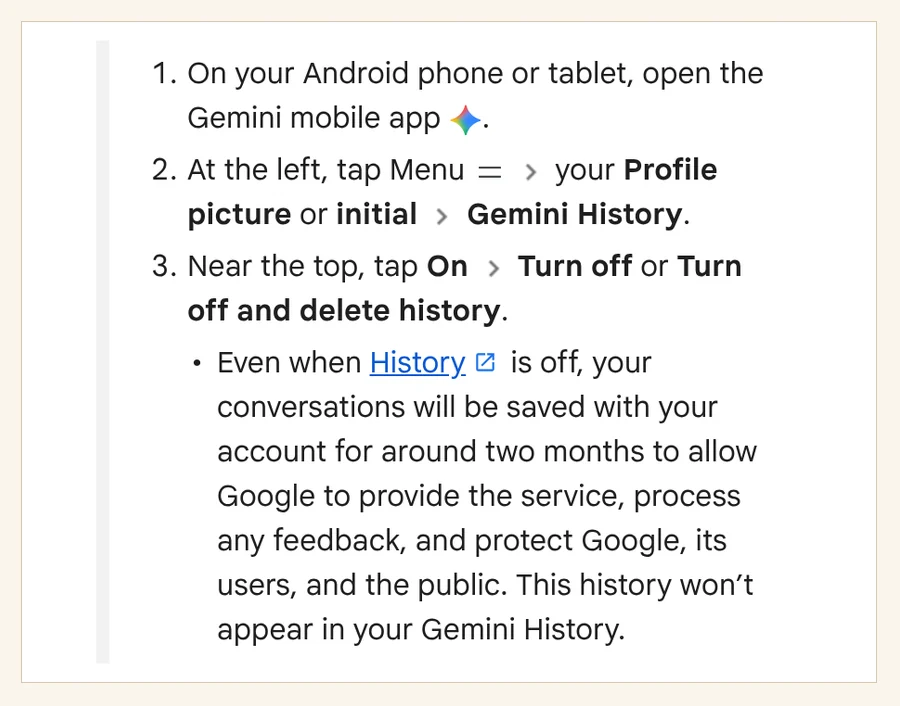
History decides whether your prompts and conversations are stored in your Google Account, and Google says it is on by default if you are 18 or over. The training checkboxes sit on the same screen, per Google’s Gemini Apps history Help page.
- On your Android phone or tablet, open the Gemini mobile app.
- At the left, tap Menu > your Profile picture or initial > Gemini History.
- Near the top, tap On, then tap Turn off or Turn off and delete history.
If you use gemini.google.com in your Android phone’s browser instead, the path is Menu > Settings > History. The caveat is easy to miss: even with History off, “your conversations will be saved with your account for around two months” so Google can run the service, process feedback and protect users; they won’t appear in your Gemini History. Search keeps its own controls, which is where temporary threads in AI Mode come in.
Open Gemini History and tap Delete to clear what’s saved: All time, Last hour, Last day, Custom range, a single day or one item. Deleting a shared chat doesn’t delete the related public link.
Google says you must have History on to turn the training settings on, and if you can’t check either box, you may need to turn History on first.
- At the top of the Gemini app, tap Menu, then at the bottom tap Settings.
- Under “Data & privacy,” tap History.
- Uncheck the box next to “Chat content including text & uploads” and the box next to “Audio and Gemini Live videos & screenshares.”
- Tap Turn off.
Google says chat content is on by default for users over 18, while audio and Gemini Live videos and screenshares are off. Auto-delete sits in the same place: tap the auto-delete option near the top of Gemini History and choose 3, 18 or 36 months, or Don’t auto-delete history. Anything older than 18 months goes by default. On a work or school account, your Workspace administrator controls these settings and you may not be able to change retention.
What these switches do not do
None of this removes Gemini from every Google product. With smart features in Gmail, Chat, and Meet off, some smart features with their own on and off settings stay available. With the other-products setting off, sharing Workspace data through screen actions, including screenshots, still surfaces some of them. Turning a setting off stops your content improving those features from then on, though Google says the learnings already developed “may persist.” On Android, uninstalling the app leaves the default assistant setting as it was.
If Gmail’s AI Overview summaries are the irritant but you want Smart Compose kept, leave the Gmail, Chat, and Meet box checked and turn off Smart features in Google Workspace instead, since the summaries need both and Smart Compose belongs to the first setting; the trade is Gemini’s drafting help across Workspace. For training data, the history screen holds the switch and both checkboxes, and newer Gemini surfaces arrive with controls of their own, as Gemini computer use on Mac shows.
Get new guides first
Browser alerts for new TechKwiz guides.