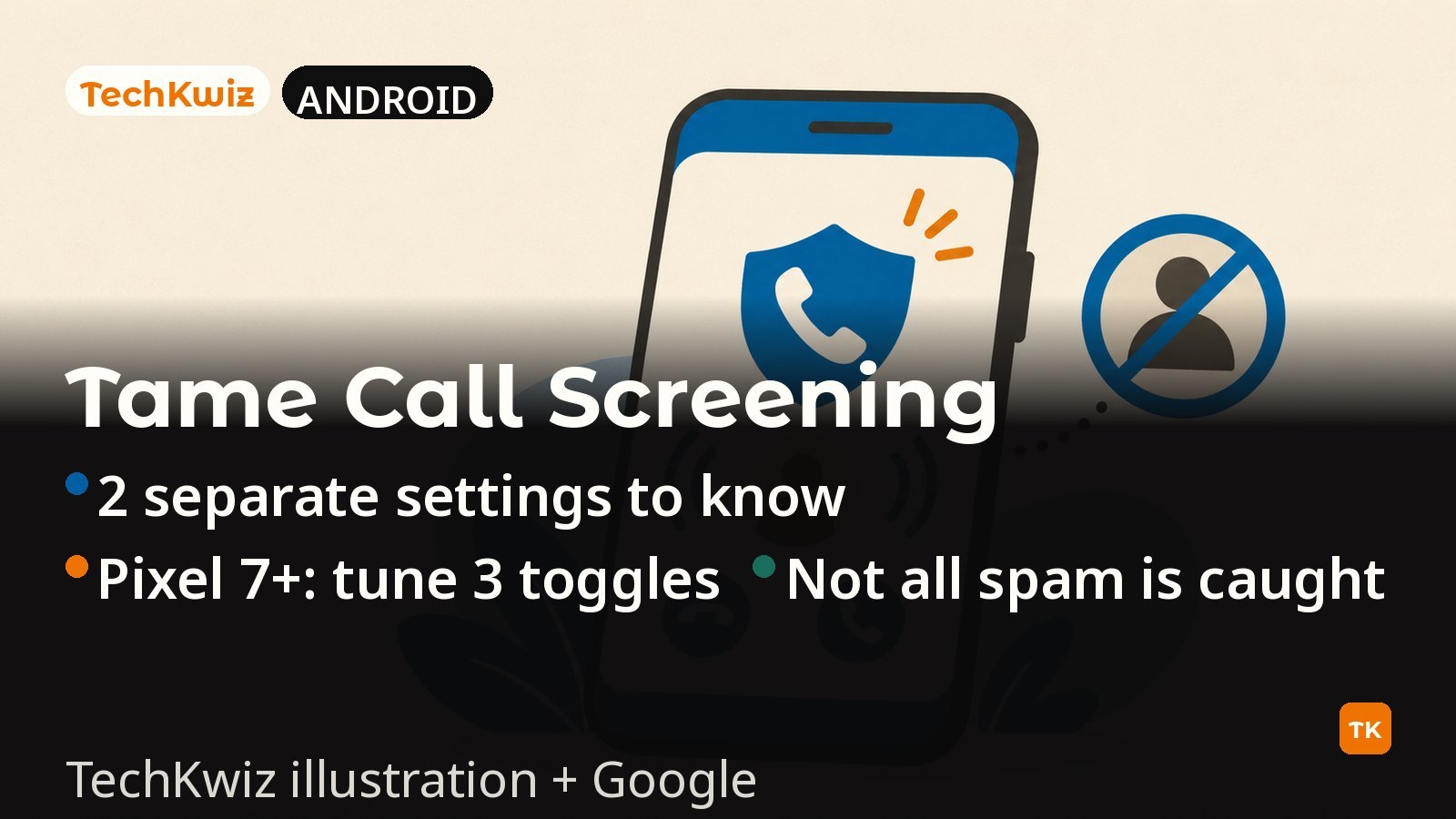
Automatic call screening sounds useful until it answers calls you wanted to take yourself, or until you realize your phone is quietly routing unknown callers through a transcript before you even hear it ring. The good news is you don’t have to put up with it. You can turn the feature off entirely, lower how aggressively it screens, or keep it on while disabling the separate caller-ID lookups that flag numbers as spam before you see them.
This guide is written from Google’s official Phone app help documentation, not from a hands-on test on a physical device. The menu labels and settings paths below come from those help pages. Your phone may show slightly different wording depending on your device, app version, and region.
Quick answer
To stop automatic screening on a Pixel, open Phone app > More (or More options) > Settings > Spam and Call Screen (or Call Screen) > Call Screen, then turn off automatic screening or lower the protection level. To stop the separate caller-ID and spam lookup, open Phone app > More options > Settings > Caller ID and spam, then turn off See caller ID & spam.
These are two different settings in two different menus. Changing one does not change the other.
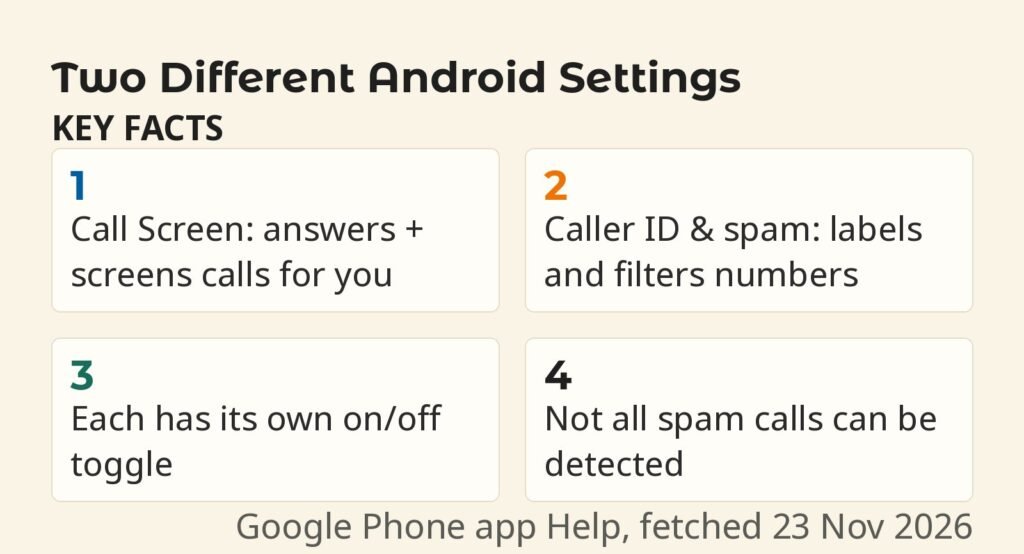
Call Screen and spam protection are two different settings
Before changing anything, it helps to know what you are actually toggling. On a Pixel phone, you’ll find these features in nearby but separate menus inside the Phone app.
Call Screen lives under Spam and Call Screen on newer Pixels, or Call Screen on older models. It uses Google’s Call Assist to answer calls from numbers you don’t know, ask who’s calling, and show you a live transcript so you can decide whether to pick up, send a quick reply, or hang up. Depending on how you configure it, Call Screen can also hang up on a detected spam call automatically, before your phone ever rings.
Caller ID and spam is a separate feature. It checks incoming numbers against Google’s database so you can see caller names for businesses and get warnings when a number is flagged as suspected spam or a robocall. It works even on phones that don’t have automatic Call Screen available.
If your main annoyance is “my phone answers calls before I do,” you want the Call Screen menu. If your annoyance is “my phone keeps labeling numbers as spam and I’m not sure it’s right,” you want the Caller ID and spam menu. Many people turn off the wrong one and wonder why nothing changed.
What Call Screen actually does
Call Screen is part of Google’s Call Assist features, and it’s designed to handle the calls you’d rather not answer blind. When an unknown number calls, Call Screen can do any of the following depending on your settings:
- Answer the call with an automated voice that asks who’s calling and why.
- Show a real-time transcript on your screen so you can read what the caller says.
- Offer AI-powered suggested replies, generated on your device from what the caller said during screening.
- Hang up automatically on a call it detects as spam. You get a silent “Screening unknown number” or “Screening suspicious call” notification instead of a ring; if the call isn’t spam, your phone rings and shows you how the caller responded.
- Use your on-device contacts to decide which numbers are safe, so calls from people you already know skip screening.
There are a few important limitations Google’s documentation states plainly. Not all spam calls and robocalls can be detected. If you rely on call forwarding, automatic screening isn’t a good fit because screened calls aren’t forwarded. The AI replies used for some screening interactions are generated on your device, so Google warns they “may be inaccurate” and don’t represent its views, and using them means agreeing to the Google Terms of Service. One more that catches people out: Call Screen doesn’t work with third-party call recording or screen recording apps, and Google recommends turning those off before you use it. The transcript isn’t perfect either — Google says Call Screen “won’t always fully understand and transcribe what a caller said.”
Automatic Call Screen is also not available everywhere. Google’s help pages say it’s available in a number of countries, mostly on Pixel phones, but the exact country list isn’t presented as a single current source. If you don’t see the Call Screen option in your Phone app settings, your device or region likely doesn’t support it. Check Google’s official Phone app help page for the most current availability information.
Turn off automatic Call Screen on Pixel 7 and newer
For Pixel 7 and above, Google’s help page describes the Protection level screen as a single Automatically screen calls setting you turn on or off, split across three categories of caller.
Here’s the path from Google’s help documentation:
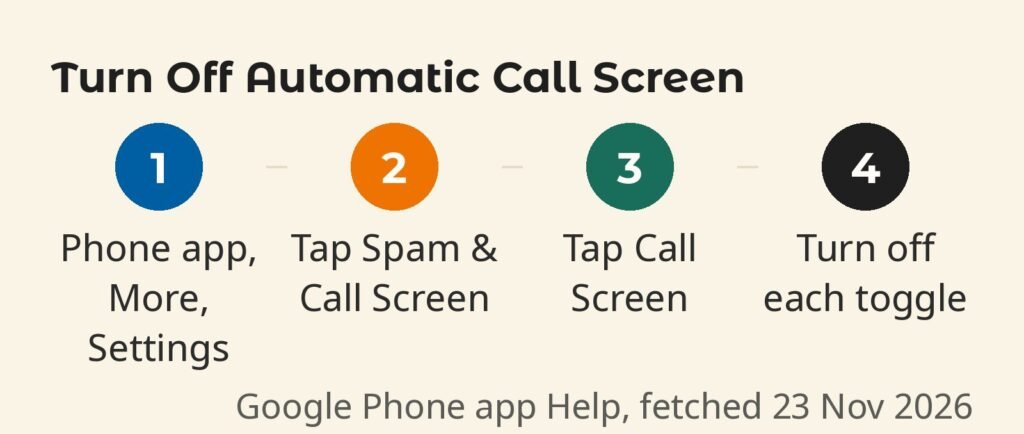
- Open the Phone app.
- Tap More, labeled More options on some phones or app versions.
- Tap Settings.
- Tap Spam and Call Screen.
- Tap Call Screen.
- Find the Automatically screen calls section. You’ll see toggles for:
- Spam
- Possibly faked numbers
- First-time callers
- Turn off the toggles you don’t want. To fully disable automatic screening, turn off all three.
Once automatic screening is off, you can still screen calls manually: when a call comes in, tap Screen call, and Call Assist screens it and asks who’s calling and why, with a real-time transcript of the response. Google’s page adds that manual Call Screen is also available in the US and Canada on selected Android devices, so it isn’t everywhere either. That’s the right setup for many people: no surprises, but the option is there when you want it.
One honest caveat on the menu wording: Google’s generic steps for Call Screen still mention turning Maximum protection, Medium protection or Basic protection on or off, while the Pixel 7-and-above section describes the per-category Automatically screen calls toggles instead. The caller-ID help page also calls spam autoblocking the equivalent of Basic protection on “Pixel 6 devices and higher.” The help pages don’t resolve which labels your exact model shows, so go by what’s actually on your screen in that menu rather than by the names here.
Turn off or lower Call Screen protection on Pixel 6 and older
Pixel 6 and earlier phones use protection levels instead of the newer per-category toggles. The path is similar, but the options look different, and there’s a second entry here — Unknown call settings — where you pick which types of callers get screened at all.
- Open the Phone app.
- Tap More or More options, then Settings.
- Tap Spam and Call Screen (or just Call Screen, depending on your version).
- Tap Call Screen.
- Under Protection level, you’ll see three options: Maximum, Medium, and Basic, each one you can turn on or off.
- Select the level that screens the least for you. Google’s documentation doesn’t spell out exactly what each level screens, but it does note that on Pixel 6 and newer, Basic is equivalent to the separate Caller ID and spam feature’s basic spam-filtering behavior — so even Basic isn’t a fully manual-only setting.
Google’s steps describe each level as something you turn on or off, so work through what’s actually on your screen rather than assuming one of these names means “off”.
Turn off Caller ID and spam checks
This is the separate setting that many people actually want to disable. It’s what sends numbers from outside your contacts to Google, to look up a business caller-ID name or decide whether the call is spam. Google’s help page says it’s on by default and that you can choose to turn it off. Numbers already in your contacts aren’t sent.
To turn it off:
- Open the Phone app.
- Tap More options, then Settings.
- Tap Caller ID and spam.
- Turn See caller ID & spam off.
With that toggle off, your phone stops checking incoming numbers against Google’s spam database. You’ll no longer see spam warnings or caller names for numbers not in your contacts. Calls from numbers Google would have flagged will ring like any other unknown number.
This menu may also have a Filter spam calls toggle. Google says that option isn’t shown on devices that have automatic Call Screen, because there spam autoblocking is one of the Call Screen options instead — on Pixel 6 and higher it’s the equivalent of the Basic protection level, and on Pixel 5 and lower the equivalent of “Silently decline” for spam calls. Worth knowing before you go looking for a toggle your phone doesn’t have.
If you’re trying to track down calls that never rang, this is the menu to check. Google spells out what “Filter spam calls” does to them: you don’t get a missed-call or voicemail notification, but the calls are still in your call history and the voicemail is still there to listen to. So a filtered call isn’t lost, it’s just silent.
What changes if you turn it all off
Turning off both Call Screen and Caller ID and spam gives you a normal phone experience: every call rings, no transcripts appear, and no spam labels show up. Here’s what you trade away:
- You’ll get more spam calls. No automatic filtering means everything reaches you. Expect more robocalls, not fewer.
- You lose caller-name lookups. If a business calls and they’re not in your contacts, you’ll just see the number.
- Manual screening is a separate thing. Google documents a manual Screen call action you trigger yourself on an incoming call, so turning off automatic screening doesn’t necessarily mean giving up screening altogether.
- Nothing gets filtered out quietly. If a call doesn’t show up, it won’t be because your phone filtered it. This alone is why some people turn everything off: they’d rather see every call and decide for themselves.
Most people shouldn’t disable everything. If you’re frustrated because Call Screen is too aggressive, dropping the protection level or turning off one automatic toggle is usually enough. Full-off is for people who need a predictable phone, like those waiting on calls from unknown numbers who don’t want anything screened by accident.
If call privacy is just one piece of a broader phone-privacy pass, our guide to Android’s Private Space covers locking down which apps and data are visible on the device itself.
Turning it back on, or tuning it instead
If you want the features back later, just reverse the steps. The settings are sticky, not one-way.
For tuning rather than disabling:
- On Pixel 7 and newer: Keep Automatically screen calls > Spam on, but turn off First-time callers. You’ll still skip obvious spam, but actual humans calling for the first time will ring normally.
- On Pixel 6 or older: Step the protection level down rather than off — and use Unknown call settings to narrow which types of callers get screened in the first place. Remember that Google treats Basic as equivalent to spam autoblocking, so it still acts on detected spam.
- On any phone: Keep See caller ID & spam on for the spam labels, but check the Filter spam calls behavior if you’re missing legitimate calls.
The on/off for Caller ID and spam is independent, so you can run spam warnings without any call screening at all. That’s a common configuration for people who want information at a glance but don’t want their phone answering on their behalf.
Undo a wrong spam mark or block
Spam filters aren’t perfect. If Google marks a number as spam that isn’t, or you accidentally blocked a contact, you can fix it without turning off the entire feature.
For a call that was marked spam but wasn’t:
- Open the Phone app.
- Go to Recents.
- Find the call and tap it.
- Tap Not spam.
This reports the number back to Google and stops the spam label from appearing on future calls from that number.
To unblock a number you blocked by mistake:
- Open the Phone app.
- Go to Recents.
- Find a call from that number and tap it.
- Tap Unblock.
Both undo actions sit in the same place as the block itself: Google’s help page documents marking a number from the call (Block or Report spam) and reversing it the same way (Not spam, Unblock). If calls from a number still aren’t arriving after that, check the Filter spam calls toggle under Caller ID and spam — a filtered call won’t give you a notification even though it’s in your call history.
None of this helps if the Phone app itself is the problem rather than its settings. For that, see our steps to fix an Android app crash.
Caller ID announcements, for the times you’re not looking
There’s one more setting worth knowing about, and it’s easy to miss because it is not inside Caller ID and spam — it has its own entry in the Phone app’s settings. Announce caller ID reads incoming caller names aloud, which is useful when you’re driving, cooking, or wearing headphones and can’t glance at the screen.
The path from Google’s help page:
- Open the Phone app.
- Tap More options, then Settings.
- Tap Caller ID announcement.
- Tap Announce caller ID and pick one of three options:
- Always
- Only when using a headset
- Never
If your Settings list doesn’t show a Caller ID announcement entry, your phone or app version may not include it. Google’s help pages are the best reference for the current menu naming.
While you’re tidying up what your phone shows or announces, it’s also worth knowing how to hide apps in Google Play, for the same kind of at-a-glance privacy.
Recap
Call Screen and Caller ID and spam are two separate Android settings, and they do different jobs. Call Screen answers calls on your behalf, while Caller ID and spam labels and filters incoming numbers. You can turn off either one independently.
On Pixel 7 and newer phones, disable automatic screening by turning off the toggles under Phone app > More > Settings > Spam and Call Screen > Call Screen > Automatically screen calls. On Pixel 6 and older, step the Protection level down and narrow Unknown call settings instead. To stop the spam labels and caller-ID lookups, use Phone app > More options > Settings > Caller ID and spam and turn off See caller ID & spam.
If the goal is fewer interruptions rather than a complete shutdown, lower the protection level or turn off one automatic toggle and keep the spam labels on. That gets you most of the peace of mind without giving up the caller information that helps you decide whether to answer at all.
Get new guides first
Browser alerts for new TechKwiz guides.