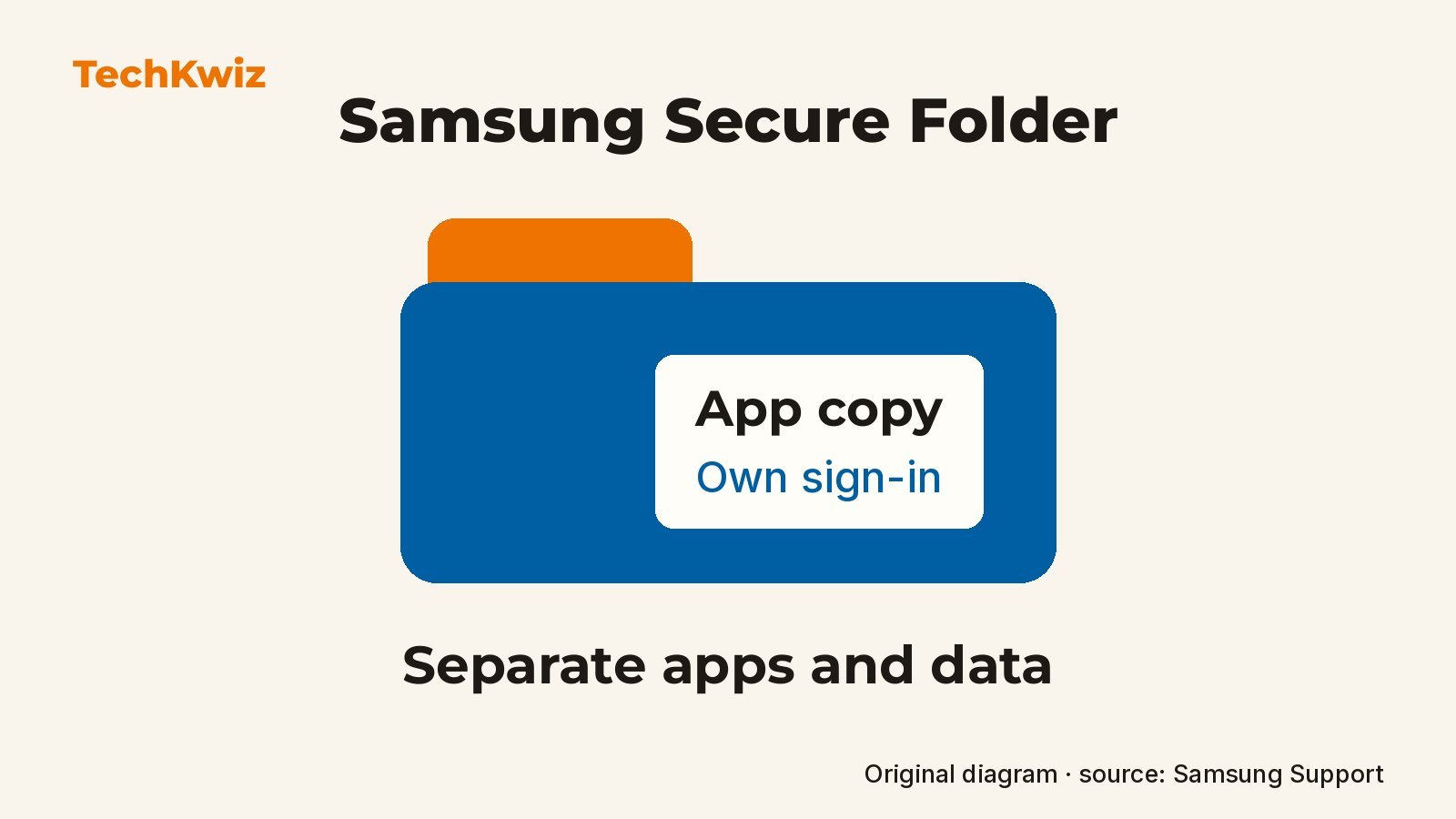
Quick answer: Secure Folder is an encrypted Samsung space for a separate copy of an app. Set it up in Settings. Then add an app to get a second copy with its own login.
Before you set up Secure Folder
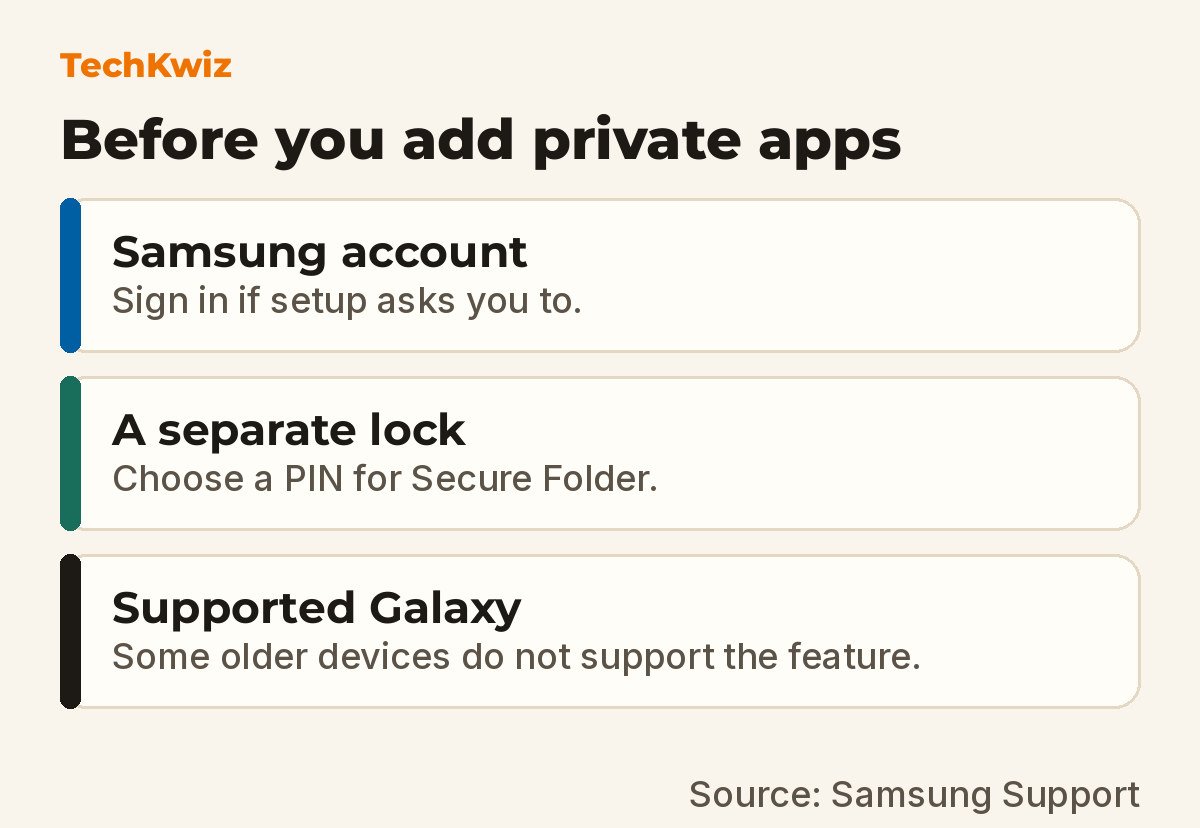
Not every Galaxy phone has it. According to Samsung’s UK support team, some older models lack Secure Folder entirely. If Settings doesn’t show the option on your phone, Android Authority says it’s not pre-installed on every device and has to be downloaded from the Galaxy Store instead — it’s not available from the Google Play Store.
You’ll need a Samsung account too. Setup may prompt you to sign in. And a hidden folder icon isn’t the same as being untraceable: Samsung’s own US support page notes the folder stays reachable through Settings either way.
One thing Secure Folder won’t do is move your existing app data into the protected copy. The copy starts fresh, with its own sign-in and its own storage, per Guiding Tech’s breakdown of the feature.
For broader context on the phones themselves, see our guide on Samsung Galaxy pros and cons.
Set up Samsung Secure Folder
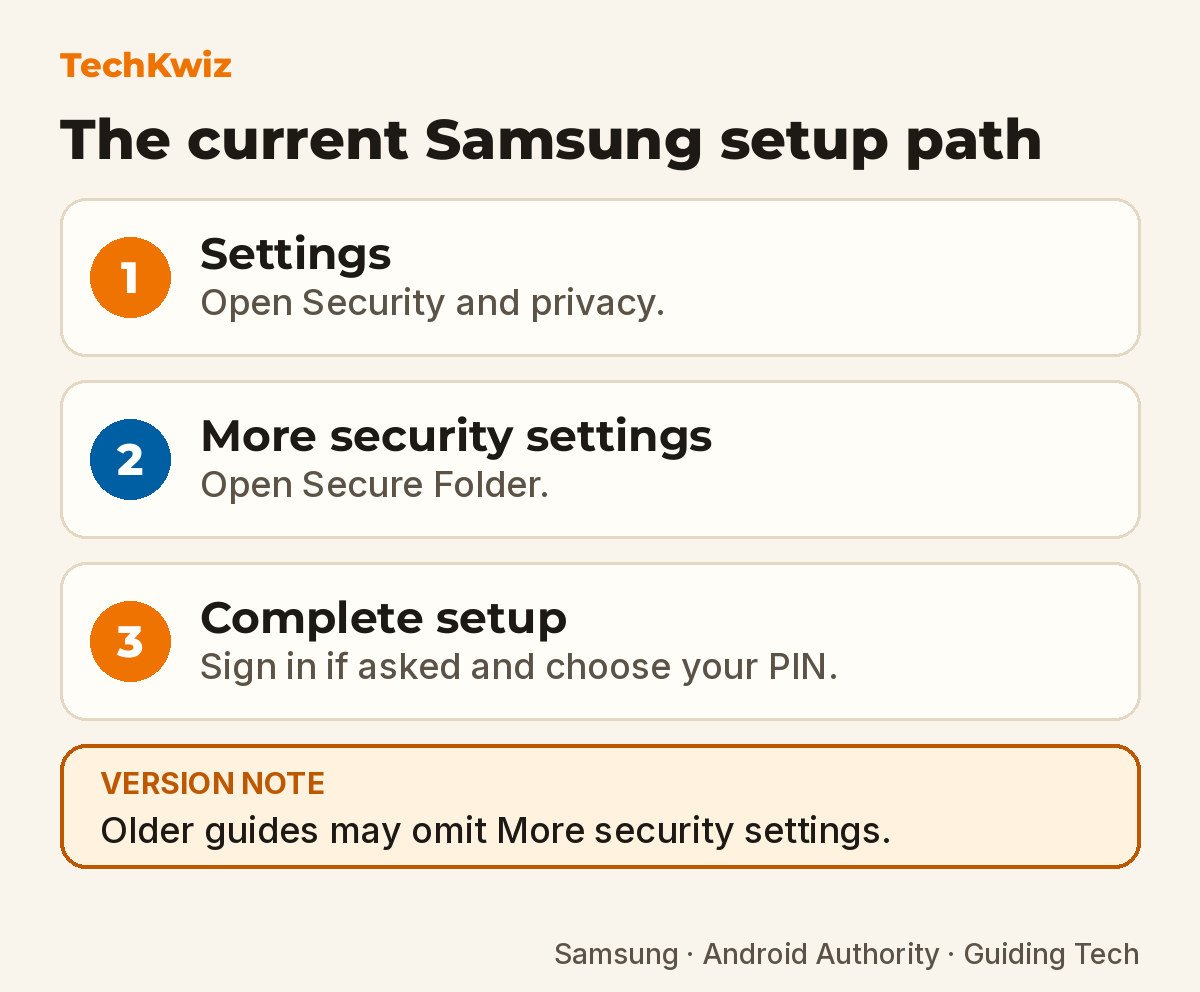
Both Samsung’s US and UK support pages currently list the same path: Settings > Security and privacy > More security settings > Secure Folder. Android Authority walked through this exact path on a Galaxy Z Flip 6 running Android 15. An older Guiding Tech write-up skips the More security settings step, which points to a layout Samsung has since changed.
- Open Settings, then tap Security and privacy.
- Tap More security settings, then Secure Folder.
- Sign in with your Samsung account if asked, then choose a PIN following the device prompts.
Menu wording can differ by One UI version, so don’t treat one screen order as universal.
Add a separate copy of an app
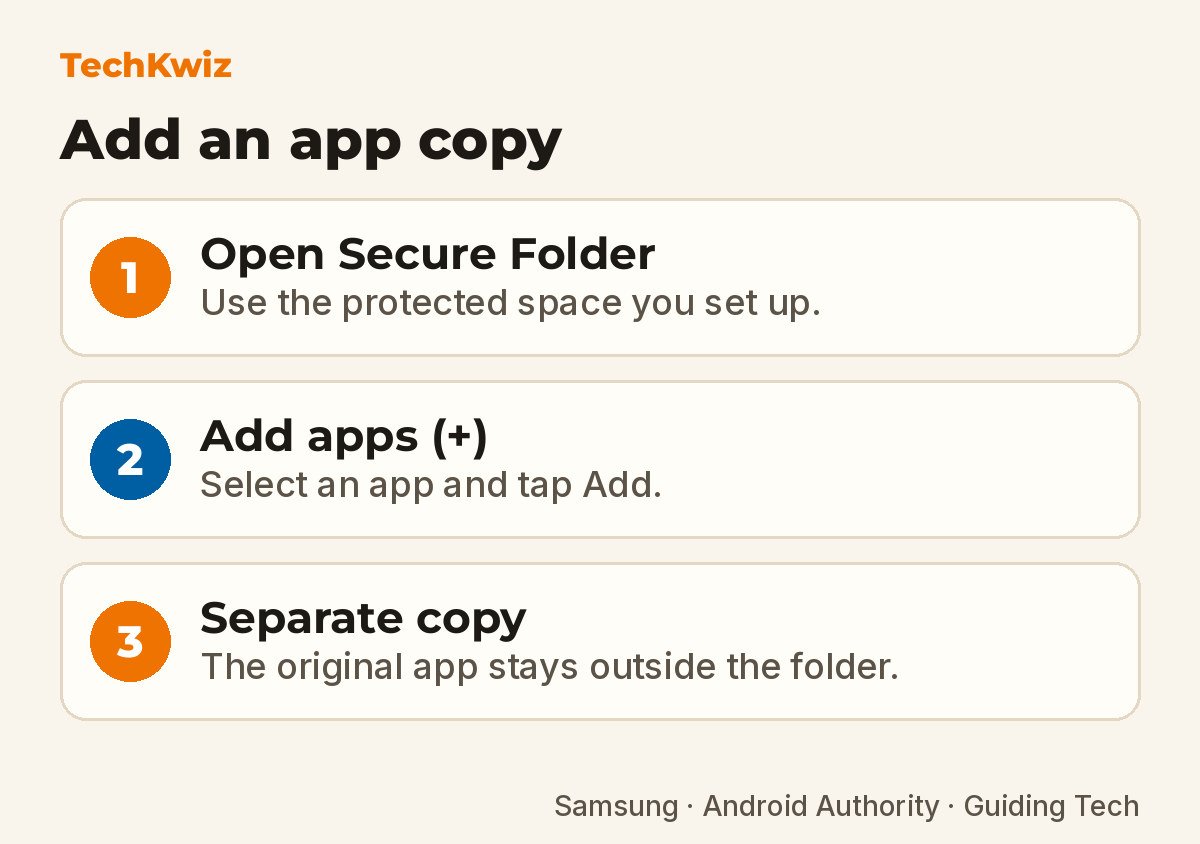
Adding an app inside Secure Folder makes a second, separate copy. The original on your main Apps screen stays untouched. You can even sign that copy in with a different account, as Samsung UK explains.
- Open Secure Folder from the Apps screen or Settings.
- Tap Add apps or the + icon.
- Select an app, then tap Add.
Samsung labels the button Add apps next to a plus sign; reviewers at both Android Authority and Guiding Tech point to the same + icon when walking through this step, so look for either the label or the icon if your menu looks slightly different.
This setup is handy if you want two logins for one service without constantly switching accounts. For that alternative, see our guide on two WhatsApp accounts.
Check copy, backup and lock limits
Copying apps and moving files
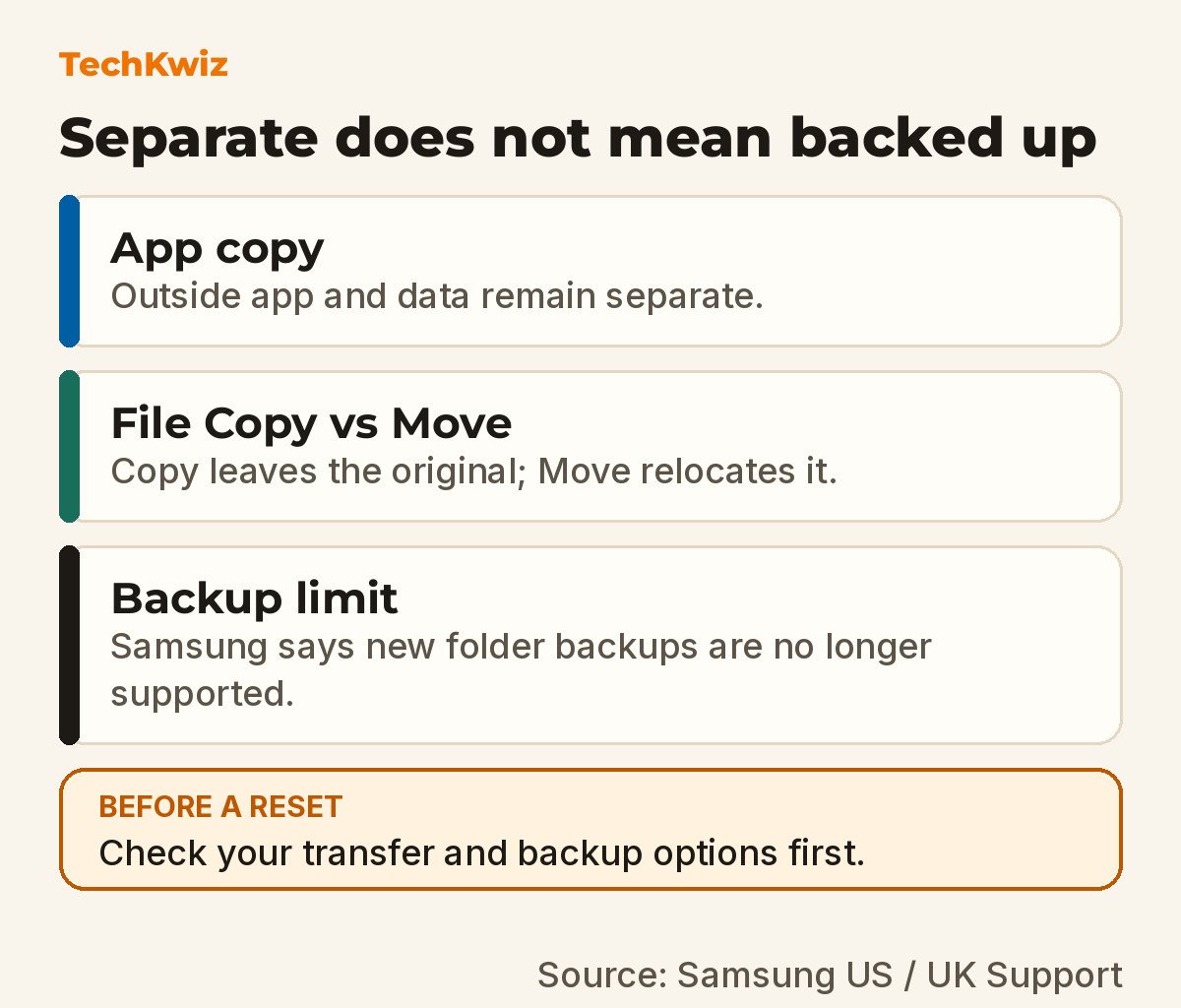
Adding an app always copies it. The original stays put on your Apps screen. But an app you install from inside the folder never leaves it — Samsung UK and Guiding Tech both confirm that.
Files work a little differently — Samsung’s support page spells out two options:
- Copy — leaves the original file where it was; a duplicate goes into Secure Folder.
- Move — relocates the original file into Secure Folder.
Either way, don’t mistake a copied file for a backup of it.
Secure Folder no longer creates its own backups
Samsung has dropped automatic backup creation from Secure Folder. Old backups you already made can still be restored, and Smart Switch still handles moving everything to a new device.
One thing that won’t substitute for a real backup is cloud sync. Android Authority’s own writeup treats auto-sync as a form of backup, but Samsung’s current guidance is clear: new backup creation inside Secure Folder isn’t offered anymore.
Check lock and reset settings
One UI 8 changed how locking works here. Samsung’s current support page lists the before-and-after:
- Older One UI: auto-lock option Each time I leave an app.
- One UI 8: that option is removed; the new default is When screen turns off, plus a separate Lock and exit menu option.
Turn on Reset with Samsung account while you’re in these settings. Skip it, and a forgotten passcode leaves no way back into the folder at all.
Not device-tested. Checked against current Samsung support on 24 Nov 2026, alongside Android Authority (23 Jan 2026) and Guiding Tech (4 Apr and 20 Aug 2024) for the common setup and add-app flow.
The older menu difference above reflects a layout change since those two pieces were published; current Samsung guidance takes precedence on backups.
For WhatsApp-specific backup limits, see WhatsApp cloud backups on Android.
Get new guides first
Browser alerts for new TechKwiz guides.