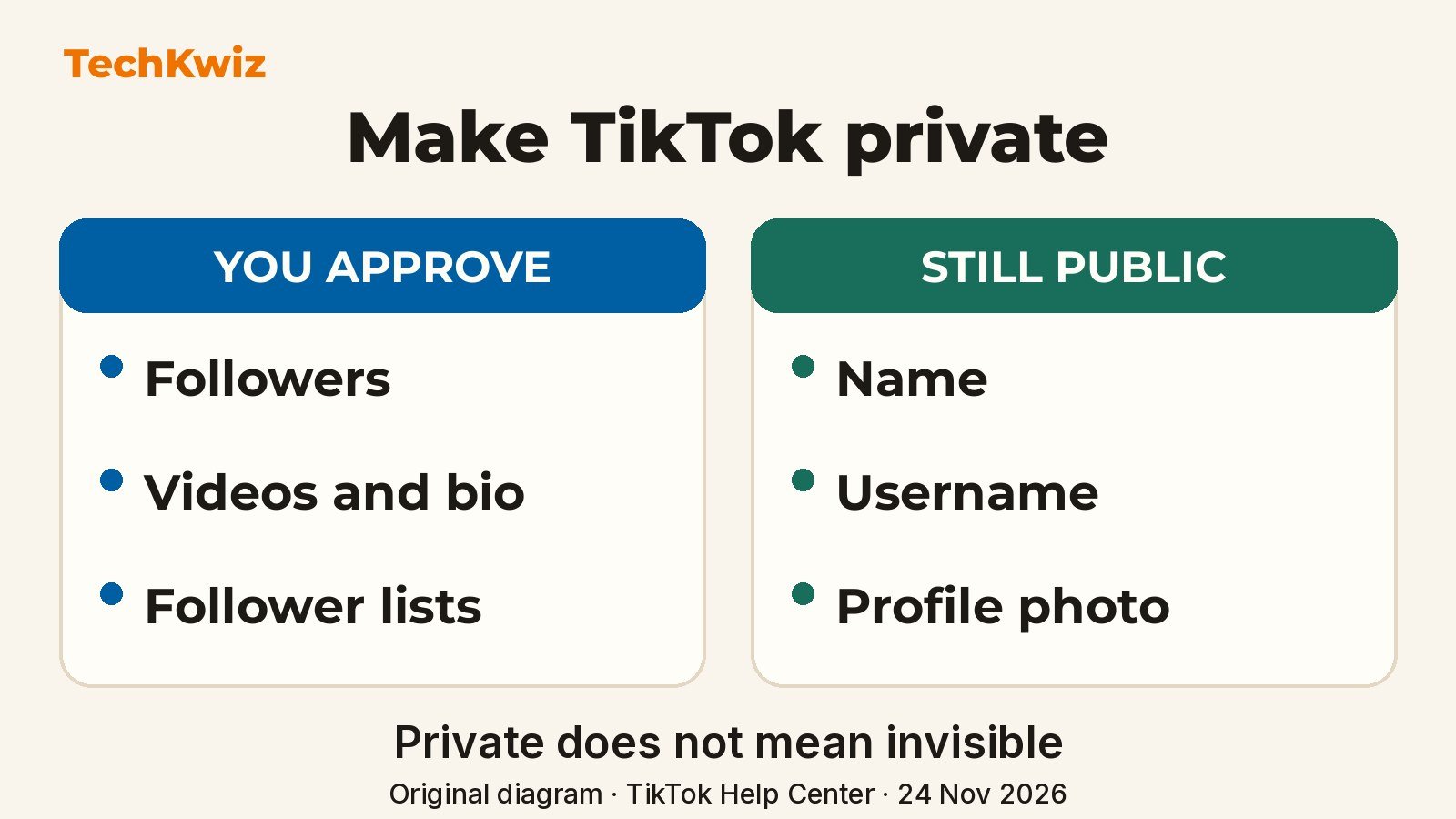
Quick steps: In the TikTok app, tap Profile at the bottom, tap the Menu ☰ button at the top, then tap Settings and privacy > Privacy, and turn Private account on. People who already follow you keep access, so remove anyone you no longer want watching. Your name, username, and profile photo stay visible to everyone.
Turn on the private account switch
Use the TikTok mobile app for these steps. The official instructions do not list a Save or Done button; the switch applies the change.
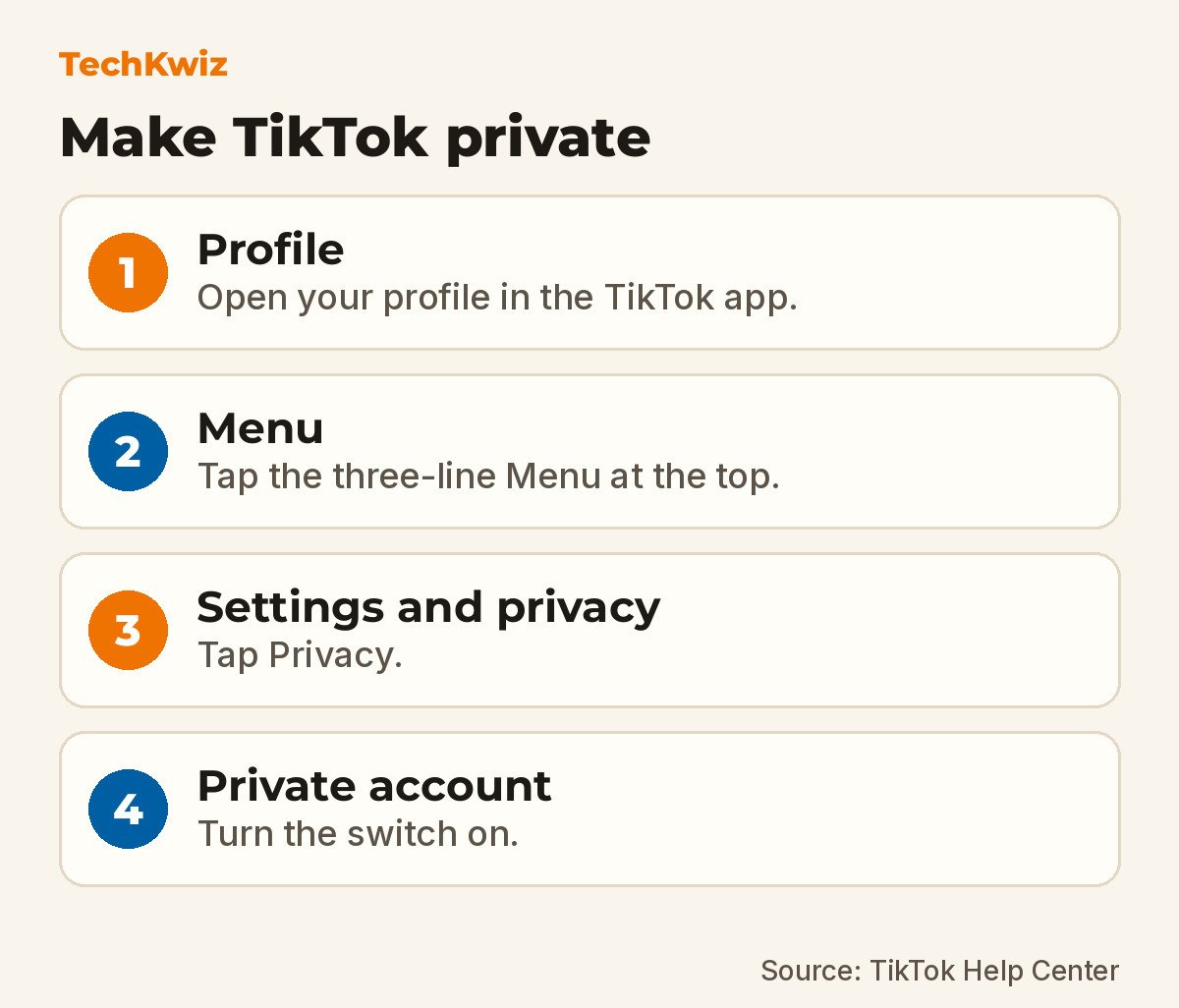
- Open TikTok and tap Profile at the bottom of the screen.
- Tap the Menu ☰ button at the top.
- Tap Settings and privacy, then tap Privacy.
- Turn Private account on.
This path comes from TikTok’s official help page. Independent guides from Internet Matters (updated 4 November 2026) and iTechGuides (8 August 2026) describe the same series of taps.
To go public again later, follow the same path and turn Private account off. TikTok’s help page describes the one switch for both directions, and iTechGuides gives the same reverse path.
What a private TikTok account restricts
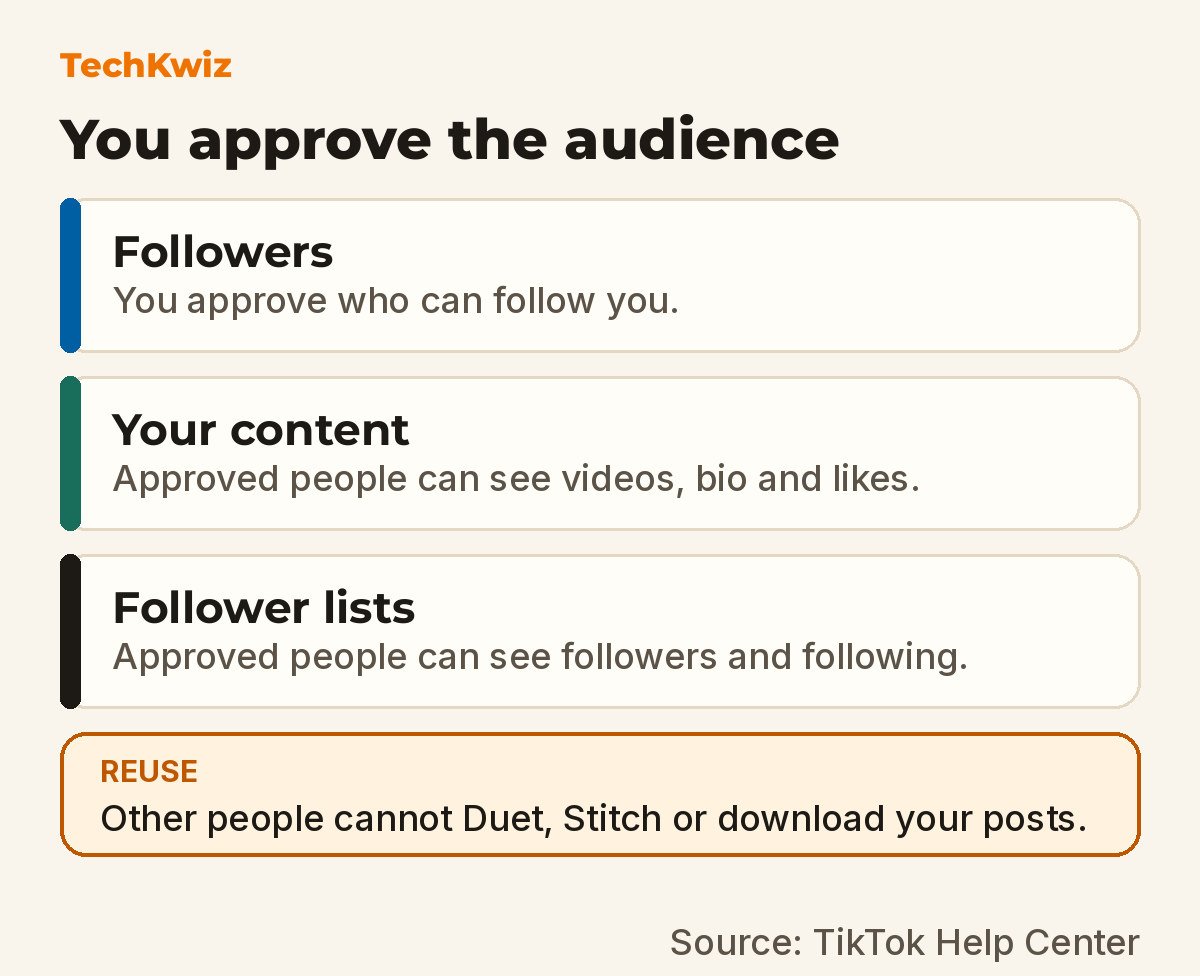
With a private account, you approve who can follow you. Only approved people can watch your videos and LIVE videos, read your bio, see your likes, and open your follower and following lists. TikTok Help lists these limits.
Other people also cannot Duet, Stitch, or create stickers with your posts. They cannot download your posts or add them to their Stories.
Check who already follows you
Going private changes who can follow you from now on. It does not clear your current list.
A Tream guide (22 Oct 2026), wikiHow (15 Apr 2026) and ActualApp (7 Apr 2026) all say existing followers keep their access after the switch. TikTok’s own page does not say followers are removed.
So if you went private to keep one person out, check your follower list next. To remove a follower:
- Tap Profile at the bottom of the TikTok app.
- Tap Followers.
- Tap the More actions button next to the person.
- Tap Remove this follower.
These steps match TikTok’s removing followers page, a Lilach Bullock guide (October 2026) and wikiHow (15 April 2026, older than our other sources but matching TikTok’s current page). TikTok and Lilach Bullock also give a second route from the person’s profile: tap Share at the top, then Remove this follower.
Because a private account needs your approval for every new follower, a removed person cannot follow you again unless you approve them.
On a public account, they could simply follow again. The Tech Safe BC safety guide notes that removal does not send a notice, but the person may still notice the change. If your safety is at risk, it suggests talking to a support worker first.
What stays visible or searchable
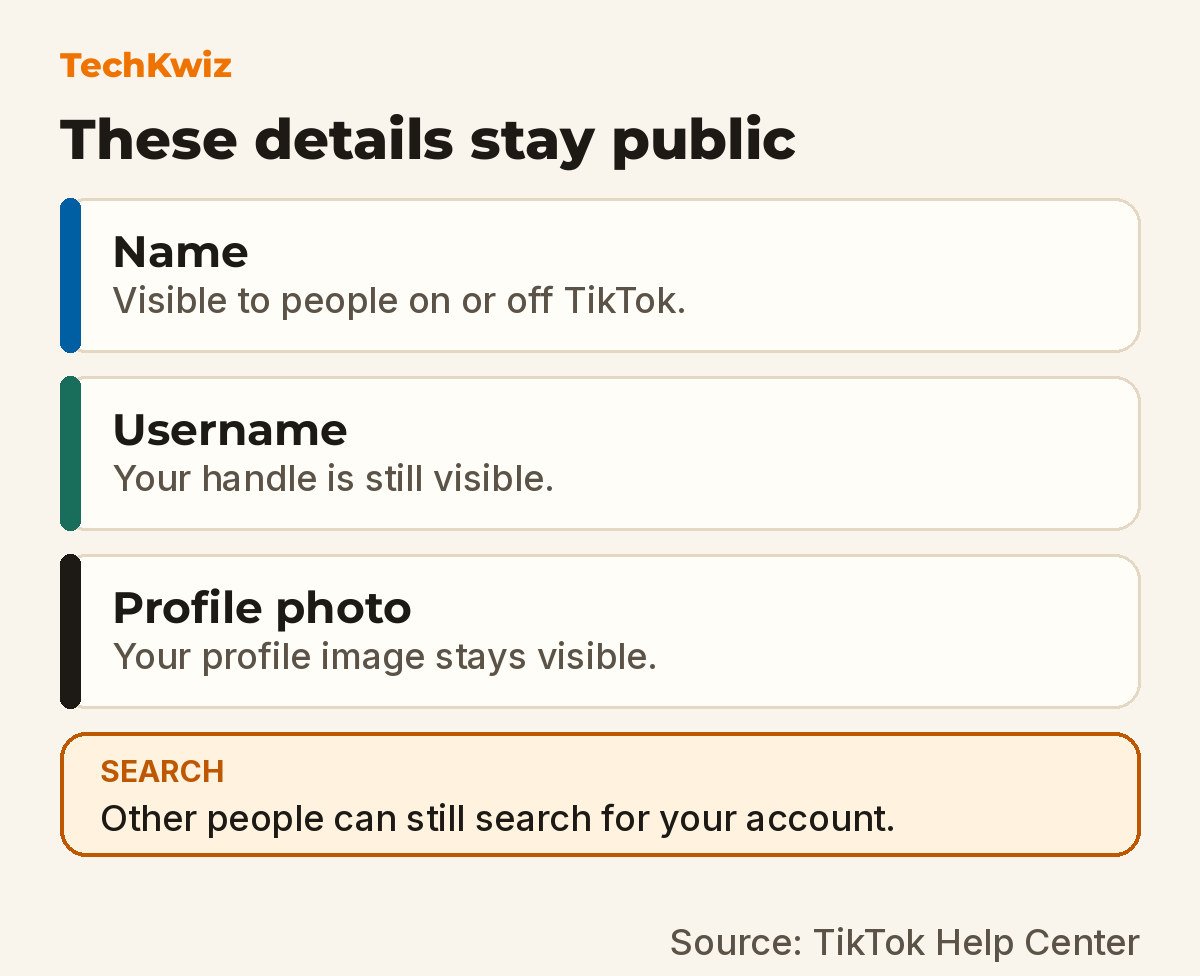
Your name, username, and profile photo remain visible to anyone on or off TikTok. People can still search for your account. Keep phone numbers, school names, and other personal details out of those fields.
The sources differ about your bio. Internet Matters says it stays public; TikTok Help limits it to approved followers. This guide follows TikTok, but a safe habit is to write a bio you would be fine with anyone reading.
Change the audience on one post
The private switch covers your whole account. You can narrow a single post further with its own audience setting, as described in TikTok’s post privacy guide and iTechGuides.
- Tap Profile at the bottom of the TikTok app.
- Open the post you want to update.
- Tap the More options … button on the side of the post.
- Tap Privacy settings at the bottom.
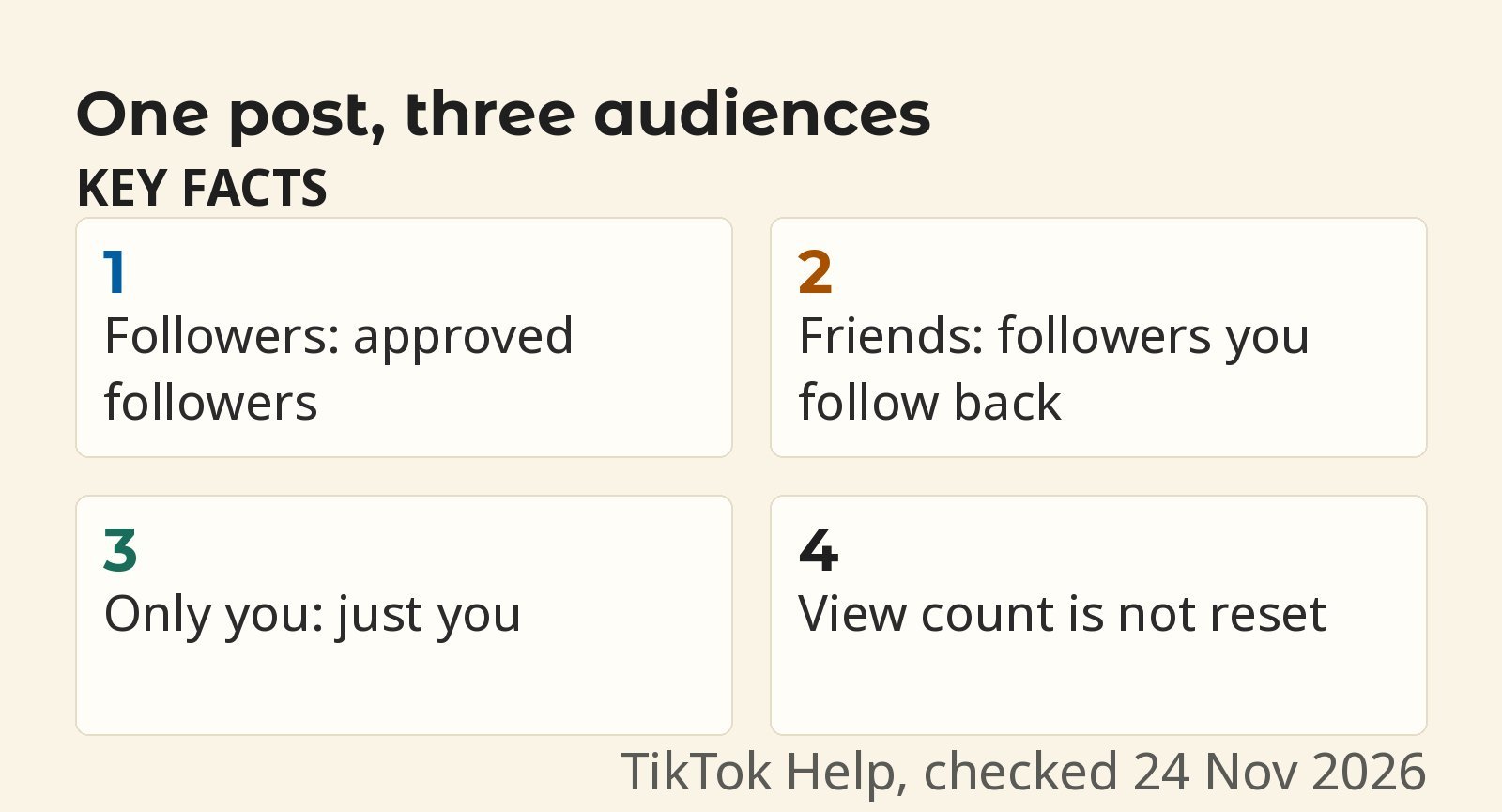
- Choose Followers, Friends, or Only you.
TikTok says you may need to swipe left to find Privacy settings, while Internet Matters describes scrolling right. Look for the label rather than a set direction. These steps cover existing video and photo posts; Stories use a separate path.
Here is how the three choices differ. Suppose Alex approves 40 followers and follows 12 of them back:
| Post setting | Who can view it |
|---|---|
| Followers | The 40 approved followers |
| Friends | The 12 followers Alex follows back |
| Only you | Alex alone |
Changing the audience does not reset the view count, which still includes earlier views. It also cannot recall a copy someone already saved or recorded. Treat audience settings as a limit on future viewing, not a way to erase past sharing.
Screenshots are a separate question. Our guide to whether Instagram notifies screenshots explains how ordinary and disappearing content differ on another app.
Account suggestions can still reveal your profile
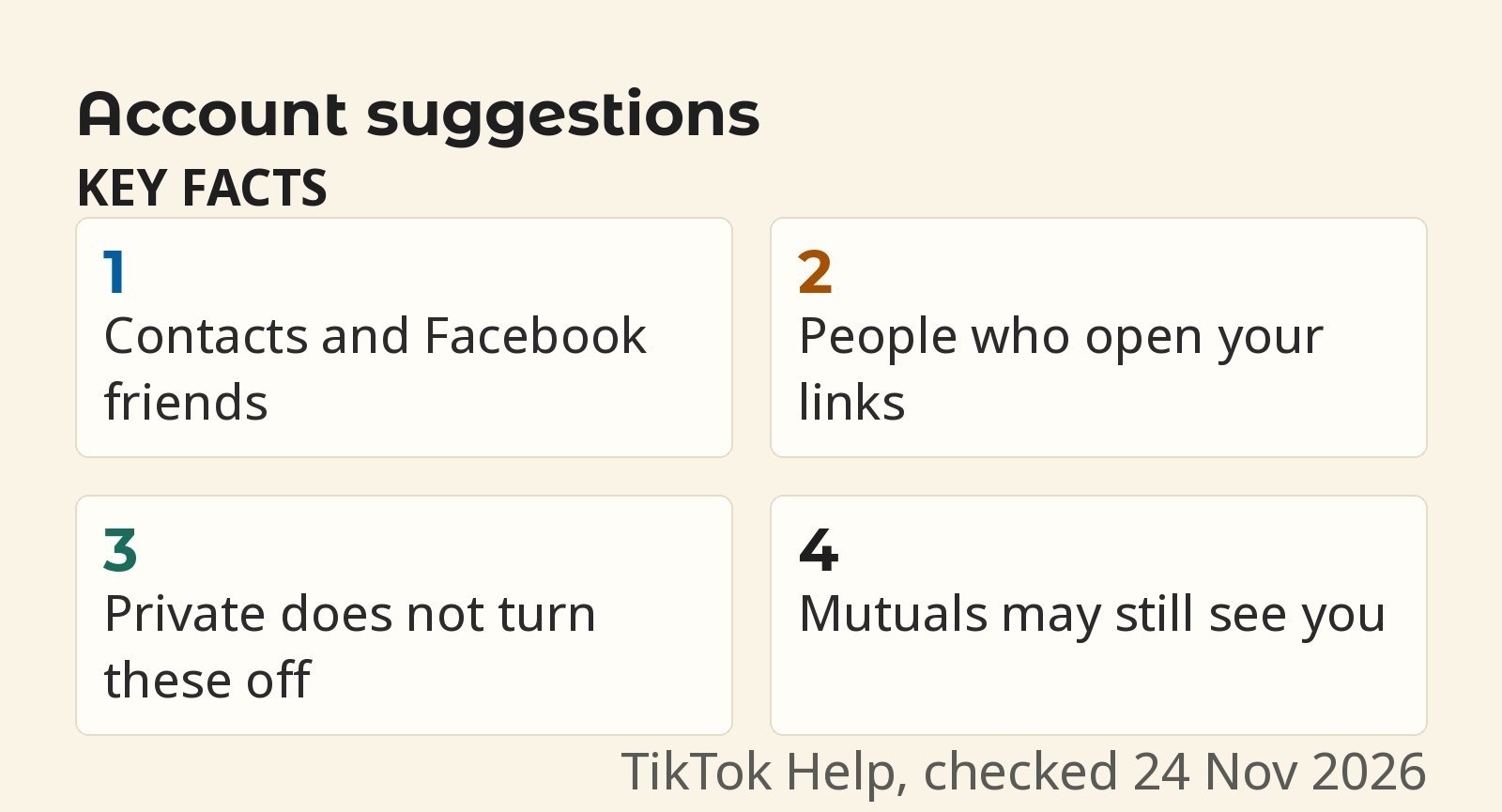
The Suggest your account to others controls cover contacts, Facebook friends, and people who open or send links. Making an account private does not turn these controls off.
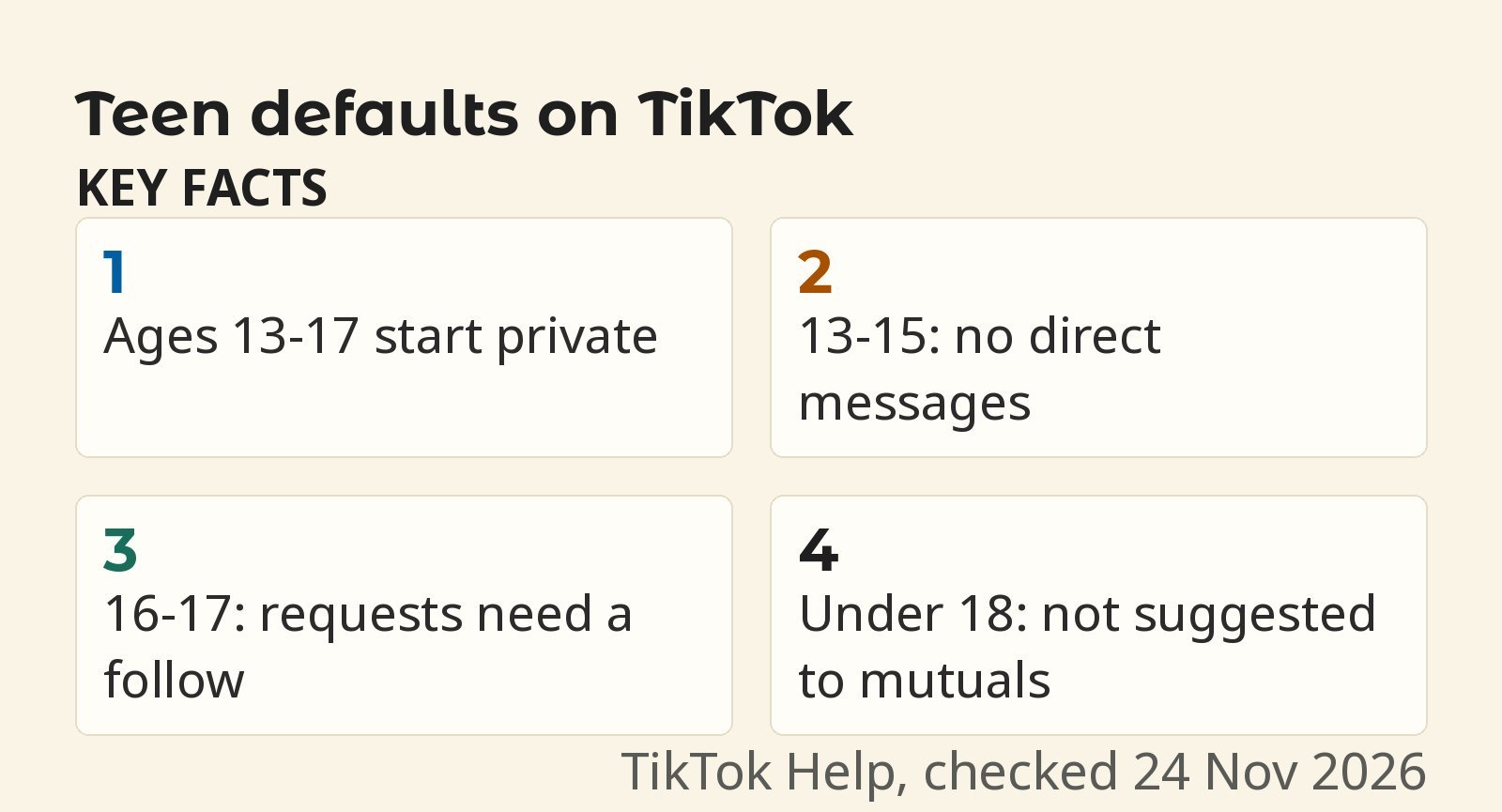
Even with every suggestion switch off, TikTok says your account may still be suggested to people you follow, interact with, or share mutual connections with. This comes from TikTok’s suggested accounts help page. TikTok also says accounts under 18 are not suggested to mutual connections.
Messages and comments have their own settings
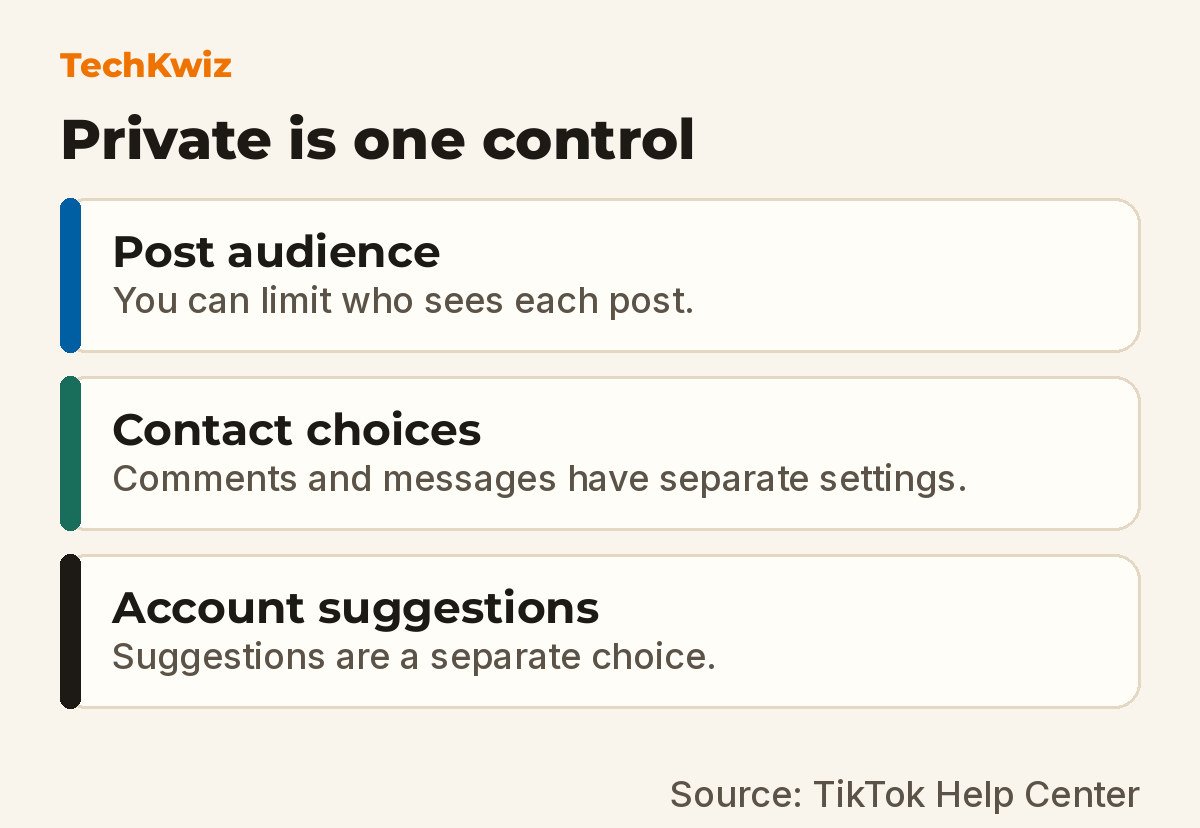
Going private limits who can see your content. It does not switch off every way people can reach you. Comments and direct messages each have a separate control in the same Privacy menu.
TikTok’s direct message guide sets out how this works for adults:
- Direct messaging is only open to account holders aged 16 and older.
- For users 18 and over, messages from mutual friends and accounts you follow go straight to your inbox.
- Your followers and other accounts arrive as message requests, and each can send only one request until you accept it.
- Choosing Don’t receive keeps existing chats open.
- Private videos cannot be shared in messages, and a video made private after sharing becomes unavailable in the chat.
Teen defaults and family controls
Accounts for ages 13–15 and 16–17 start private by default, per TikTok’s teen privacy page. For ages 13 to 15, direct messaging is not available, and the Video downloads setting stays off even on a public account.
For ages 16 and 17 on a private account, other accounts cannot send message requests unless they follow you. TikTok’s message guide adds that users under 18 have message requests set to Don’t receive by default.
Age and local rules can limit which settings a teen may change. Family Pairing can also stop a teen from changing some settings alone, so review them together.
If the private switch is missing
- Use the TikTok mobile app. TikTok’s steps are written for the app, not a browser.
- Recheck the path: Profile > Menu ☰ > Settings and privacy > Privacy.
- For an account under 18, check whether age rules or Family Pairing control the setting.
iTechGuides lists the same checks. The private switch protects your profile online, but it does not lock the app on a shared phone. On compatible Android devices, Android Private Space or Secure Folder can stop someone who picks up your phone from opening TikTok.
Source check: These steps were checked on 24 Nov 2026 against TikTok’s help pages on private accounts and removing followers, plus Internet Matters (updated 4 Nov 2026), Tream (22 Oct 2026), Lilach Bullock (October 2026), iTechGuides (8 Aug 2026) and wikiHow (15 Apr 2026). This guide was not tested on a device.
Get new guides first
Browser alerts for new TechKwiz guides.