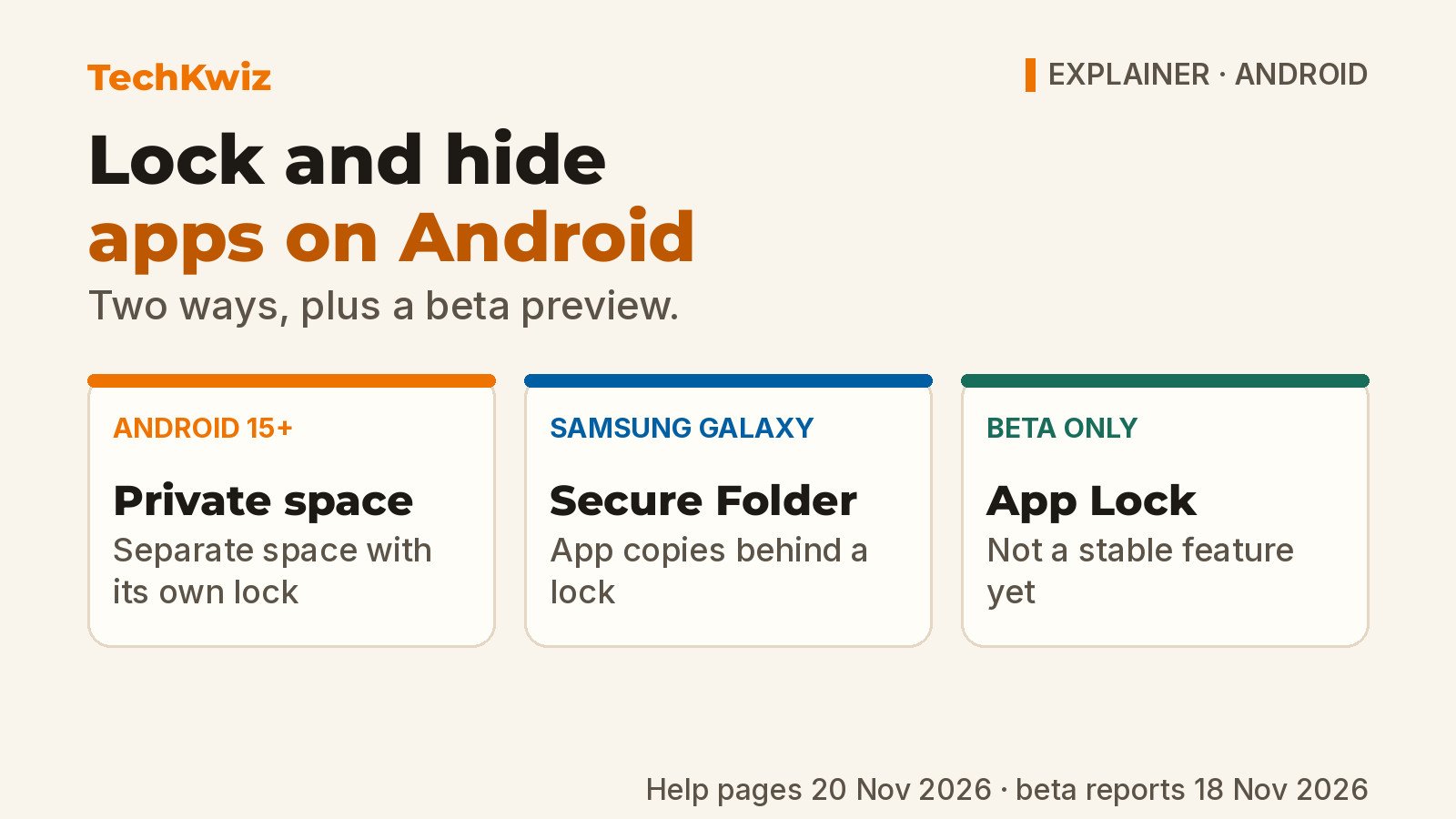
If your phone supports it, you can lock or hide apps using Private space on Android 15 and later, or Secure Folder on a Samsung Galaxy. Private space installs a new instance of an app in a separate locked space, so you sign in to your accounts there again. Secure Folder keeps a copy of the app. Neither one simply locks the original app sitting on your home screen. Google’s Pixel Phone Help covers Private space, while Samsung US Support details Secure Folder.
Quick answer: On a supported Pixel or Android 15+ phone, set up Private space under Settings, then install a new instance of the app inside it and lock or hide the space. On a Samsung Galaxy, set up Secure Folder, add a copy of the app, then hide the Secure Folder icon from the Apps screen if you want it out of sight.
This is a docs-based explainer, not a hands-on test: TechKwiz hasn’t tried these features on a device. Everything below is based on Google’s and Samsung’s official help pages as they stood on 20 November 2026, plus beta reports dated 18 November 2026, because device and software compatibility governs what you’ll actually see.
Key takeaways before you start
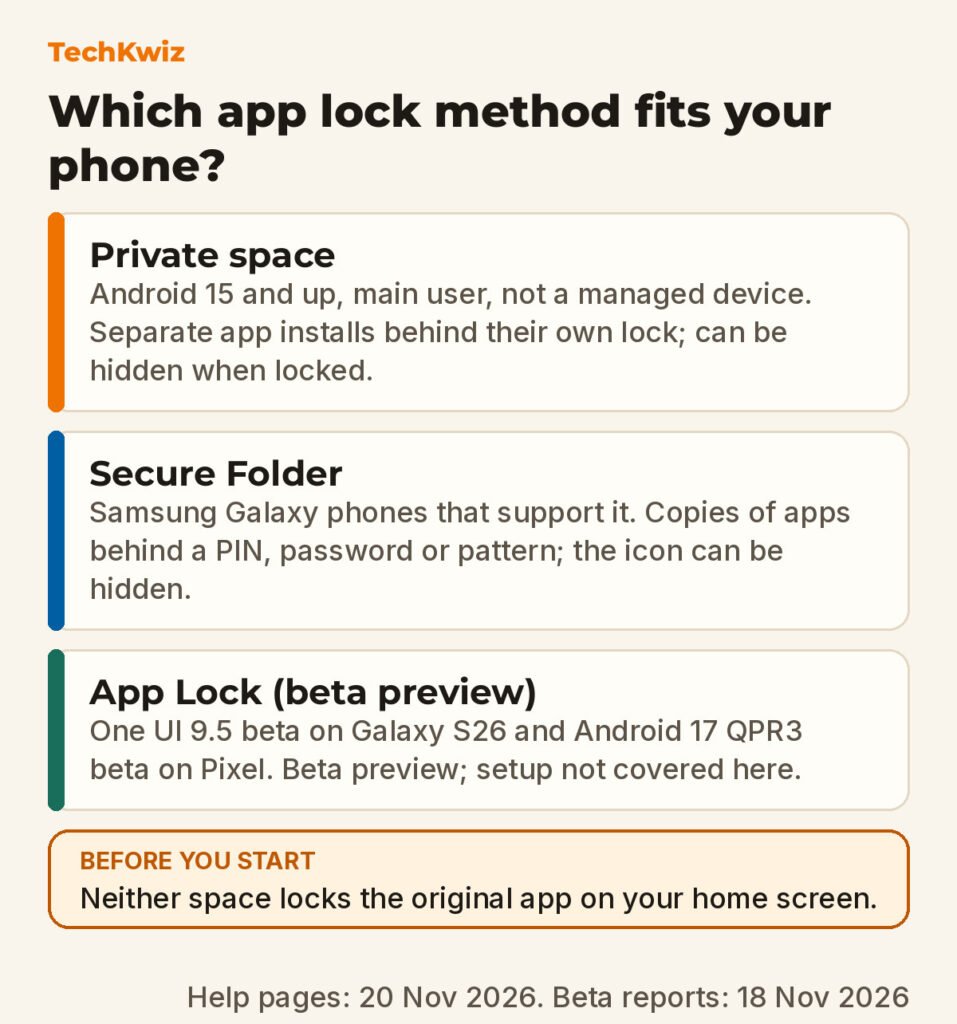
- Private space requires Android 15 or newer and supporting hardware, and it only works for the main user on a device that isn’t managed. Google says some manufacturers may disable it.
- Secure Folder adds a copy of an app. The original app outside Secure Folder is not automatically locked or changed.
- Private space apps are completely stopped when the space is locked, including notifications. Google says private space app data is not included in device backups.
- If you forget your Private space lock, you can reset the space, but apps and on-device data inside it are deleted. Secure Folder recovery only works if you previously enabled Reset with Samsung account.
Set up private space on supported Android phones
Private space is Google’s built-in option for keeping sensitive apps out of view. It works only on devices running Android 15 and up, and only when your phone isn’t a managed device and there’s no supervised account signed in on the main space. Google recommends using a dedicated Google Account inside Private space so synced photos, files, contacts and other activity don’t appear outside it.
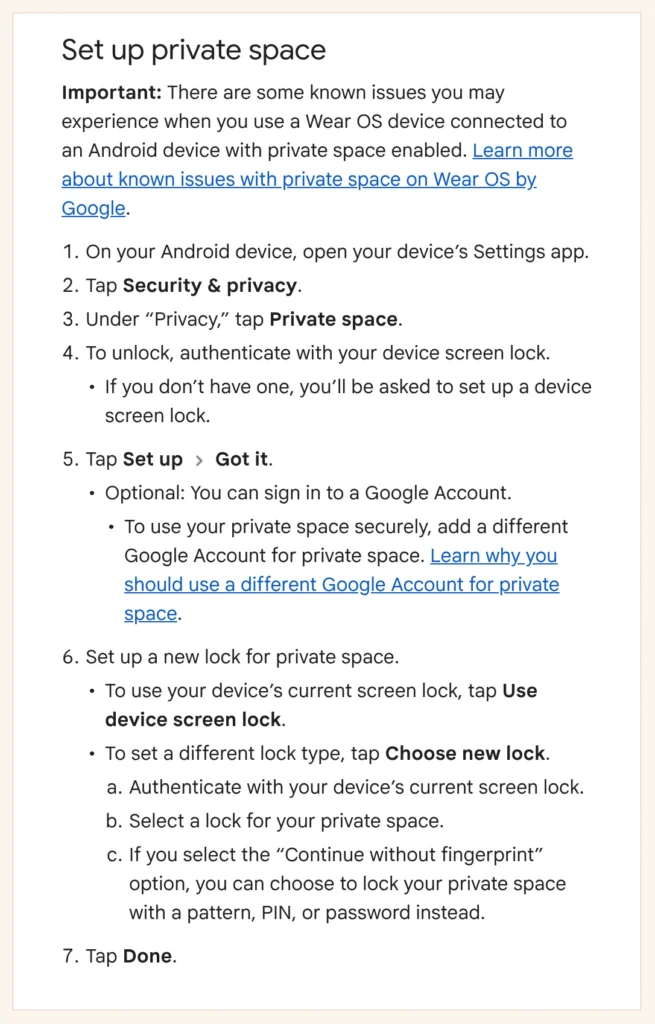
Google’s setup steps are:
- On your Android device, open your device’s Settings app.
- Tap Security & privacy.
- Under “Privacy,” tap Private space.
- To unlock, authenticate with your device screen lock. If you don’t have one, you’ll be asked to set up a device screen lock.
- Tap Set up and then Got it.
- Optional: Sign in to a Google Account. Google says you should add a different Google Account for private space.
- Set up a new lock for private space. Tap Use device screen lock, or tap Choose new lock, authenticate with your current screen lock, then select a lock for private space.
- Tap Done.
If you select the “Continue without fingerprint” option, Google says you can choose to lock private space with a pattern, PIN, or password instead.
Install, lock and hide private space apps
Private space installs a new app instance. The previous instance isn’t copied or modified, and Private space doesn’t allow you to move an app’s data from the main space app into private space. You’ll need to sign in to any accounts inside Private space, even if they’re already signed in on the device.
To install an app in Private space when it’s unlocked, Google gives two routes. In All Apps, touch and hold an app, then tap Install app in Private space. Or open Private space and tap + Install.
When Private space is locked, Google says the apps inside are completely stopped, can’t show notifications, and are hidden from the launcher, recent views, sharing apps such as photopicker and docs UI, and Settings including permission controls and the privacy dashboard. To lock it manually:
- On your Android device, open the Home screen or All Apps.
- Scroll down to Private space.
- On the right of Private space, tap Lock.
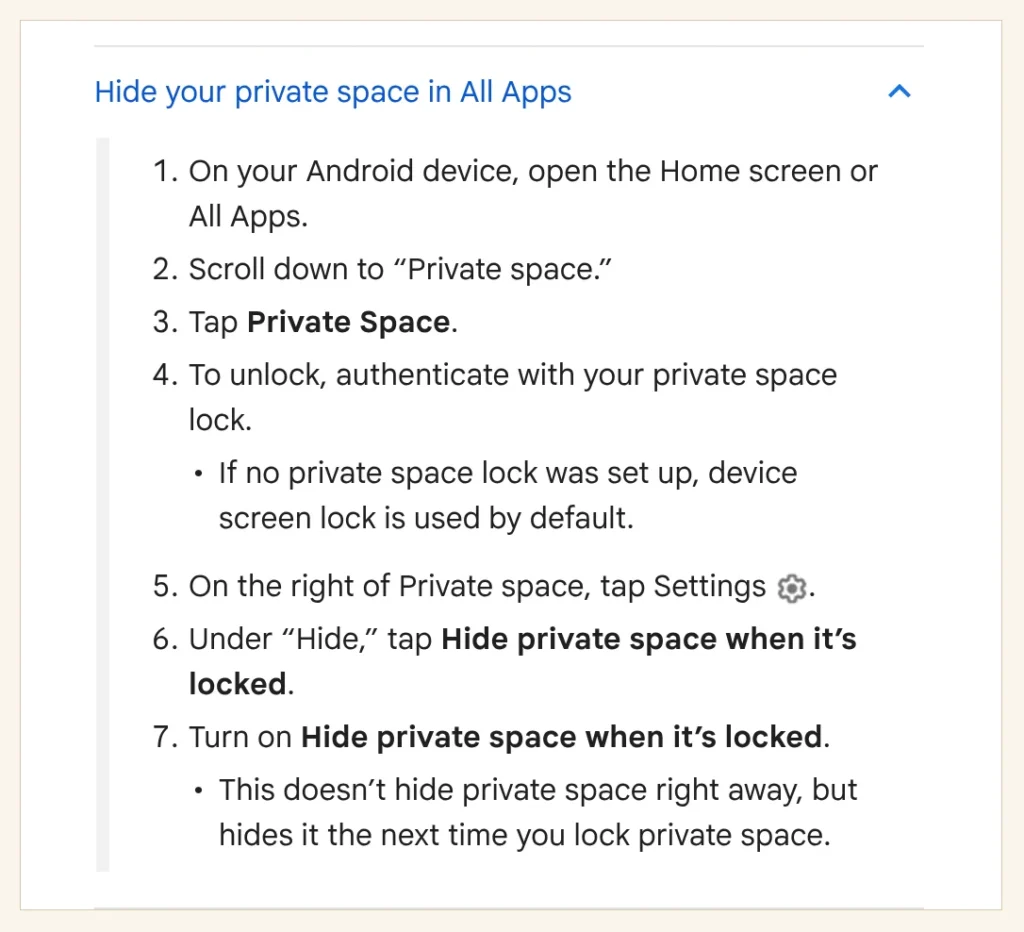
To hide the Private space container in All Apps:
- Open the Home screen or All Apps and scroll down to Private space.
- Tap Private space.
- To unlock, authenticate with your private space lock.
- On the right of Private space, tap Settings.
- Under “Hide,” tap Hide private space when it’s locked.
- Turn on Hide private space when it’s locked.
Google notes this doesn’t hide the space right away; it hides the next time you lock it. When you unlock Private space again, it becomes visible in All Apps.
Private space is not undetectable. Google says computer access including Android Debug Bridge commands, device logs, and some apps can reveal its existence. Some launchers may not support Private space, and Private space apps bypass VPN on the device.
Set up Secure Folder on a Samsung Galaxy
Samsung’s Secure Folder is similar in practice, but it is a Samsung feature rather than the Android 15 Private space system. It adds a copy of an app rather than moving or hiding the original app. Samsung says you can hide the Secure Folder itself from the Apps screen so it isn’t obvious.
Samsung’s setup procedure is:
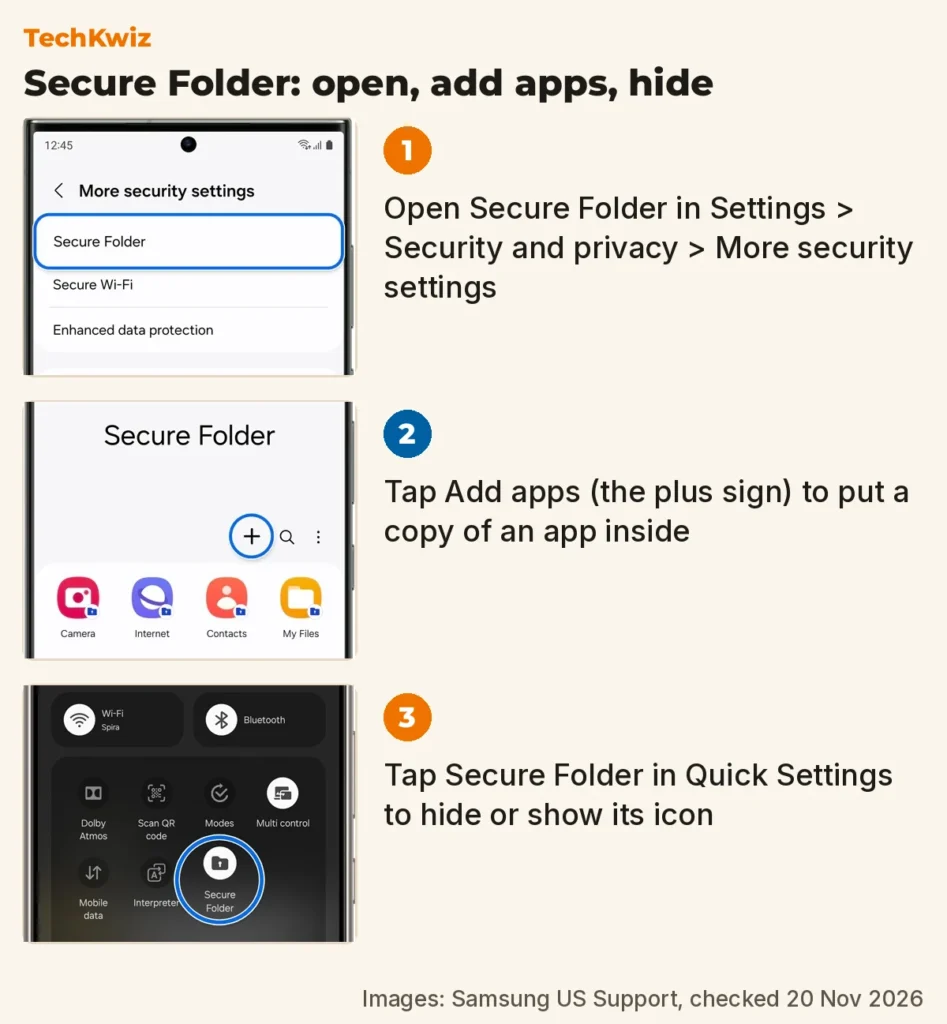
- Navigate to and open Settings, then tap Security and privacy, and then tap More security settings. Tap Secure Folder.
- Tap Continue, and then allow the necessary permissions by tapping Continue again. If needed, sign into your Samsung account, and then tap OK.
- Follow the on-screen instructions to set up a security method like a PIN, password, or pattern.
- You’ll be prompted to turn on Reset with Samsung account. Samsung warns that if you do not turn on this option, you will not be able to access your Secure Folder if you forget your passcode. Tap Turn on if you’d like to recover it later.
- Tap Next, and then enter your passcode if prompted to access your Secure Folder.
Add apps, hide Secure Folder and lock it
After Secure Folder is set up, adding an app creates a separate copy. Samsung’s exact steps are:
- After the Secure Folder is set up, tap Add apps (the plus sign).
- Tap the app you want to add, and then tap Add.
Samsung says you’ll see a copy of the app in your Secure Folder.
To hide the Secure Folder from your Apps screen, Samsung gives two routes. You can swipe down using two fingers to access the Quick Settings panel and tap Secure Folder to hide or unhide it. Or go to Settings, tap Security and privacy, tap More security settings, tap Secure Folder, sign in when prompted, and then tap the switch next to Add Secure Folder to Apps screen to turn it on or off.
On Android 16 with One UI 8, Samsung says the Each time I leave an app option has been removed. The default auto lock setting is now When screen turns off. To adjust it:
- Open the Secure Folder app on your device.
- Tap the More options icon, which is the three vertical dots in the top-right corner.
- Tap Settings, and then tap Auto lock Secure Folder.
- Select your preferred option.
To manually lock and exit Secure Folder on Android 16 with One UI 8:
- Open the Secure Folder app.
- Tap the More options icon in the top-right corner.
- Tap Lock and exit.
Troubleshooting missing settings and forgotten locks
If a setting is missing, check these restrictions from Google and Samsung:
- Private space option missing: Confirm the phone runs Android 15 or later, isn’t a managed device, has no supervised account signed in on the main space, and doesn’t have more than 4 users or profiles. Google says Private space isn’t available as a secondary user or guest, and it can be disabled by the device manufacturer or Enterprise Admin.
- Secure Folder won’t open after a forgotten passcode: You can only reset it if you enabled Reset with Samsung account. Otherwise Samsung says you will be able to remove the Secure Folder and set up a new one, but you won’t recover access to the previous one.
- Forgotten Private space lock: Google says you can reset the space, but the app and its data are deleted with no backup. Cloud-synced app data may be restorable once you sign in to those apps again, but on-device data isn’t backed up.
- Can’t find Lock and exit on Samsung: Samsung says to make sure the device is updated to the latest version of One UI 8, then restart the device and try again.
- Files won’t move into Private space: Google says the transfer can fail if the file is in use, deleted or renamed, the device doesn’t have enough space, or Private space locks while files are moving.
Before resetting or deleting either space, understand the data-loss consequences. Samsung says Secure Folder no longer supports new backups, although you can restore from previous backups. Resetting Private space deletes the apps and data inside it.
What beta App Lock changes
Samsung’s U.S. Newsroom announced the One UI 9.5 beta program on November 18, 2026, saying it includes “App Lock” to secure individual apps for everyday use. Samsung says the beta starts November 17 on the Galaxy S26 series, and eligible users can apply through the Samsung Members app.
Samsung’s announcement doesn’t include step-by-step App Lock instructions. As of 9to5Google’s report on 18 November 2026, Google’s App Lock was still in an Android 17 beta for Pixel and not a stable feature; that may have changed since. TechKwiz isn’t giving setup steps for beta software, and we don’t recommend joining a beta just to try an unfinished lock feature.
Hiding Play Store library entries is a separate task from locking or hiding installed apps; see our guide to hiding apps and games in Google Play Store. If a locked or hidden app crashes later, see how to fix Android apps that won’t open.
Get new guides first
Browser alerts for new TechKwiz guides.