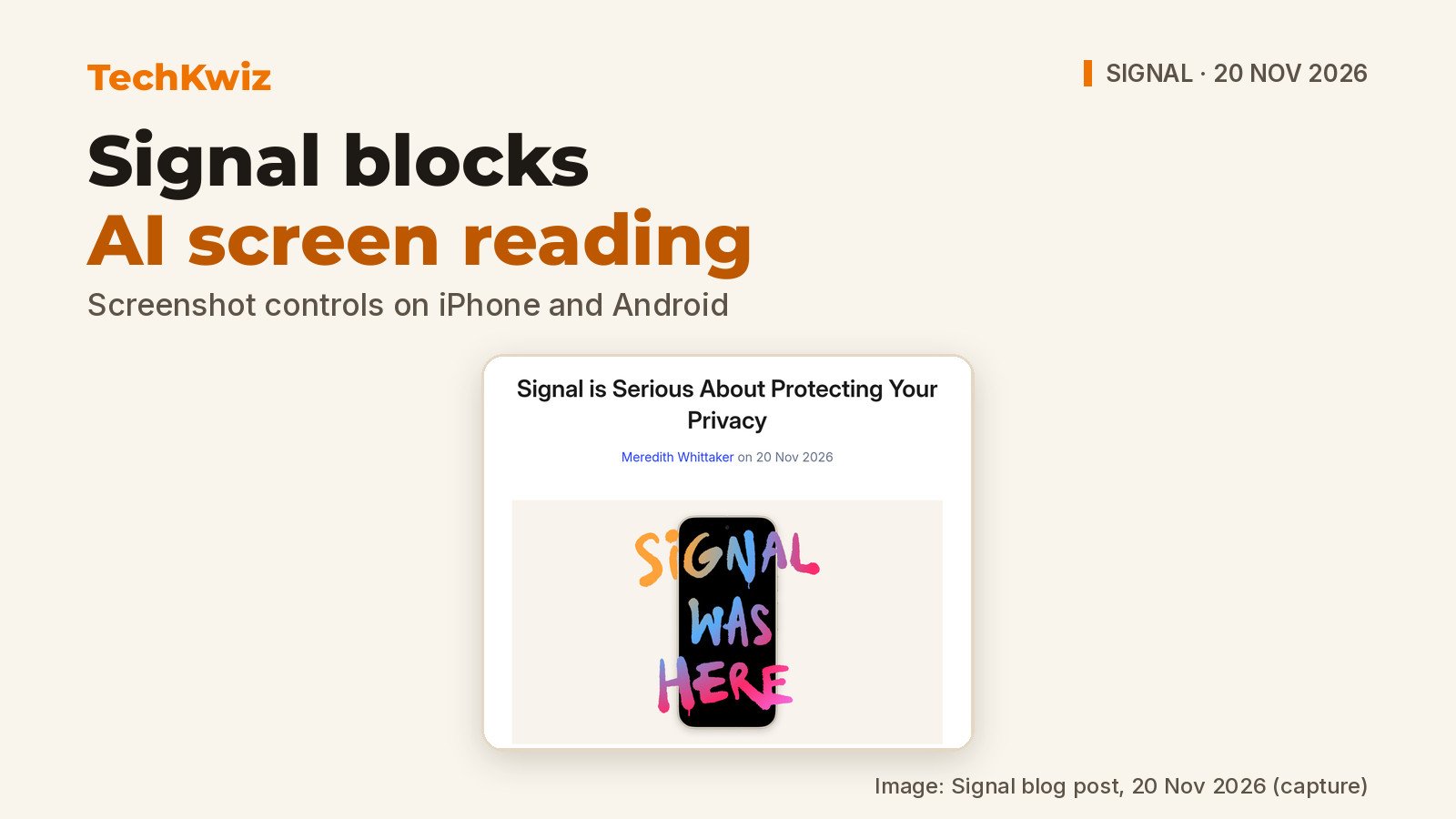
Signal announced on 20 November 2026 that it is blocking OS-level AI assistants from reading your screen while you use the app. In a blog post by Meredith Whittaker, Signal says agentic systems like Siri AI and Google Gemini can scan on-screen content and store it outside the app. Signal says that undercuts its privacy guarantee, so the app now blocks screenshots in Signal on iOS 27 and switches on its screen protection on Android when it detects an AI assistant trying to read the screen.
Signal’s screen security help page explains the version requirements, setting locations and what changes if you turn the protection off. TechKwiz hasn’t tested this feature. This article is based on the official Signal pages as of 21 November 2026.
Key facts
- iPhone: Signal 8.37+, iOS 27+.
- Android: Signal 8.35.1+.
- iPhone default on; Android activates on detected assistant access.
- iPhone offers Off for 10 Minutes.
- No equivalent screenshot blocking on macOS.
- Message encryption is unchanged.
What Signal blocks on your screen
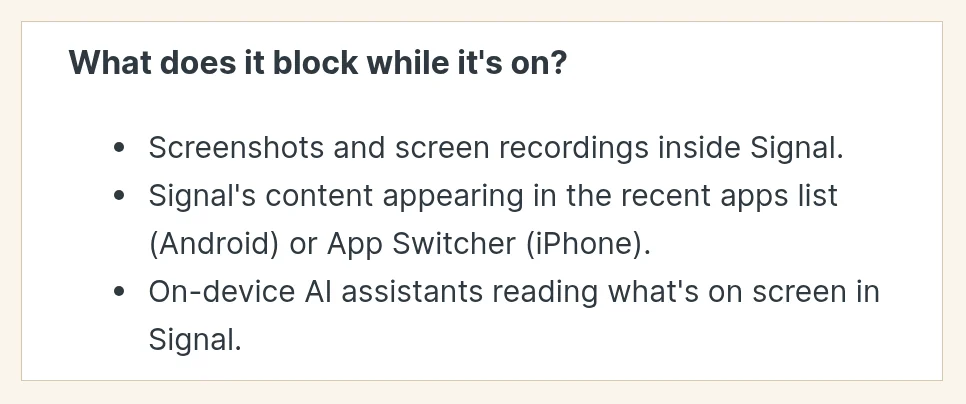
Signal says the protection covers three main routes: screenshots and screen recordings inside the app, Signal content in the recent apps list or App Switcher, and on-device AI assistants reading what is on screen. Signal’s reasoning, from the blog post, is that once an assistant has captured your chat, that data sits outside Signal’s control.
It does not change how messages are encrypted or who can see them. Signal is explicit that the setting only affects screen capture and on-device scanning. Everything else works as before.
How to find the controls on your phone
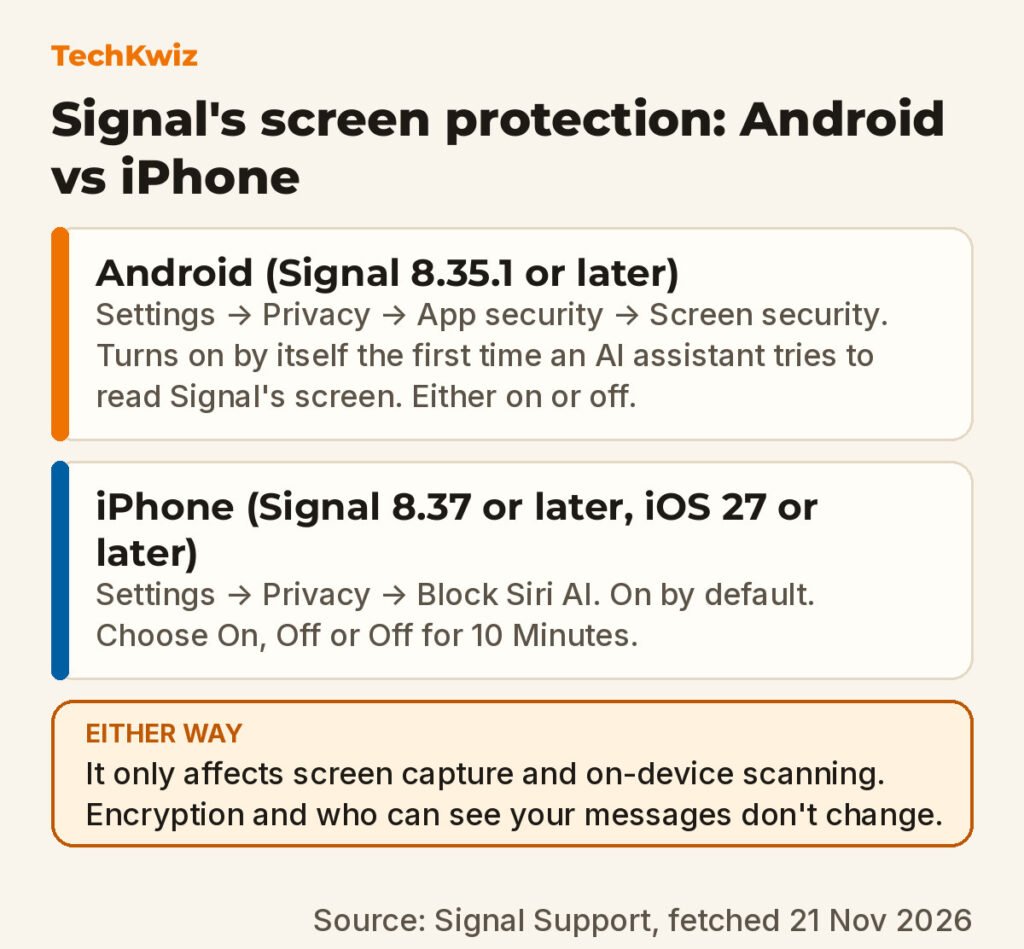
On Android, the setting lives under Settings → Privacy → App security → Screen security. On iPhone, it is Settings → Privacy → Block Siri AI. iPhone users get three choices: On, Off, or Off for 10 Minutes.
If you try to screenshot while protection is on, Android simply won’t capture. On iPhone, Signal shows a message that the screenshot was prevented, with an Options button to turn protection off temporarily or leave it on.
What happens when you turn protection off
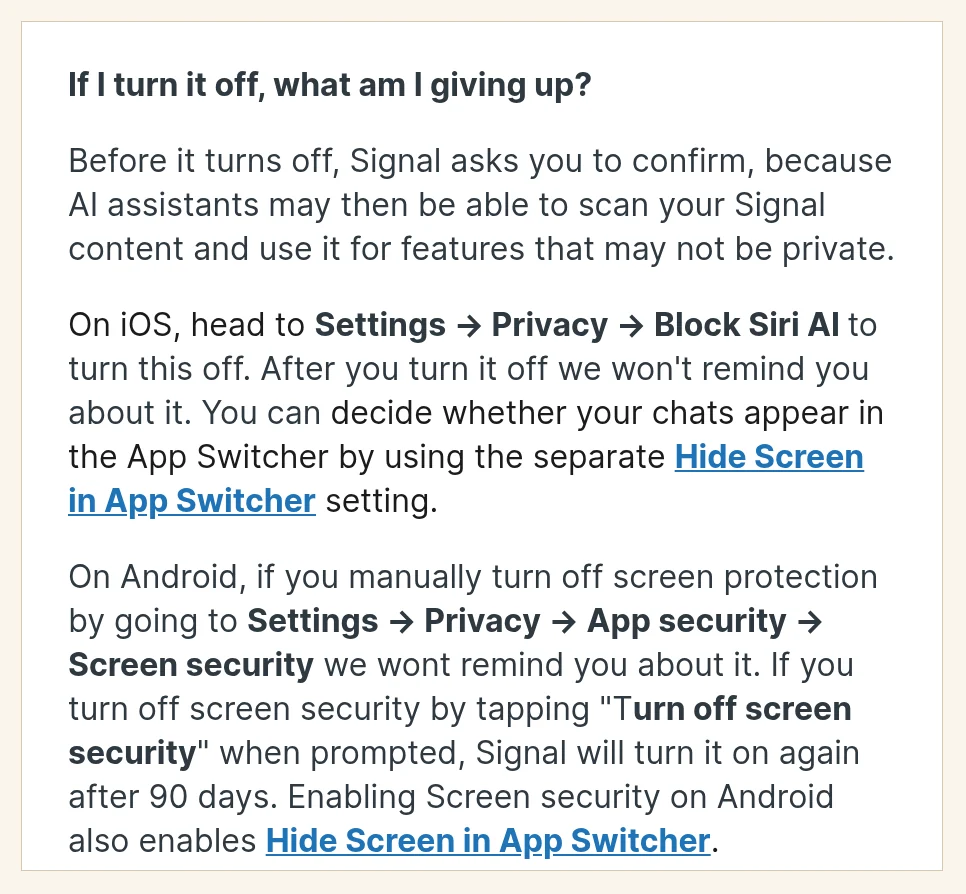
Signal asks you to confirm before switching it off, because AI assistants may then scan your Signal content and use it for features that may not be private. On iPhone, turning off Block Siri AI won’t remind you again. The separate Hide Screen in App Switcher setting controls whether chats appear in previews.
Android has a conditional re-enable rule. If you turn off screen protection manually through Settings, Signal won’t remind you. If you tap Turn off screen security when prompted, Signal turns it back on after 90 days.
Where screen protection stops
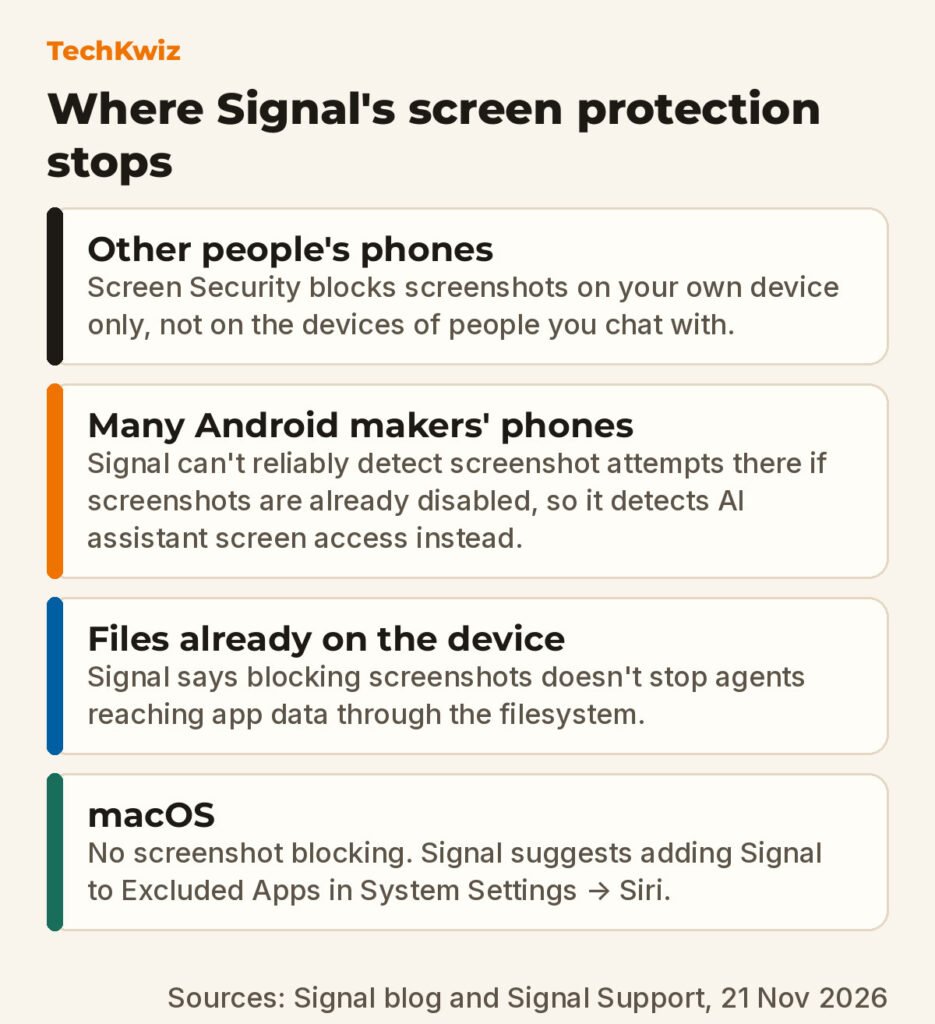
Signal says the remedy is incomplete. Restricting screenshots does not address other routes AI agents could use, such as retrieving content already on a device through the filesystem. On macOS, Signal says it cannot reliably block screenshots, so there is no equivalent protection.
For macOS 27 users, Signal’s recommendation is to add Signal to the Excluded Apps section in System Settings → Siri. That reduces proactive Siri AI access but doesn’t match the phone-level screenshot blocking.
Other participants can still capture messages on their own devices. On Windows 11, Signal Desktop has blocked screenshots by default since last year, a move Signal made because of Microsoft Recall. Signal’s older support page says you can change it in Signal Desktop Settings → Privacy → Screen security.
Read more
- Does Instagram notify when you screenshot?: a useful comparison for how different apps treat screenshot privacy.
- Google brings Gemini computer use to the Mac app: what an AI agent that clicks and types across your desktop apps can do, and the controls Google describes.
Get new guides first
Browser alerts for new TechKwiz guides.