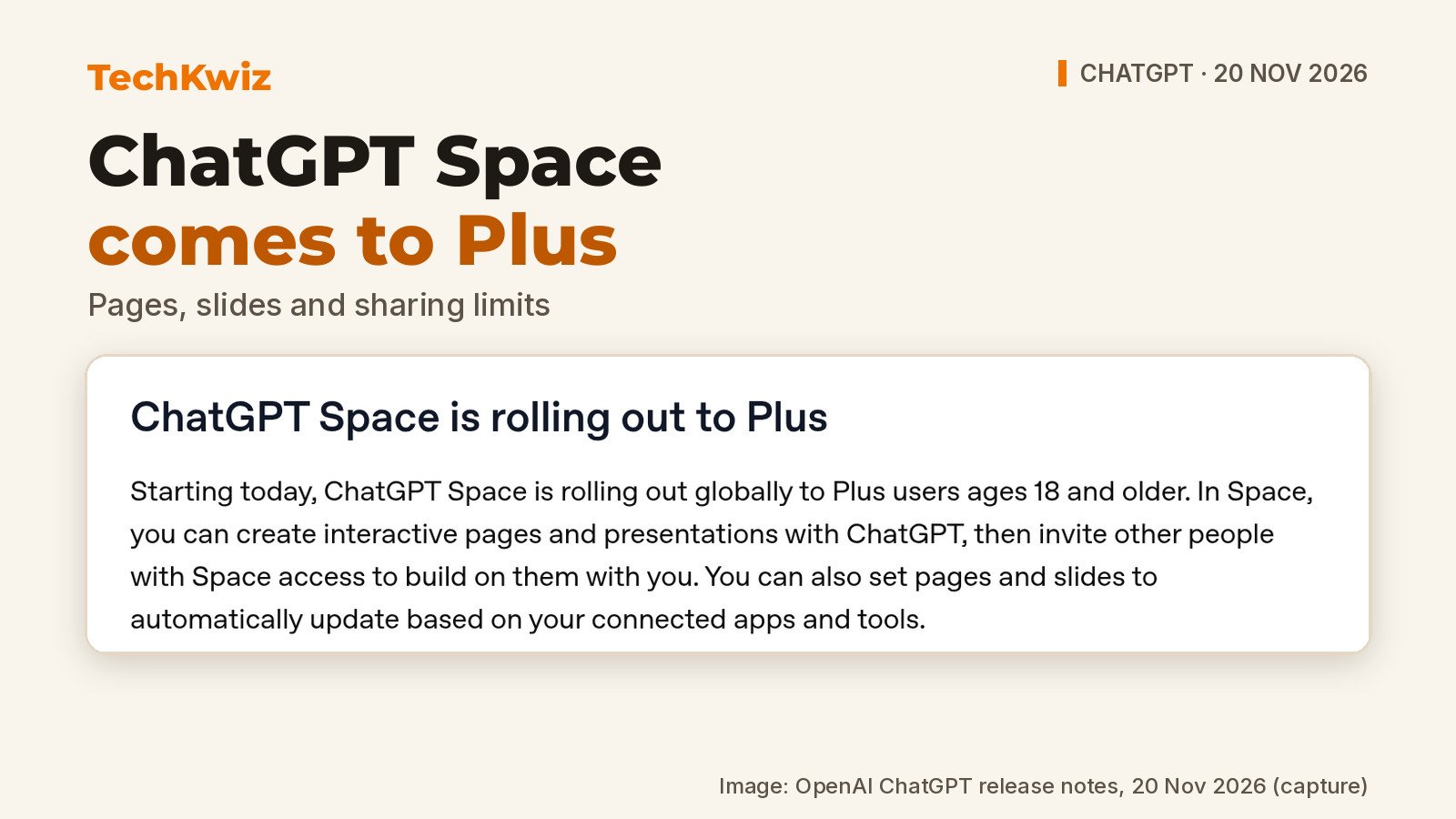
OpenAI announced on 20 November 2026 that ChatGPT Space is rolling out globally to Plus users aged 18 and older. The ChatGPT release notes describe Space as a new home for interactive pages, presentations, images, and uploaded files, with the option to invite other people who have Space access to collaborate. OpenAI says you can also set pages and slides to update automatically based on your connected apps and tools.
What to know:
- Space is rolling out globally to Plus users aged 18 or older; access may not appear immediately.
- For accounts with access, Space replaces Library while Projects remain separate.
- Shared pages and presentations require permission and a paid account with Space access; Free access and public links are unavailable.
What Space changes for Plus users
The biggest change is the sidebar. OpenAI says Space replaces Library for accounts with access, so if Library disappears, that is where your pages, slides, images, and uploaded files now live. Projects stay separate, which means your existing project chats, files, and instructions are not folded into Space.
OpenAI describes Space as a workspace for editable documents and related files. A page can be a project brief, meeting notes, a research summary, or a team update. You can organize pages under other pages, group them into spaces, and invite collaborators to view or edit them. Each person works with their own ChatGPT on the shared content, OpenAI says.
TechKwiz hasn’t tested Space. This article is based on the official OpenAI pages as of 21 November 2026.
How to find Space and start a page
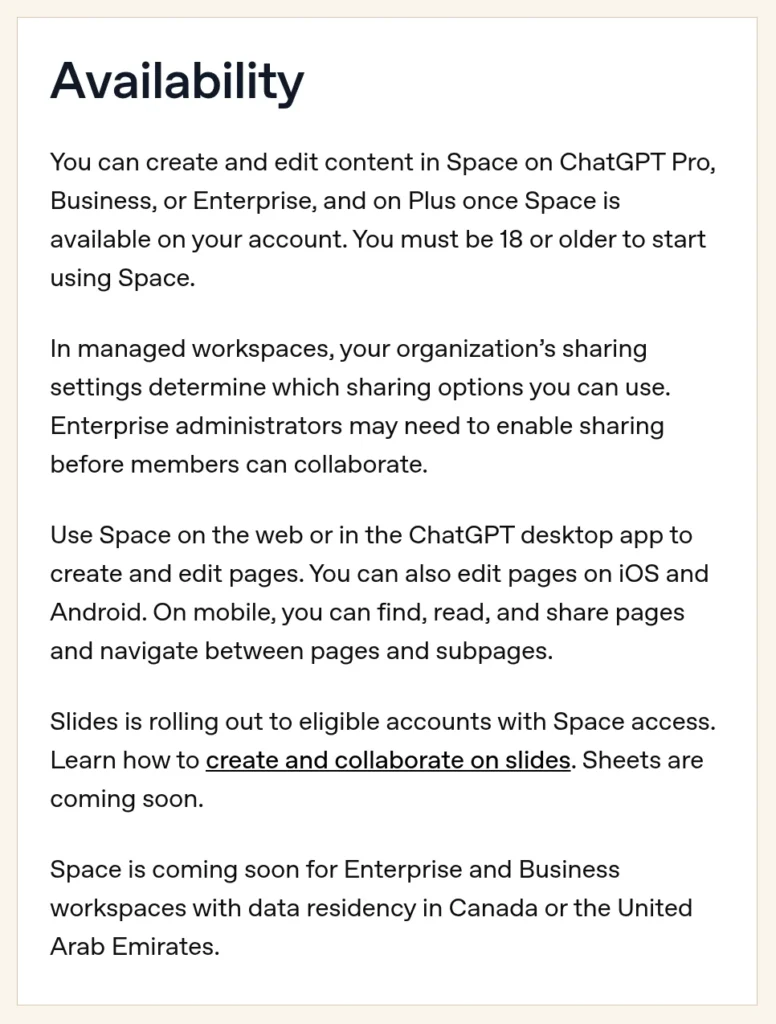
OpenAI says to open Space from the sidebar. If you do not see it in the desktop app, update to the latest version. If it still is not there, the rollout may not have reached your account yet. The Getting started with Space guide says you can create and edit pages on the web or in the desktop app, and edit pages on iOS and Android.
To start a page from existing work, open a conversation in Work or Codex and ask ChatGPT to create a page. You can describe what it should contain and attach files or context. OpenAI’s example is: “Create a page from this conversation with the project goals, decisions, and next steps.” You can also start a page directly in Space or use a template from Space home.
Once a page exists, you can edit the text yourself or ask ChatGPT for changes. OpenAI says pages can include charts, trackers, and interactive tools, and you can use comments to give feedback on a specific passage. If you reach your Plus message limit, you can still edit the page by hand.
Space is more useful if you already organize work in ChatGPT. If you haven’t used Work yet, our report on GPT-6.2 Astra and Sol in ChatGPT Work and Codex explains what changed there.
How slides and sharing work
Slides is separately rolling out to eligible accounts with Space access, according to the Creating and collaborating on slides guide. You can ask ChatGPT in Work to create slides, or start in Space with a blank deck or template. OpenAI says collaborators with edit access can work on the same deck in real time, and you can @mention ChatGPT to request edits or @mention a dot if you have one.
There is one Windows caveat. On Windows devices without the required MXC component, local AI slide creation and editing in the desktop app uses PowerPoint files instead of collaborative Slides. Windows 10 does not support that component, and Windows 11 users may need an update or their organization to enable it. OpenAI says to use cloud mode or ChatGPT on the web for collaborative Slides.
Sharing works the same way for pages and presentations. You need permission to view a shared item and must be signed in to a Plus, Pro, Business, or Enterprise account with Space access. Free users cannot open shared pages or presentations, and public links are not available. That is a real limitation if you are used to sending a quick view-only link to someone outside your workspace.
What to check before sharing a page
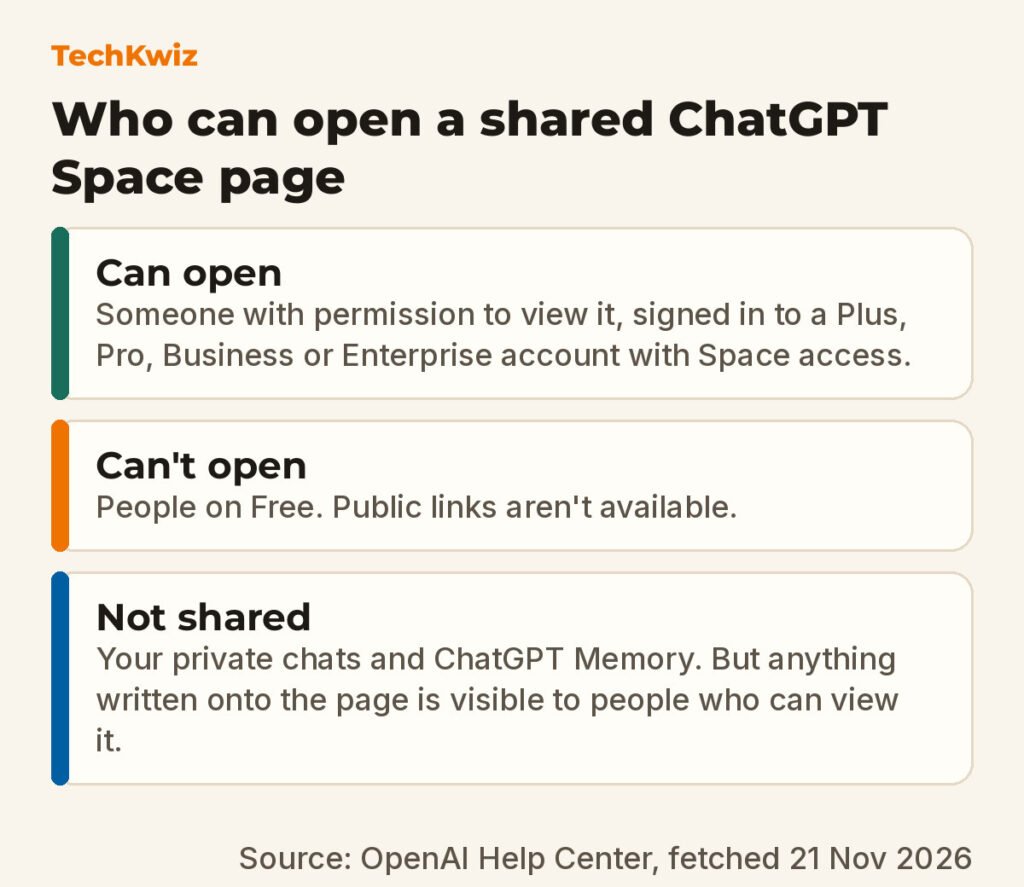
The Space sharing, data, and controls page makes one thing clear: sharing a page does not give people access to your private chats or ChatGPT Memory. But anything written onto the page is visible to people who can view it. If ChatGPT pulls personal context from Memory while helping you write, that context becomes visible once it is on the page.
OpenAI gives a concrete example. If ChatGPT uses something from a previous conversation to help write a project brief, that information becomes visible to people who can read the brief. Your previous conversation itself is not shared.
Collaborator settings also matter, because sharing a page is subject to each viewer’s own training and Memory settings. If a collaborator has Memory enabled, they may remember relevant information from a shared page even if your Memory is off. Training works the same way on personal accounts. If another person’s ChatGPT uses a page you shared, their training settings apply to that interaction, and your own setting does not control theirs. OpenAI says it does not train on Business and Enterprise data by default.
Files have separate rules. Files uploaded into a page follow that page’s permissions, but links to separately stored files do not automatically give readers access to the original. If you copy or summarize information from a source onto a page, people who can view the page can read that information even if they cannot open the original file.
Space suits people who already create project briefs, research notes, or recurring updates in ChatGPT and want a shared place to build on them. The catch is access: it only works if everyone you want to collaborate with has a paid account with Space access. For broader creator workflows, see TechKwiz’s list of AI tools content creators rely on.
Get new guides first
Browser alerts for new TechKwiz guides.