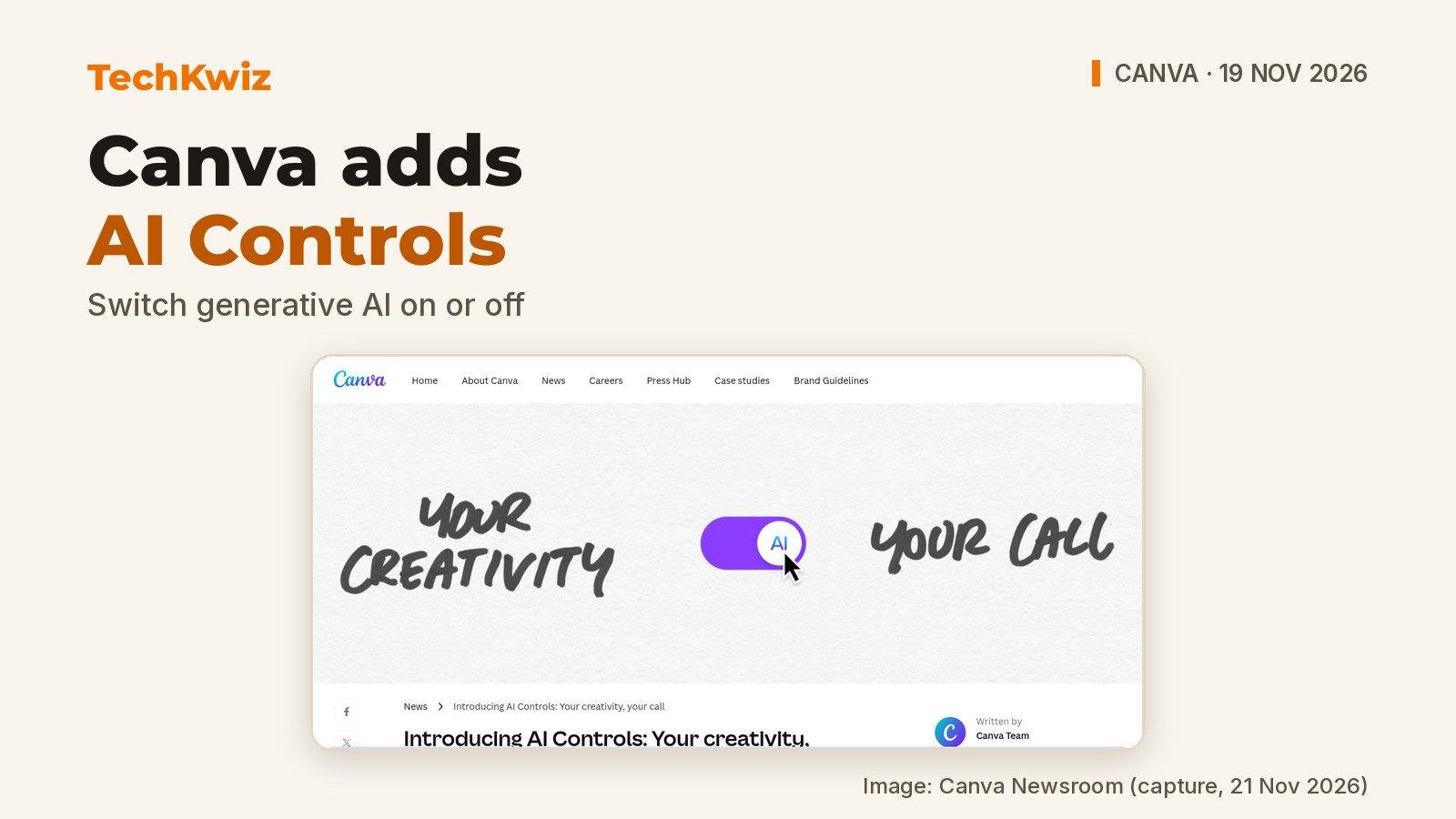
Canva announced on 19 November 2026 that it is introducing two new Canva AI Controls so you can switch generative AI features on or off and see less AI-generated work in the library. In its Canva Newsroom post, the company framed the update as a way to give people more choice over whether they create with AI, without it, or somewhere in between.
The controls are available from 19 November 2026 on Canva Free and Canva Pro at no extra cost. Canva also says the new options sit alongside existing AI permissions already available to admins on Canva Business, Enterprise, Teams and Education.
What to know:
- Canva launched two new AI Controls on 19 November 2026, free for everyone on Canva Free and Canva Pro.
- A new switch under Profile > Settings > Permissions turns generative AI features on or off across Canva.
- A separate option under Profile > Your account > AI Personalization reduces AI-generated content in the library’s search results and recommendations.
What Canva’s new AI Controls change
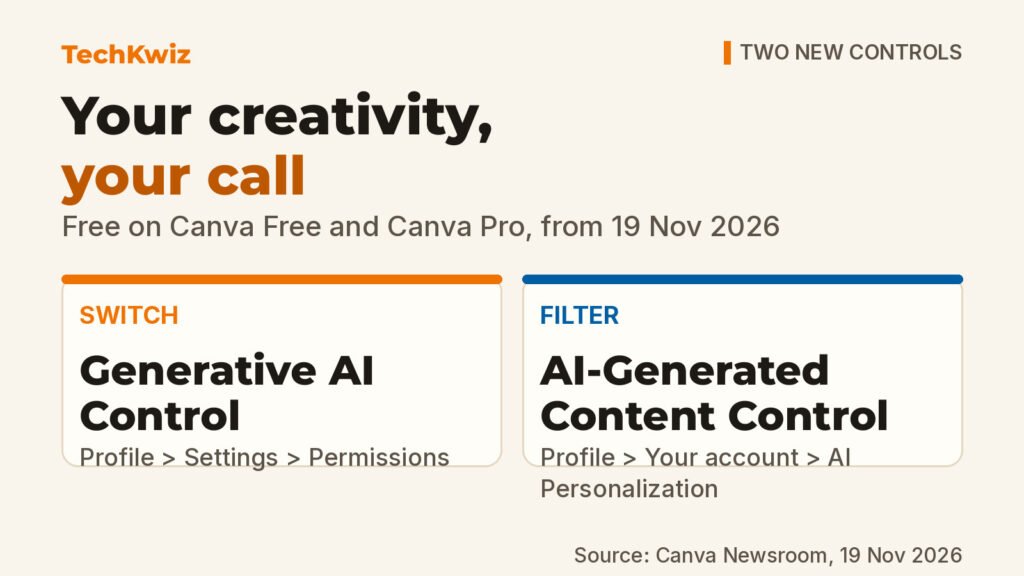
Canva says the first control is a generative AI switch. When you disable it, generative AI features are hidden across Canva, and you can enable them again at any time. The second control limits AI-generated content while you browse the Canva library, without changing any existing designs.
The idea is simple: you can keep using AI for quick drafts or generated images, or you can stay closer to fully human-made work. Canva says the new controls join the AI permissions that organizations already had for managing how teams use AI.
How to turn generative AI off in Canva
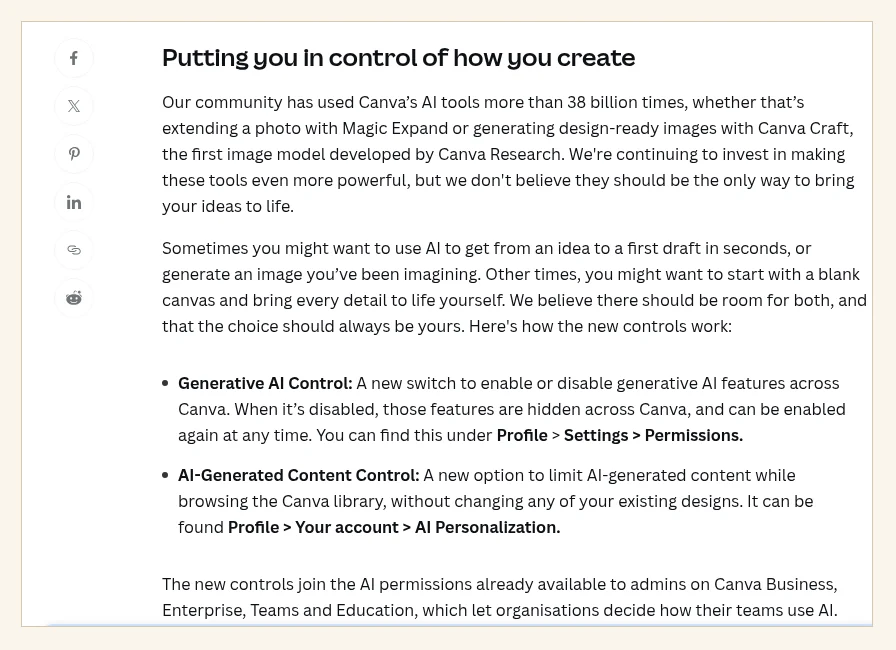
To switch generative AI features off, go to Profile > Settings > Permissions. Canva describes this as “a new switch to enable or disable generative AI features across Canva.” When it’s off, those features are hidden rather than left visible but unusable.
Because the switch is account-level, it should follow you across the places where you normally work in Canva. Canva has not listed a separate mobile-only path, so TechKwiz is sticking to the menu route Canva published. You can switch generative AI back on from the same location.
How to see less AI-generated content in your library
If you still want generative AI tools but want fewer AI-generated assets in search results and recommendations, use the second control. You can find it under Profile > Your account > AI Personalization.
Canva says this option reduces the amount of AI-generated content appearing while you browse the library. Existing designs are not changed. Canva also says human-made creator work should become easier to find when the control is enabled.
What still works when generative AI is off
Turning off generative AI doesn’t remove everything. Canva says assistive editing tools such as Background Remover and Magic Grab stay available. These tools edit existing content rather than generate something new.
Canva also says using assistive tools won’t trigger an AI-generated content label, so social platforms that read that metadata won’t label your design as AI-generated just because you removed a background.
TechKwiz hasn’t tested these controls hands-on. This article is based on Canva’s official announcement as of 21 November 2026. Canva sits alongside other generative tools creators already juggle, so it’s worth seeing how it compares: our look at AI tools content creators rely on and our tested roundup of AI tools for social media management cover the wider toolkit, while Sora, Runway and Pika is the closest comparison for video rather than design work.
Get new guides first
Browser alerts for new TechKwiz guides.