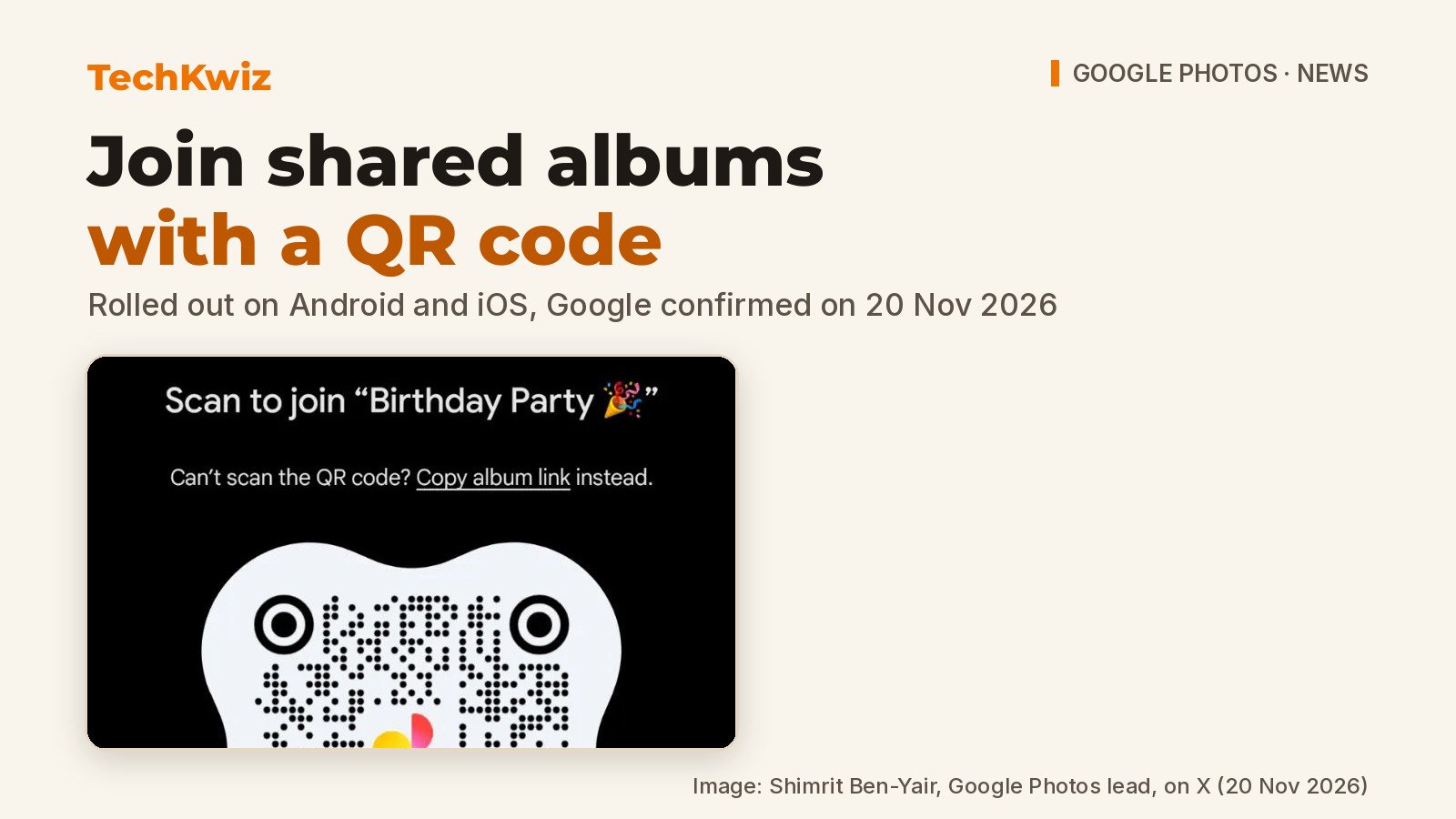
Google Photos can now invite people to a shared album with a QR code on Android and iOS, and friends who join can view or add photos. Shimrit Ben-Yair, who says on her X profile that she leads Google Photos, Google One and AI Subscriptions, posted on 20 November 2026 at 21:38 UTC that the feature is “fully launched”.
The steps are already written up in Google Photos Help for Android and for iPhone and iPad, with the same wording on both. The post doesn’t mention regions or app versions. TechKwiz hasn’t tested this, and the article is based on Google’s official pages as of 22 November 2026.
What to know:
- Google Photos now lets you invite people to a shared album with a QR code on Android and iOS; the Google Photos lead called it “fully launched” on 20 November 2026.
- The Help steps are the same on both platforms: select an album, tap Share, then Show QR Code.
- Google’s Help page warns that anyone who scans the code can access the album; resetting the link means turning link sharing off and back on.
What Google Photos changed
Google Photos Help covers it in one line about albums: “You can generate QR codes for albums and share them physically or digitally.” When scanned, those codes direct recipients to the shared album in Google Photos.
The screenshot attached to the announcement shows the line Scan to join “Birthday Party 🎉” above the code and the fallback “Can’t scan the QR code? Copy album link instead.” Birthday Party is just the example album in Google’s image.
An album is not storage of your own, either: anything you add to someone else’s shared album is removed when you leave it. Backups are a separate job, and we’ve written up WhatsApp chat backups on Android.
How to show an album QR code
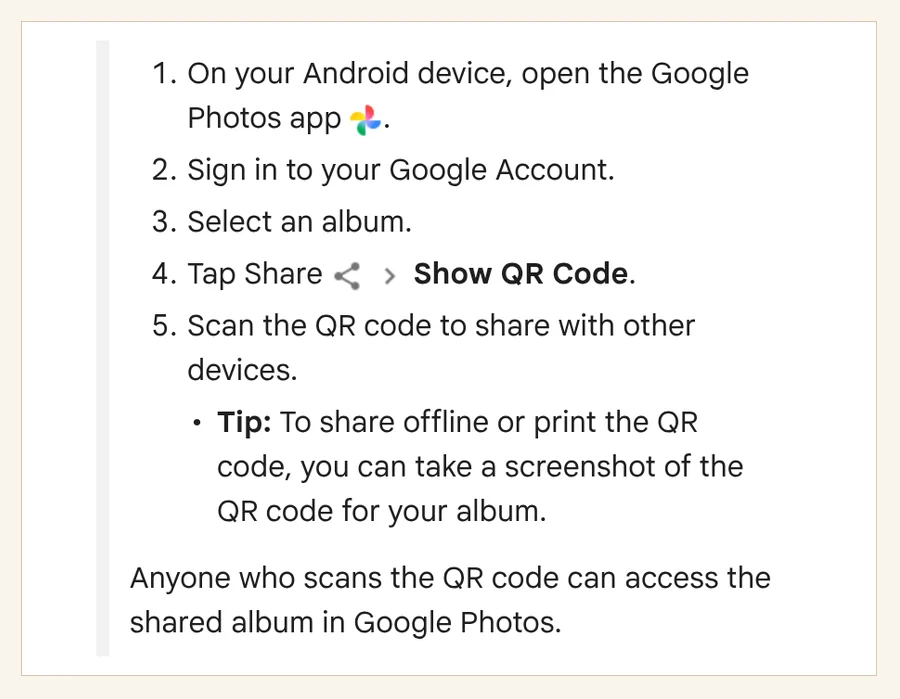
Google’s Help pages list four steps. On Android:
- Open the Google Photos app and sign in to your Google Account.
- Select an album.
- Tap Share and then Show QR Code.
- Scan the QR code to share with other devices.
On iPhone and iPad it’s the same sequence, ending with scanning the generated QR code. Google’s tip for offline sharing or printing: take a screenshot of the QR code for your album. Screenshots are touchier in other apps, which is why whether Instagram notifies screenshots is still a common question.
Who gets in once you share the code
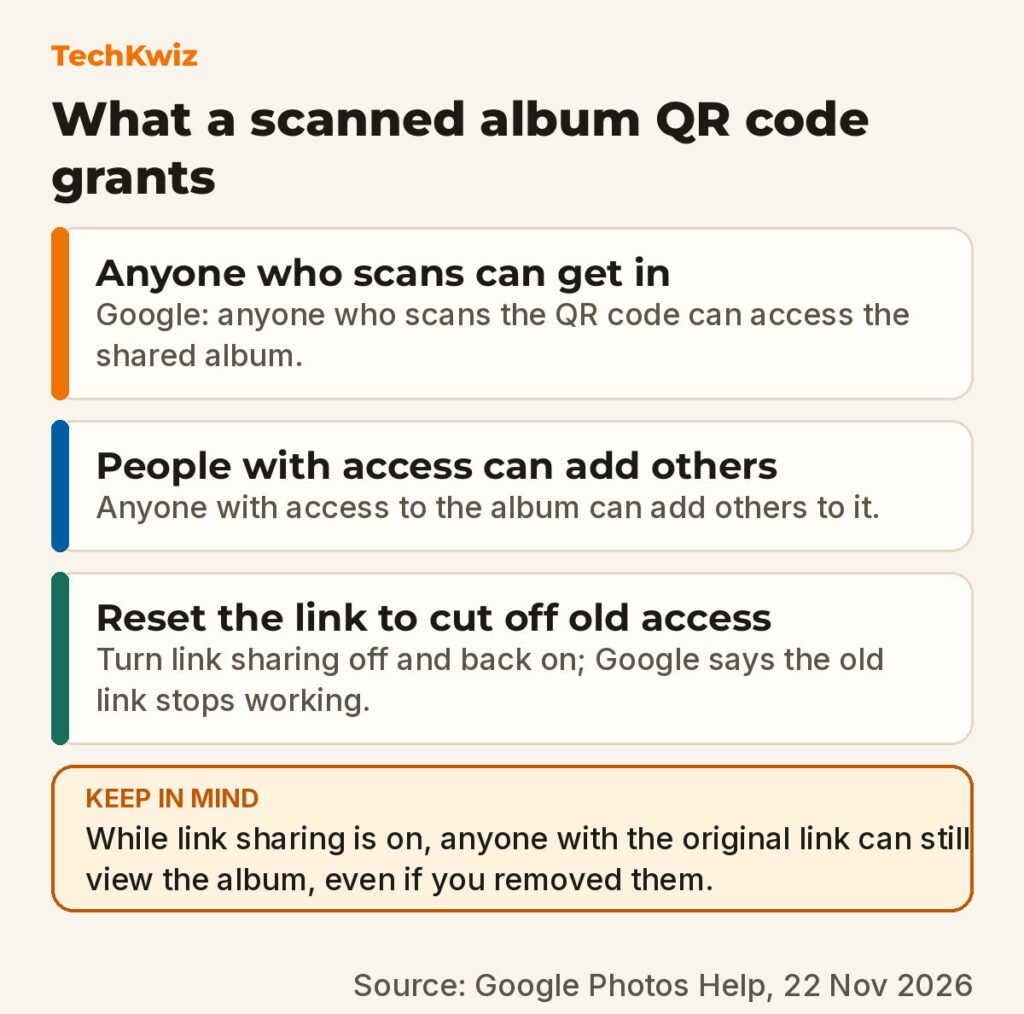
Google Photos Help states the trade plainly: “Anyone who scans the QR code can access the shared album in Google Photos.” A shared album link is a URL people can’t guess, and the QR code is another way of handing it out. Google’s page on shared album controls adds that a link can be passed on by others once it exists. A code left somewhere public works for anyone.
Anyone with access to the album can add other people to it, and Google Photos notifies you when new people are added if you have notifications turned on. If the album automatically adds photos of a face group, anyone with access can view those photos as they’re added. A Locked Folder item can’t be shared until you take it out, and Android’s Private Space and Secure Folder do the same for whole apps.
How to shut access off again
Link sharing is the main control. To reset the link, turn link sharing off and then back on: the old link stops working and you can share the new one with people you trust. In the mobile app, open the album, tap More and then Sharing, then turn Link sharing on or off. Only an album owner can change link sharing settings.
Removing one person doesn’t close the door while link sharing is on, because anyone with the original link can still view the album. To prevent others with access from adding photos, turn off Collaborate under Options. To make the album private, remove all collaborators and turn off link sharing; comments are removed, collaborators lose access, and you can share it again later.
To remove a collaborator, which only the album owner can do, open the album, tap More and then Sharing, scroll to the contact, then tap More and then Remove person. Their photos and comments go with them.
Get new guides first
Browser alerts for new TechKwiz guides.