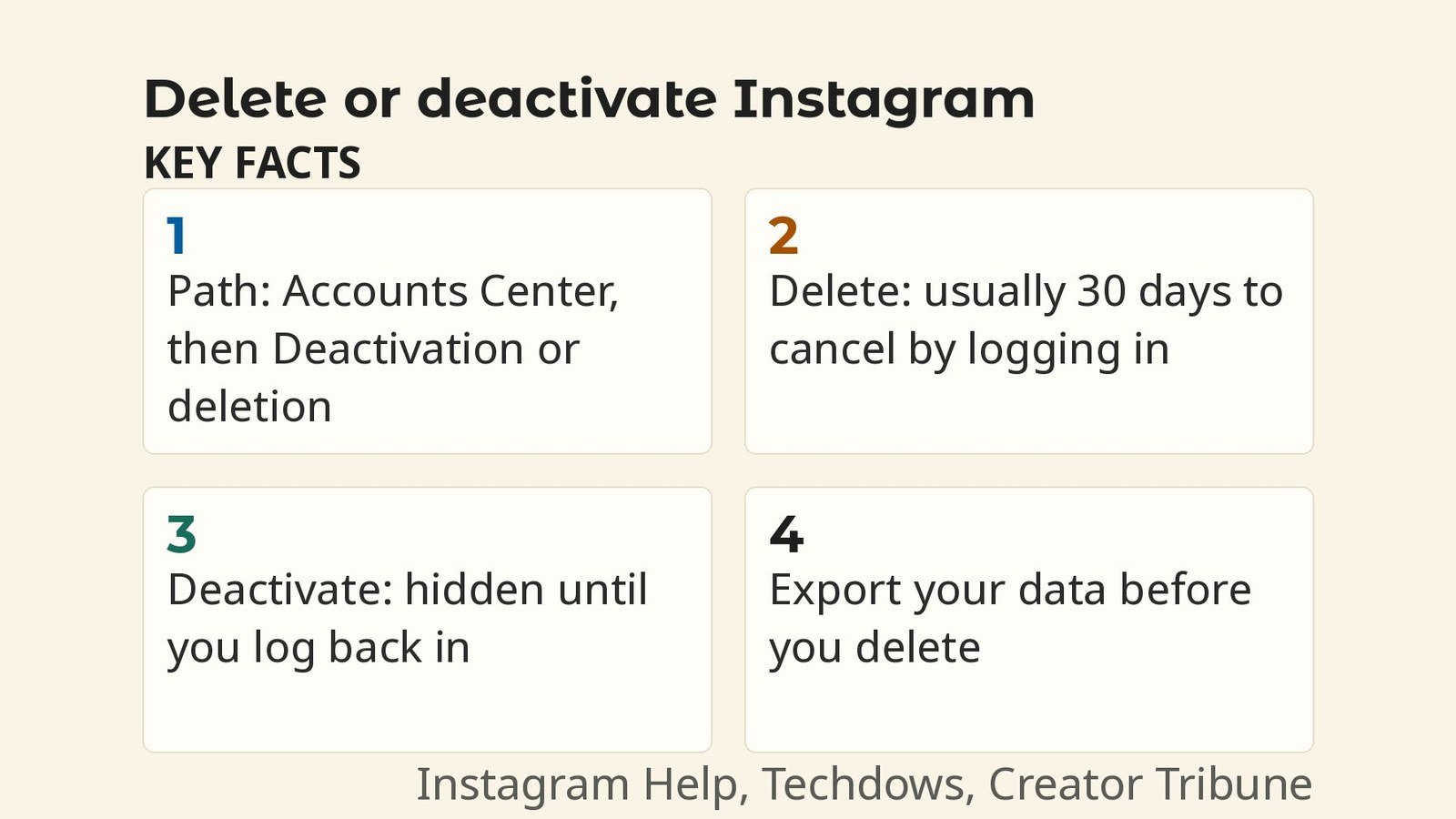
Quick steps: In Instagram, tap Profile > Menu > Accounts Center, then open Deactivation or deletion (the taps in between depend on your layout, below). Pick the account, tap Delete account > Continue and enter your password. You can usually cancel within 30 days by logging back in, but Instagram says the window varies by region.
Before you delete: deletion becomes permanent once the cancel window ends, and the number of days varies by region. Export your information first, as the checklist below explains.
Delete your Instagram account
Instagram’s deletion controls are in Meta’s Accounts Center. Instagram’s help page on deleting your profile shows two layouts, so look at the bottom of Accounts Center to see which one you have.
Instagram is gradually moving people to Meta Accounts, so your menu may say Meta Account instead of Accounts Center. The steps after it are the same.
ESET says the steps are the same on iPhone and Android. The Instagram page we checked was its Android-app version.
If you see “Accounts”
- Tap Profile, then Menu.
- Tap Accounts Center > Personal details.
- Tap Account ownership and control > Deactivation or deletion.
- Choose the account and select Delete account.
- Tap Continue, enter your password and confirm.
If you see “Manage accounts”
- Tap Profile > Menu > Accounts Center.
- Tap Profiles and personal details, then Manage next to the account.
- Tap Deactivation or deletion and pick the account.
- Tap Delete account > Continue, then enter your password.
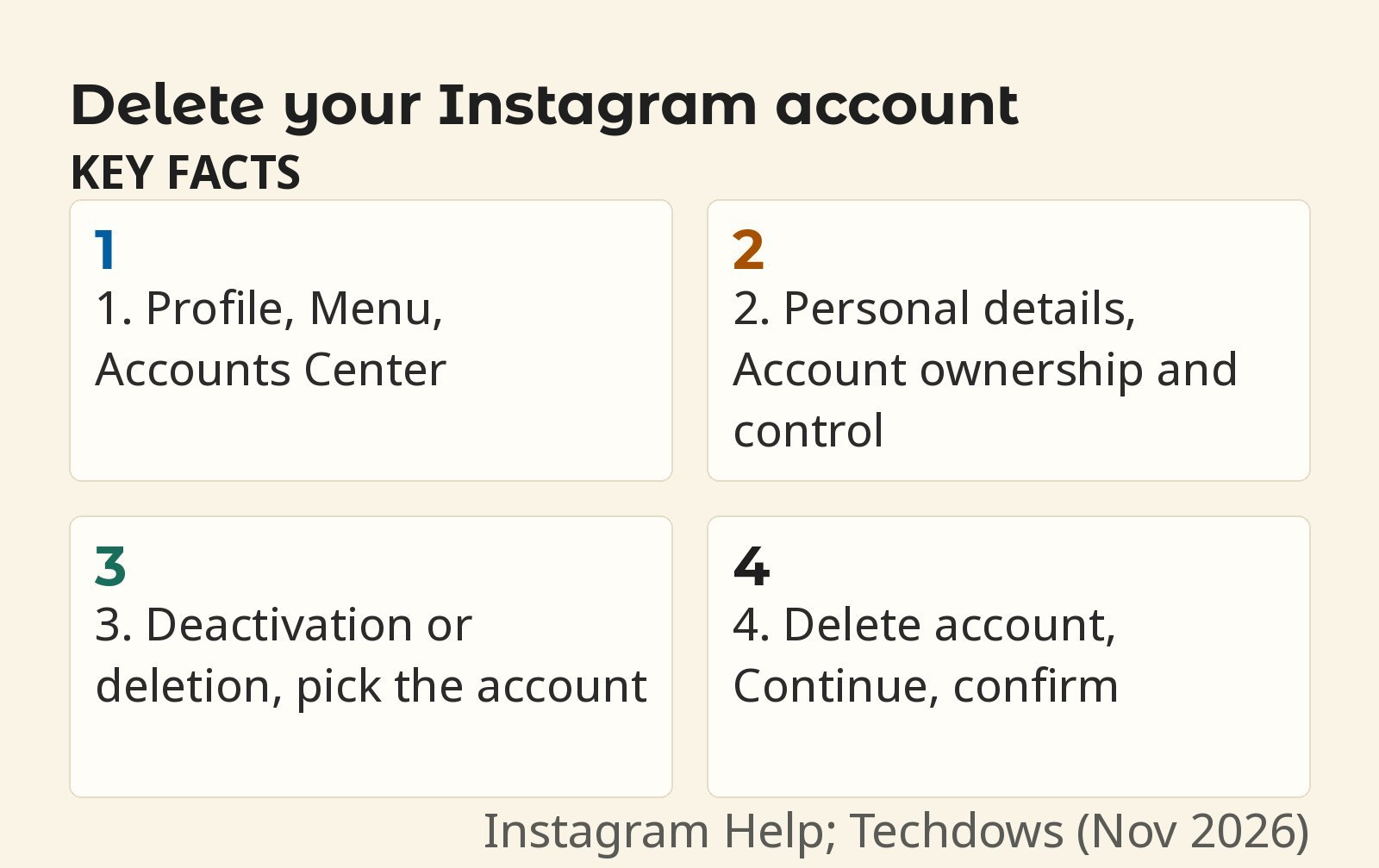
Both layouts appear in Techdows’ guide (updated 4 Nov 2026) and Creator Tribune’s guide (updated 3 Nov 2026), with the same taps. We checked them against Instagram Help on 24 and 25 Nov 2026 and did not delete a real account.
On a computer
- Open Instagram.com in a browser and log in.
- Click More in the bottom left, then Settings.
- Click Accounts Center, then follow the layout steps above from there.
Instagram Help, Techdows and Creator Tribune all give this More > Settings start.
Deactivate instead if you want a break
Deactivation sits on the same screen. Instagram’s deactivation help page, Techdows and Technobezz (updated 4 Oct 2026) give these steps.
- Go to Accounts Center > Deactivation or deletion using your layout above.
- Pick the account and choose Deactivate account.
- Tap Continue and follow the on-screen instructions to confirm.
On Technobezz’s iPhone, those instructions were a summary screen, then your password, then a reason, then a final Deactivate account button.
- Your photos, comments and likes are hidden until you log back in, Instagram says.
- Logging back in reactivates the account.
- You can only deactivate once a week.
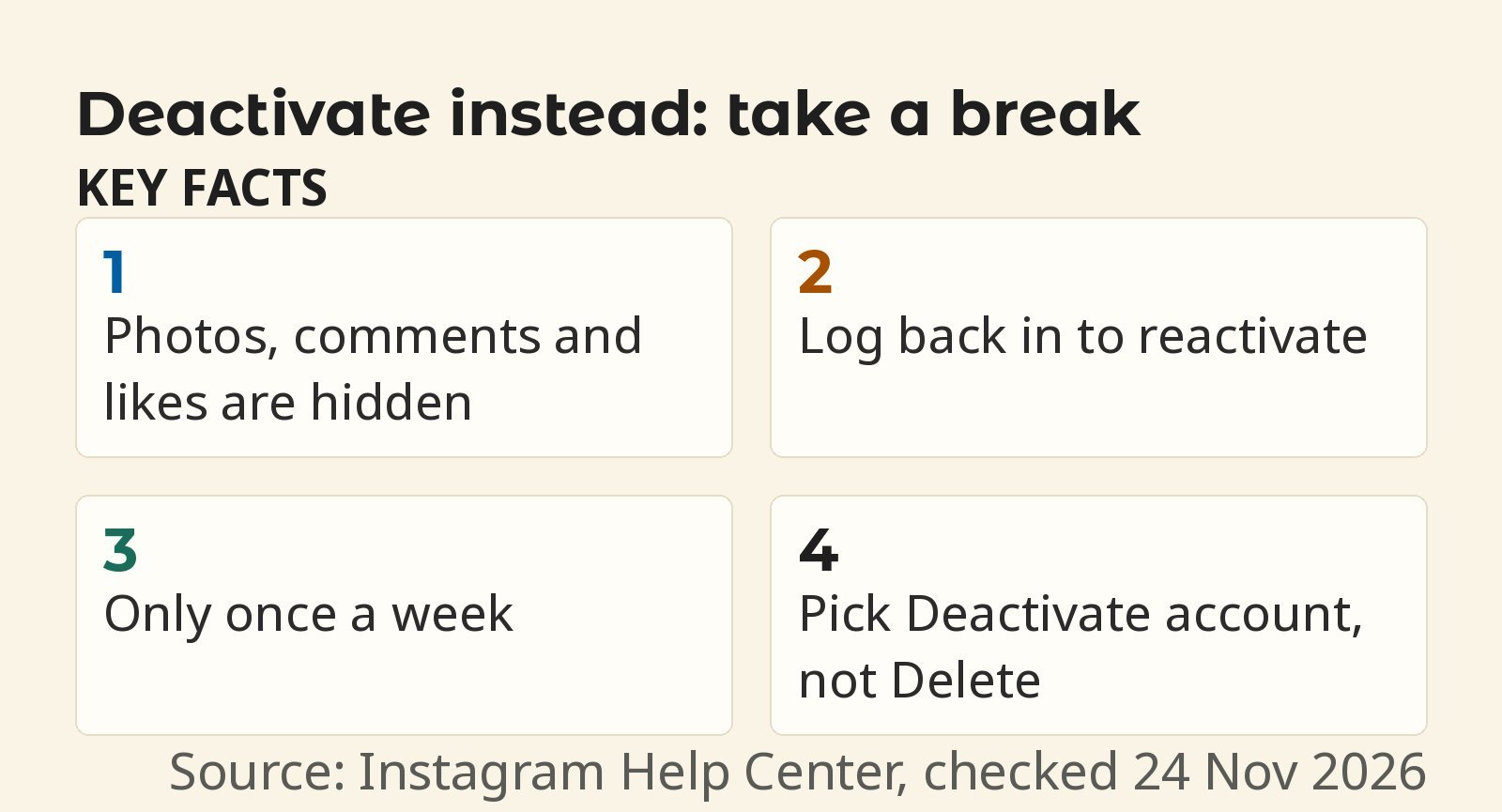
ESET (18 Jun 2026) puts it simply: if you are unsure, deactivate. Only deletion is permanent.
What happens after you delete
Instagram’s help page says deletion removes your profile, photos, videos, comments, likes and followers. Here is the timeline it describes.
- Right away: other people can no longer see your profile, Techdows and Creator Tribune note.
- Usually 30 days: you can log back in to cancel. Instagram says the number of days varies by region, so check the date it shows when you confirm.
- After that: your profile and information are deleted for good.
- Up to 90 days: the full deletion process can take this long, and copies may stay in backup storage.
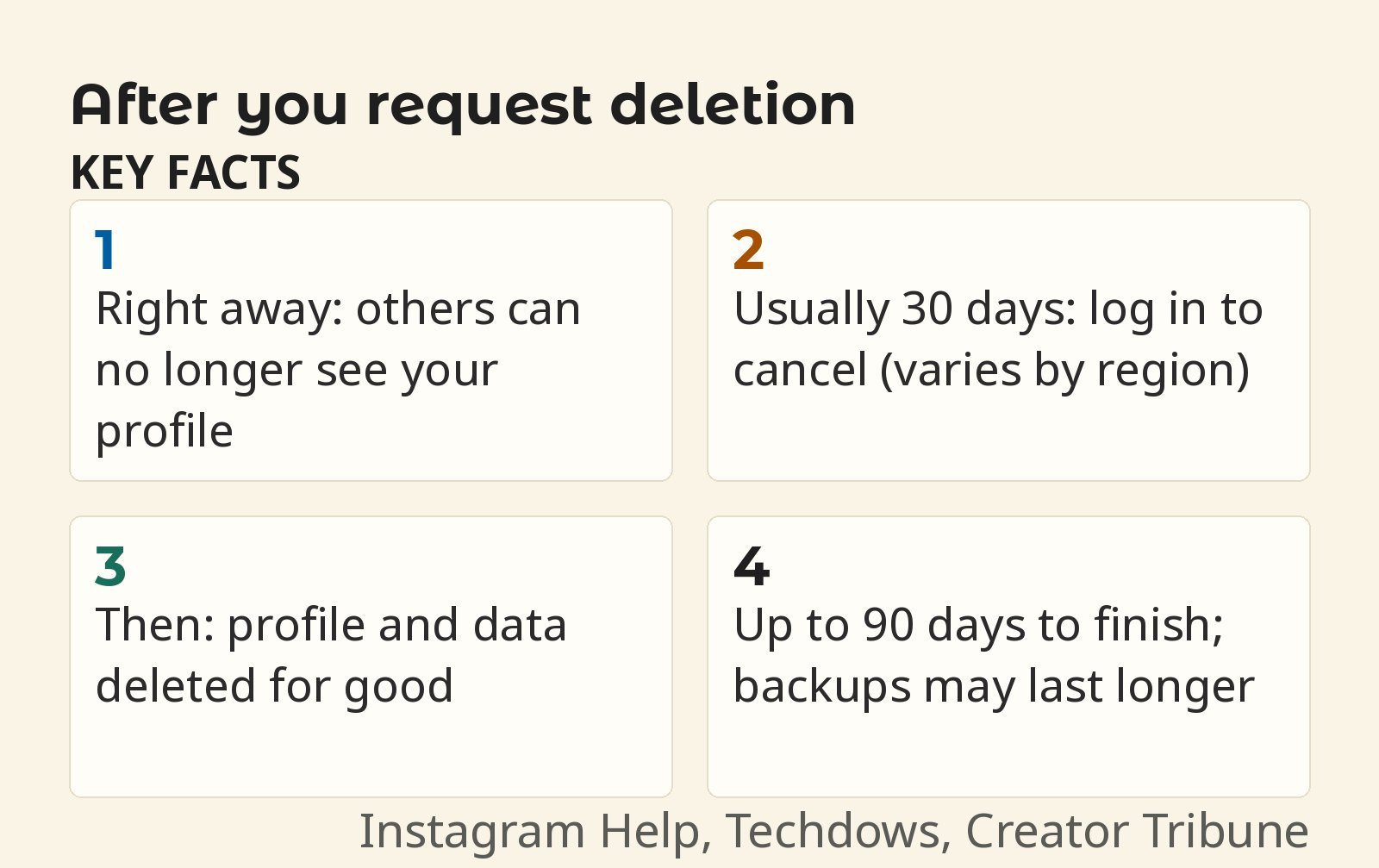
Messages you sent stay: ESET notes that DMs you sent remain in other people’s inboxes after you delete, shown under a generic Instagram user name.
You can sign up again later with the same username, as long as nobody else has taken it, Instagram says.
Do this before you delete
Start with an export. Instagram says the Export your information tool is gone once your profile is deleted. These steps come from Instagram’s export help page, and Techdows and Creator Tribune list the same ones.
- Open Accounts Center and tap Your information and permissions.
- Tap Export your information > Create export, then pick your Instagram profile.
- Choose Export to device, set what to include, then tap Start export.
- When the email arrives, download the file from Available downloads.
Then tidy up the rest.
- Remove apps that log in with Instagram, so you are not locked out of them, ESET advises.
- Check which profile you pick. Your Facebook profile stays unless you select it on the deletion screen too, Creator Tribune notes. ESET also says deleting Instagram does not delete Facebook.
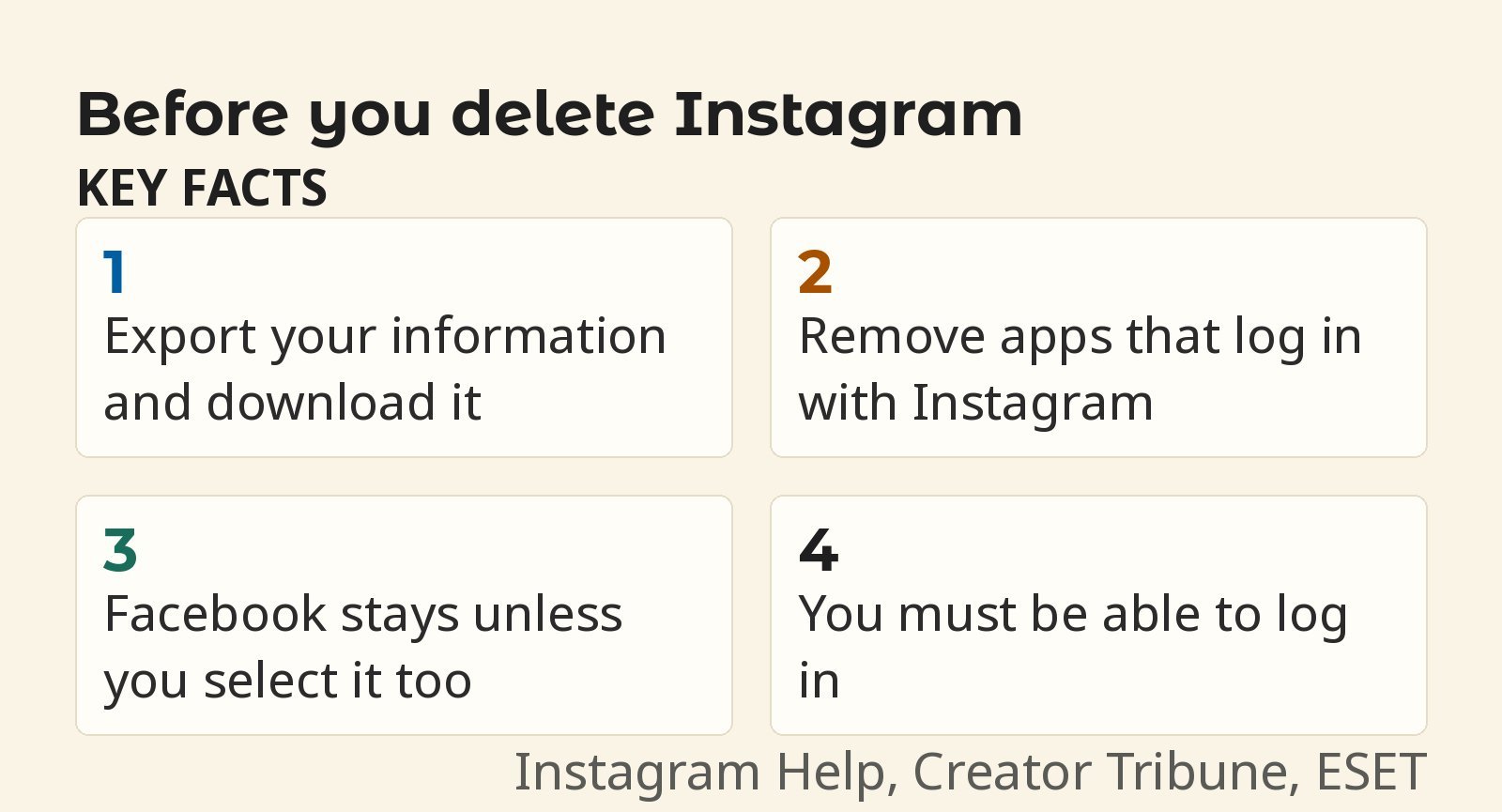
You must be able to log in. Instagram says it cannot delete a profile for you, so recover your password first if you are locked out.
Not ready to leave?
If the problem is one person, you may not need to delete anything. See how to block or unblock someone on Instagram, or read our complete guide to Instagram in 2026 for privacy settings.
Leaving other apps too? See how to delete your Telegram account.
Get new guides first
Browser alerts for new TechKwiz guides.