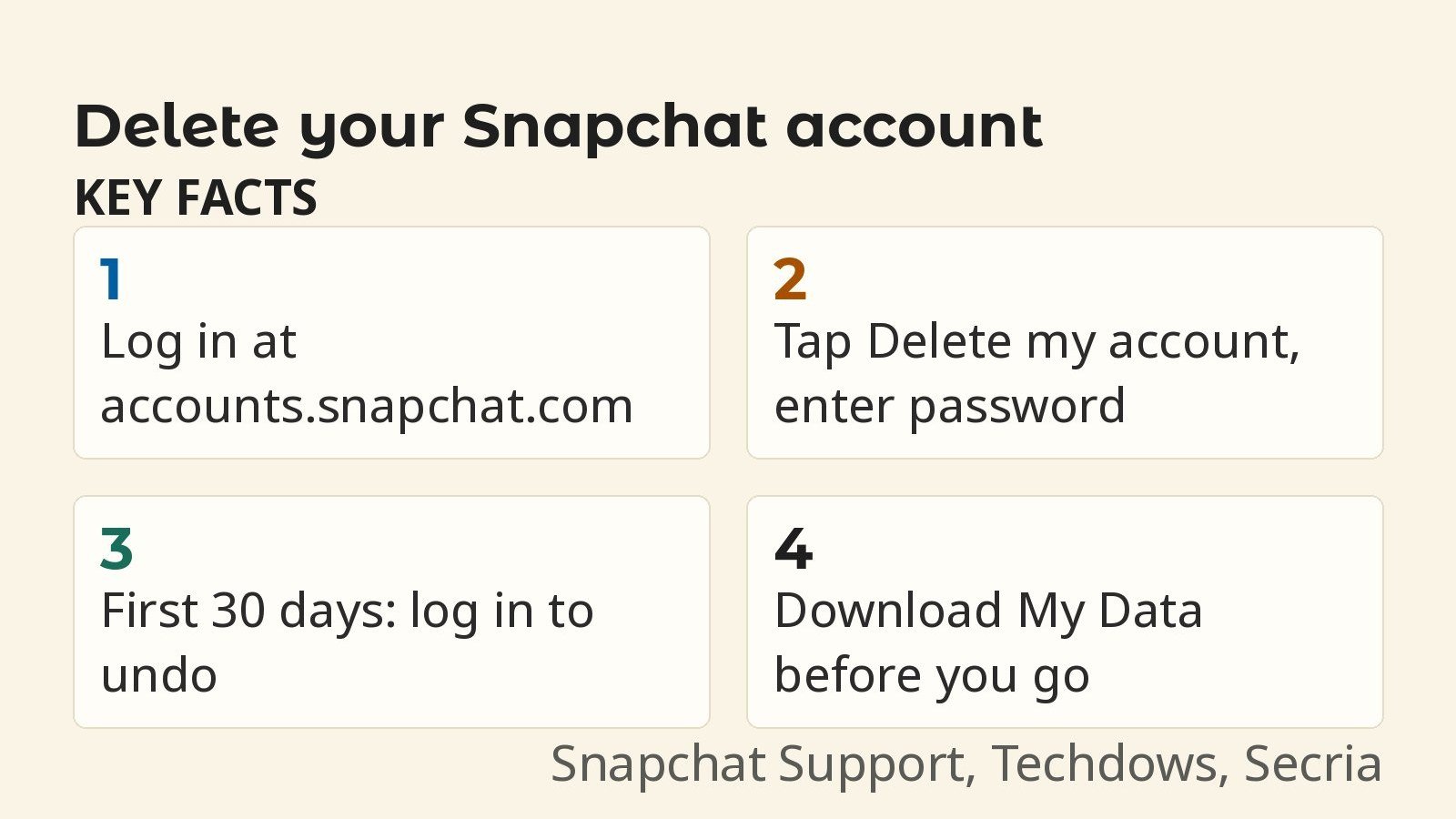
Quick steps: Log in to Snapchat’s accounts portal at accounts.snapchat.com, tap Delete my account, enter your password and tap Continue.
Your account is deactivated for 30 days, then deleted for good after 30 more (180 more in India). Logging back in with your username during the first 30 days cancels it.
Delete your Snapchat account in a browser
This route works on Android, iPhone and computers. The steps come from Snapchat Support’s deletion page.
- Log in to the Snapchat accounts portal at accounts.snapchat.com.
- Tap Delete my account.
- Enter your password.
- Tap Continue to confirm.
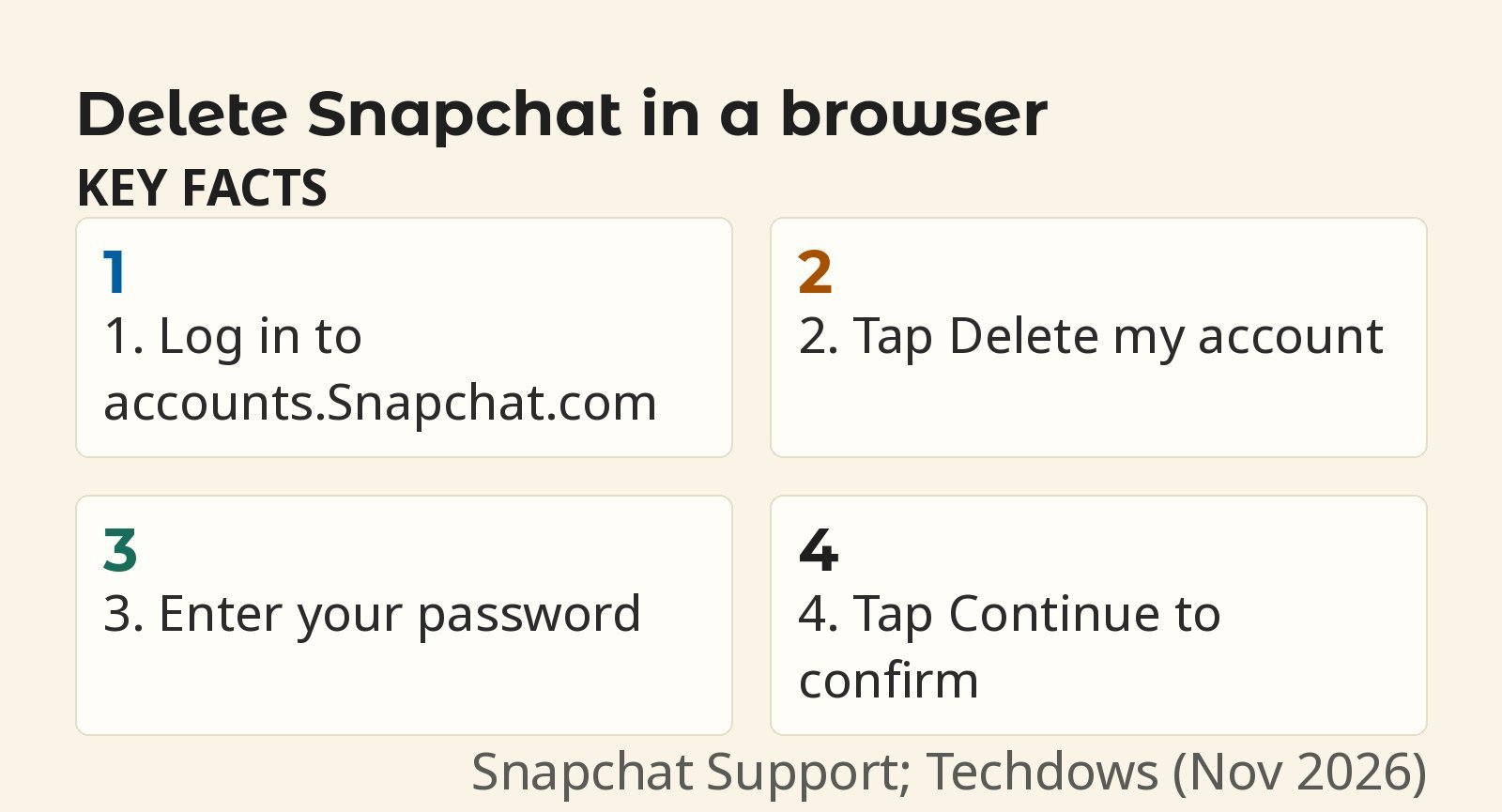
Techdows (updated 4 Nov 2026) and the encrypted-email service Secria (9 Nov 2026) list the same four steps. Android Police gives them too; its guide dates from June 2023, older than we normally use, but its steps still match Snapchat Support’s current page.
We checked them all on 24 and 25 Nov 2026. We did not delete a real account.
Forgot your password? Snapchat says to reset it first, because the portal asks for it before deleting.
Start from the Snapchat app
Some app versions have a shortcut that opens the same portal. Where it shows up varies: Snapchat Support lists it in its iPhone steps, and Secria and Android Police (2023) describe it on iPhone, while Techdows finds it on Android. The taps are the same in all of them.
- Tap your profile, then the gear button to open Settings.
- Scroll down to Account Actions.
- Tap Delete Account.
- In the portal that opens, tap Delete my account.
- Enter your password and tap Continue.
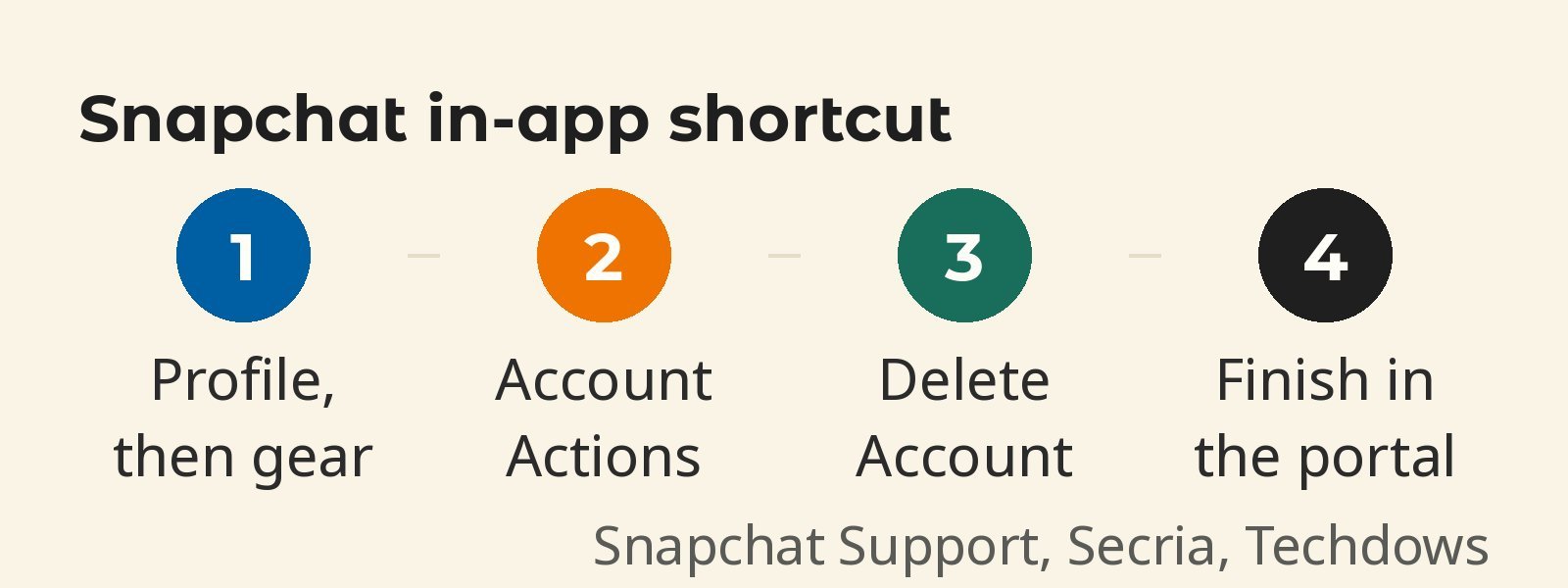
If your app version does not show Delete Account, use the browser steps above. They work on Android, iPhone and computers.
What happens after you delete
Snapchat Support describes deletion as a two-step process outside India.
- First 30 days: your account is deactivated, and you can reactivate it by logging in with your username.
- Next 30 days: deletion continues.
- In India: 30 days of deactivation, then 180 more days.
This becomes permanent: after the first 30 days of deactivation, permanent deletion follows 30 more days later outside India, or 180 more days later in India. A permanently deleted account cannot be reactivated.
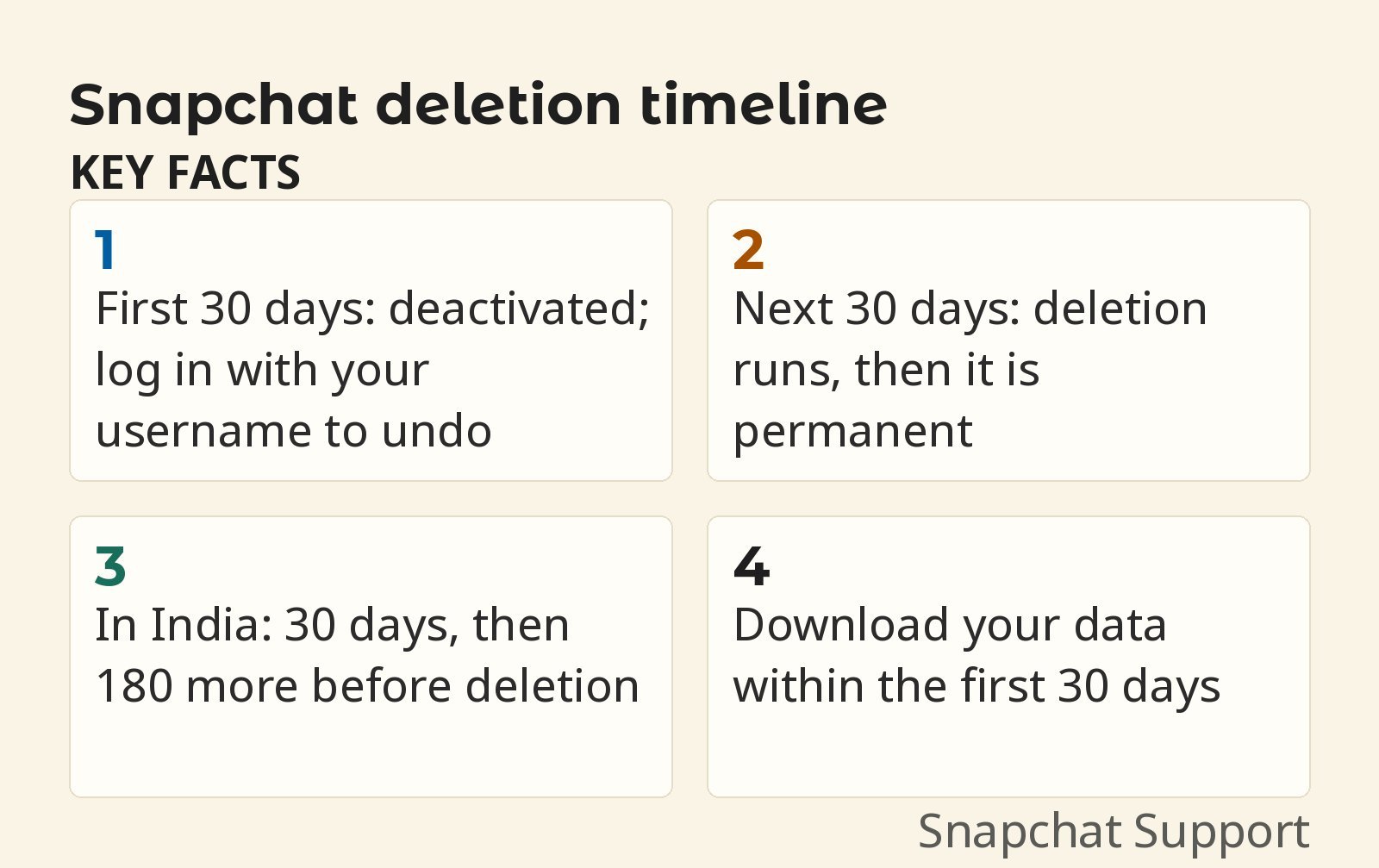
Snapchat says it may keep some data, such as records of purchases. Its reactivation page adds that support staff cannot reactivate an account for you.
Log in with your username: Snapchat says you cannot use your email address or phone number to log in while the account is deactivated. Note your username before you delete.
Download your data first
Snapchat gives you 30 days after deletion to download your data, but asking first is safer. These steps come from Snapchat’s download my data page. Techdows and Technobezz (1 Nov 2026) list the same ones.
- In the app, tap Profile > gear > Account Actions > My Data. Or log in at the accounts portal and select My Data.
- Choose what to include, and turn on Export your Memories to keep saved Snaps.
- Confirm your email address and select Submit.
- When the email arrives, select See exports, then Download.
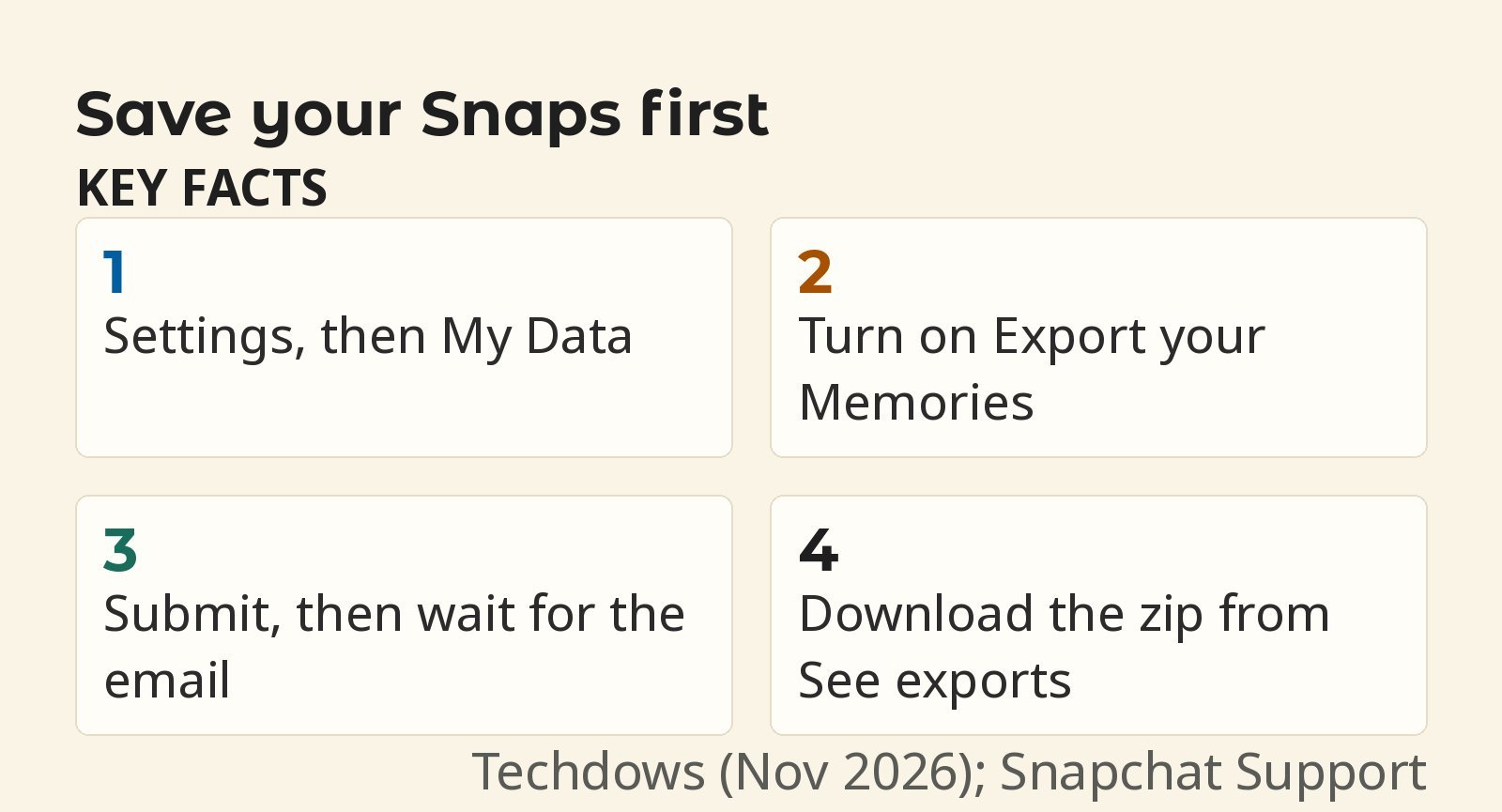
Secria also reminds Snapchat+ subscribers to cancel the subscription separately, so they do not keep paying.
Not sure you want to leave?
If privacy is the reason, tighter settings may be enough. Our complete Snapchat guide for 2026 walks through the app’s settings, including two-factor login. For other apps, our social media setup guides collect the setup walkthroughs in one place.
Leaving other apps too? See how to delete your Telegram account.
Get new guides first
Browser alerts for new TechKwiz guides.